Remapping a simple string/number/boolean field

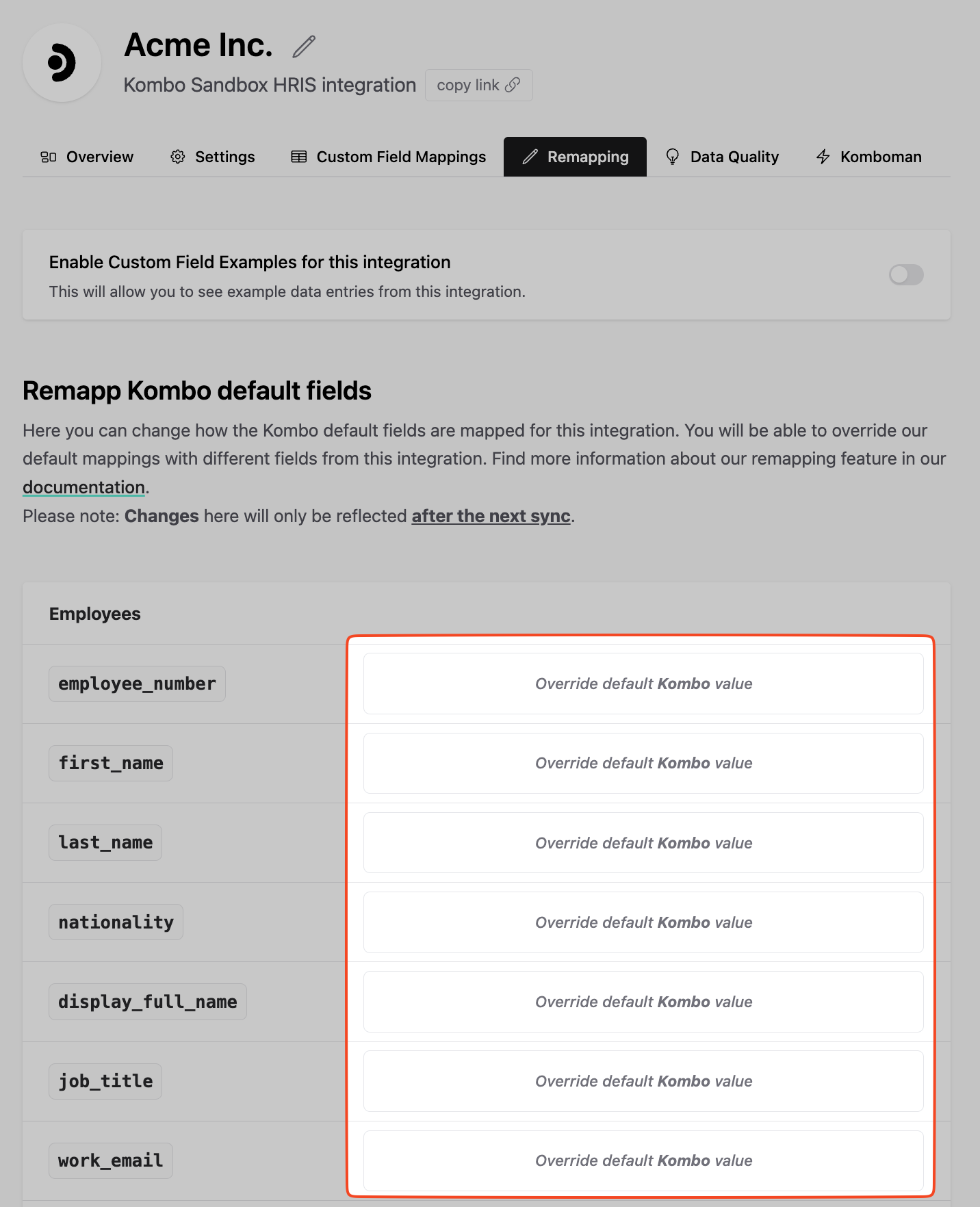
To start the remapping process open the remapping UI and click on the Override default Kombo value button of the field you want to remapp.
image
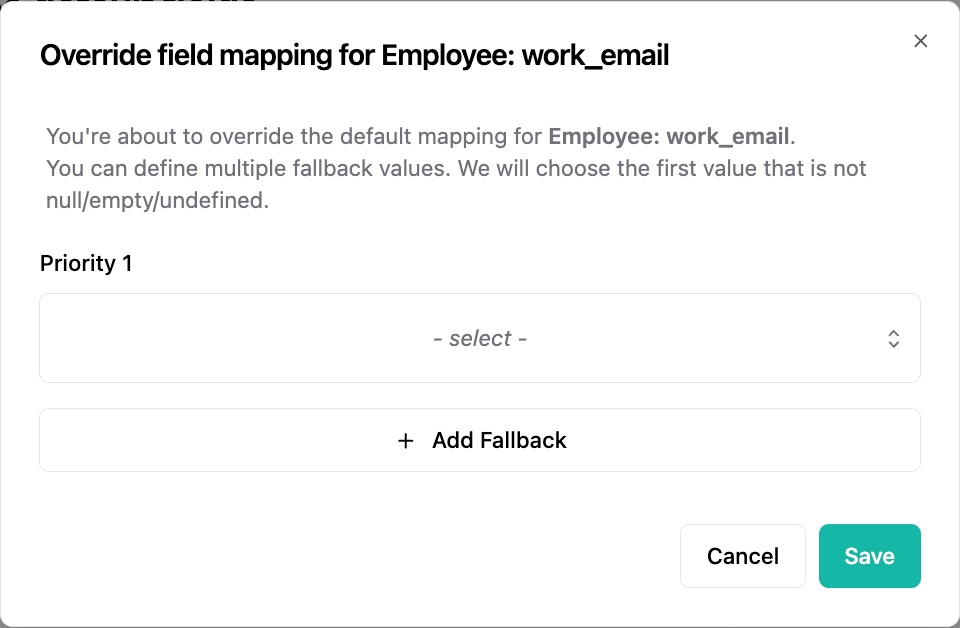
A new popup will appear allowing you to configure the remapping for the individual field.
image
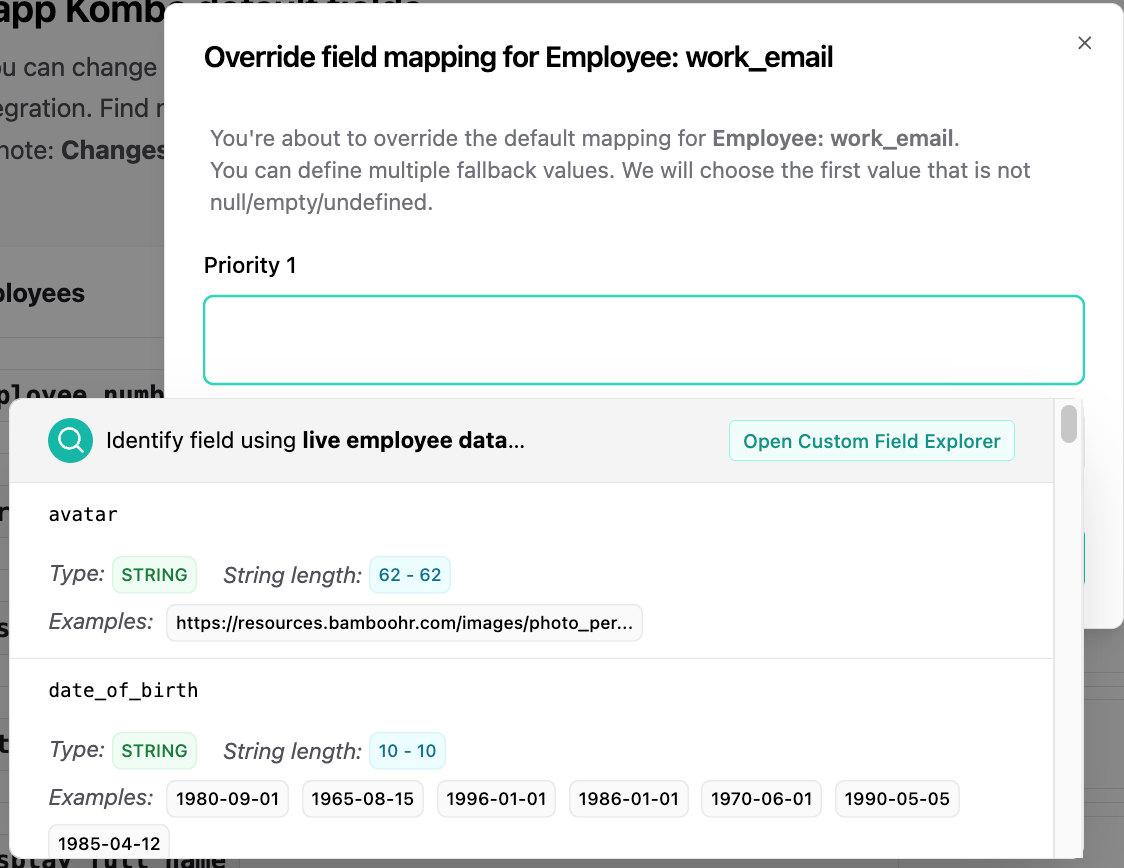
Under Priority 1 you can select the source field you would like to use for the remapping. You can search in the selection box, see the example values and even use our custom field explorer feature.
image
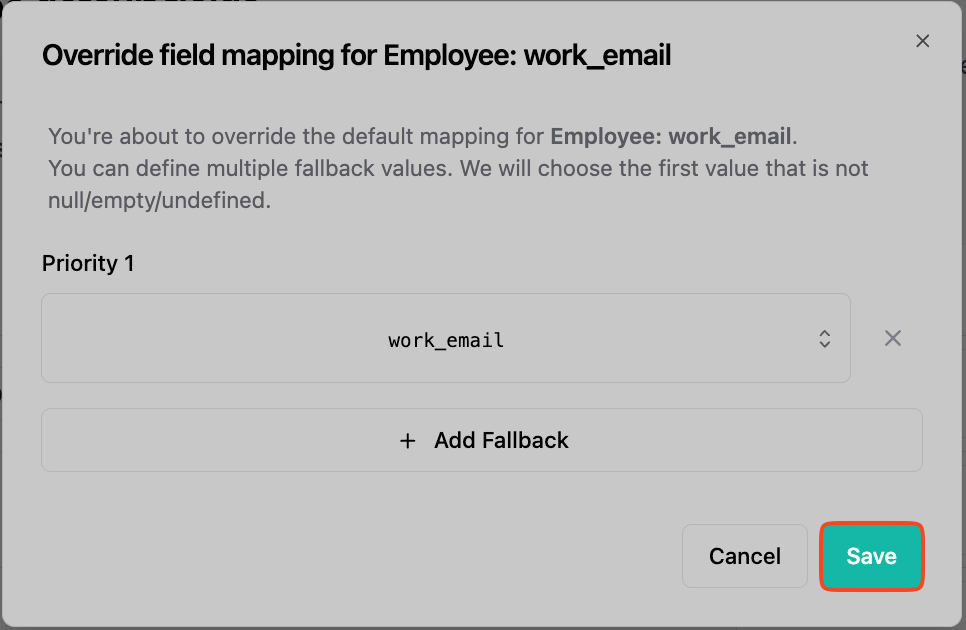
After selecting the field, you can press the Save button to save the configuration.
image
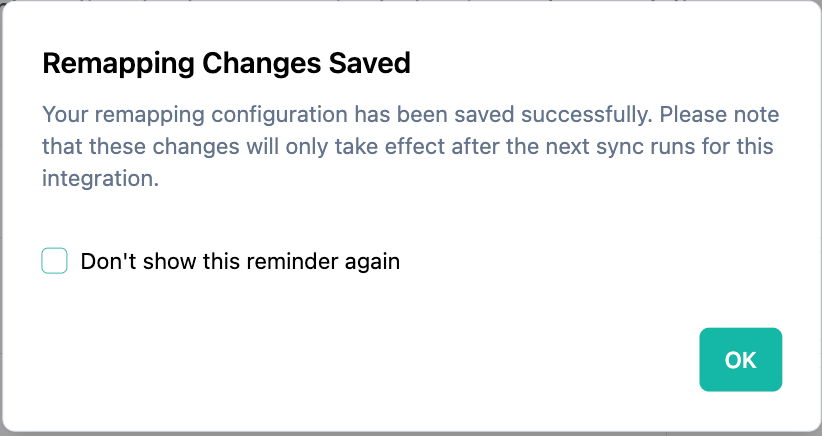
If this is your first remapping, a popup will appear, which reminds you that a sync is required for the saved changes to show their effect.
image

Fallbacks

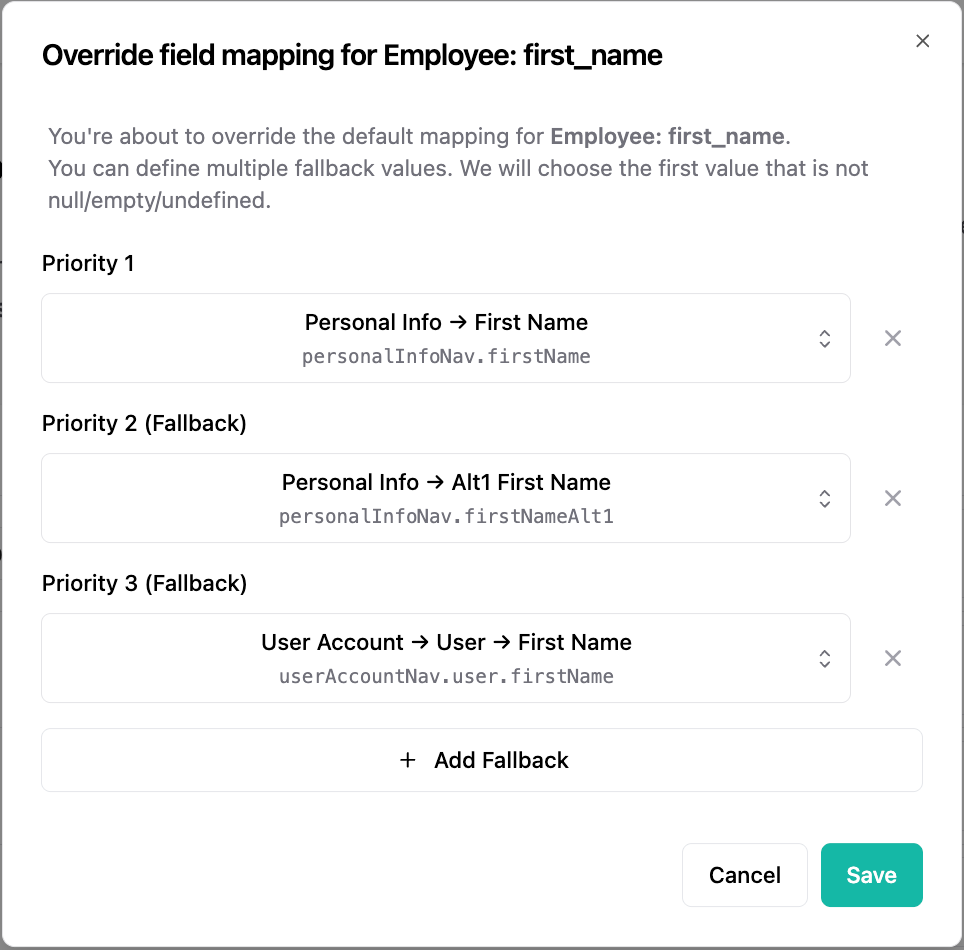
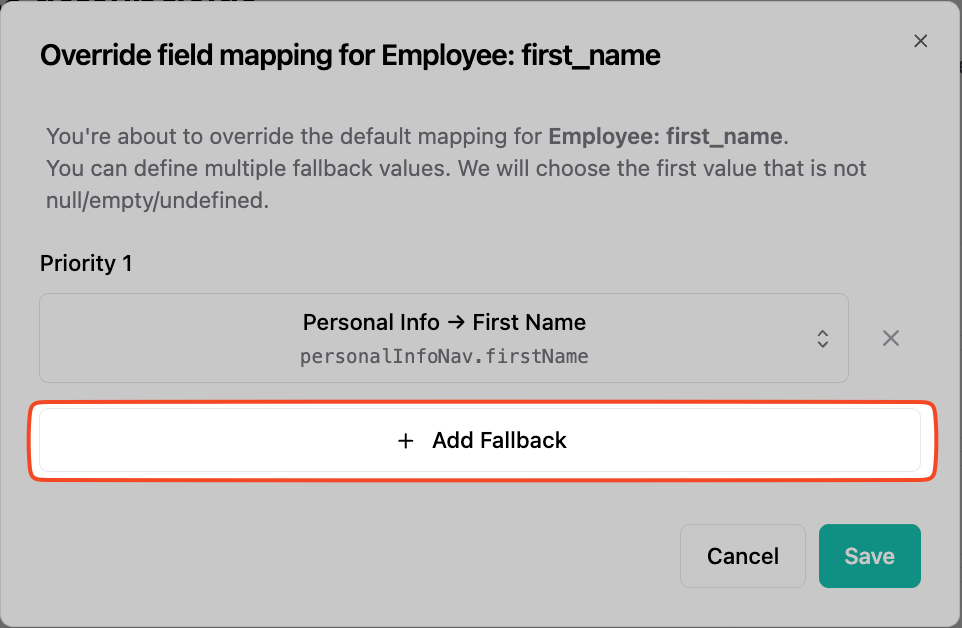
In case the selected field is removed (undefined), null or changes it’s structure (string => array), the remapping will result in null as output. For these cases it makes sense to define one or multiple fallback values, when configuring a remapping. You can do so by clicking the Add fallback button in the configuration UI.
image
We will execute the remapping top to bottom. This means the remapping stops for each the entity (employee, candidate, job…) has soon as valid value is found.
image
You can also use the Fallback to Kombo’s mapping button to include Kombo’s standard mapping logic as one of the priorities in your fallback chain. This is useful when your custom field is not always populated and you want to fall back to what Kombo would have mapped by default. Learn more in the Kombo Default Fallback guide.