

1. Find the action in the logs
- Type: Select Action to see only write operations (excluding syncs and webhooks).
- Status: Select Failed to focus on the errors.
- Integration: Narrow down results to a specific customer connection.
- Date: If you know when the error happened, setting a time range helps filter out noise.
2. Inspect the logs
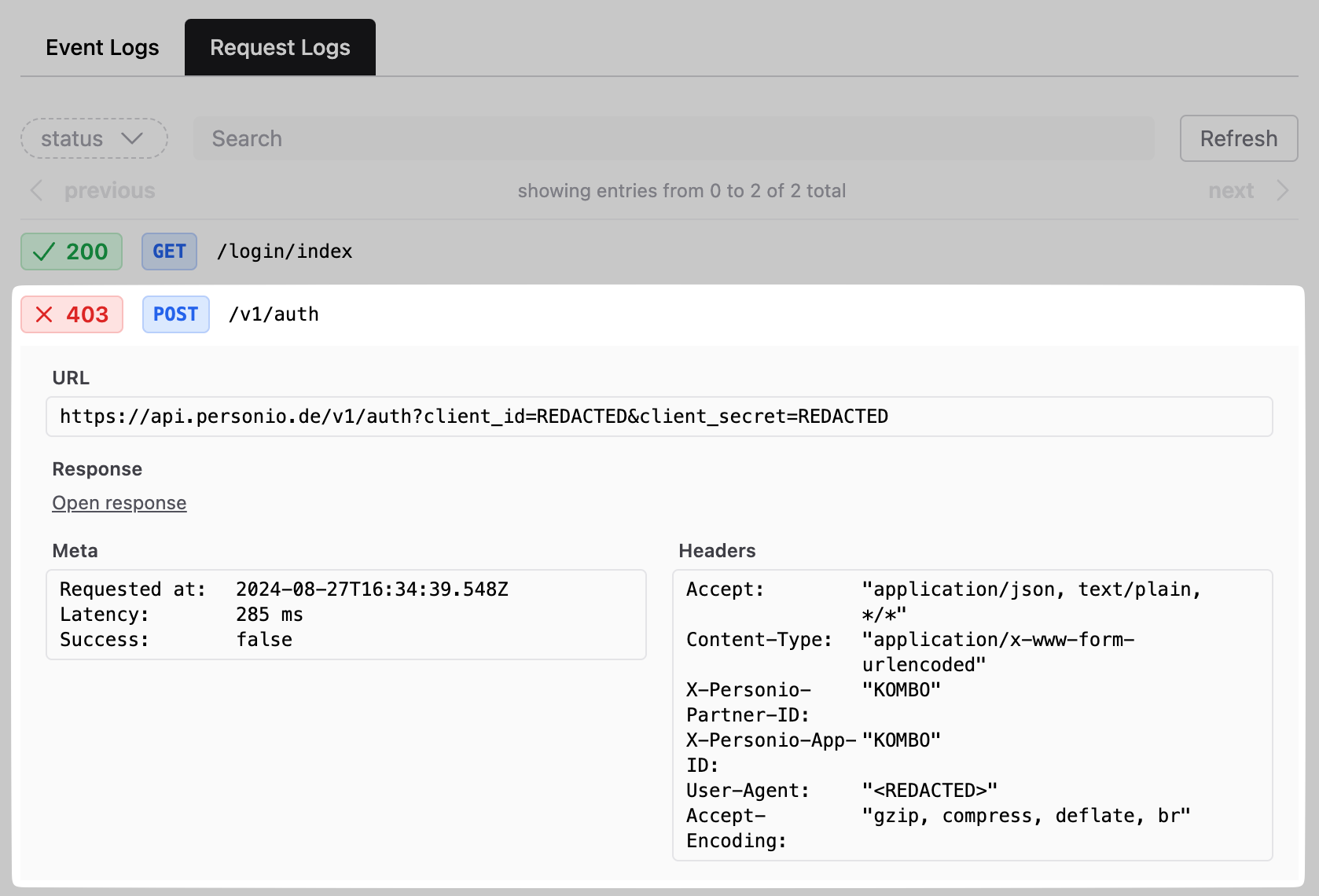
Click on the log entry to open the detail view. This is your view for understanding what happened.- Review the input: Check the
Incoming Requesttab to see exactly what data you sent to Kombo. - Inspect the requests: An action often involves multiple HTTP calls to the remote tool. Check the timeline for any failed requests.
- Dig deeper: Click on a specific request in the timeline to see the raw payload Kombo sent and the error response from the remote system. These often contain more specific details than the top-level error message.
3. Common issues
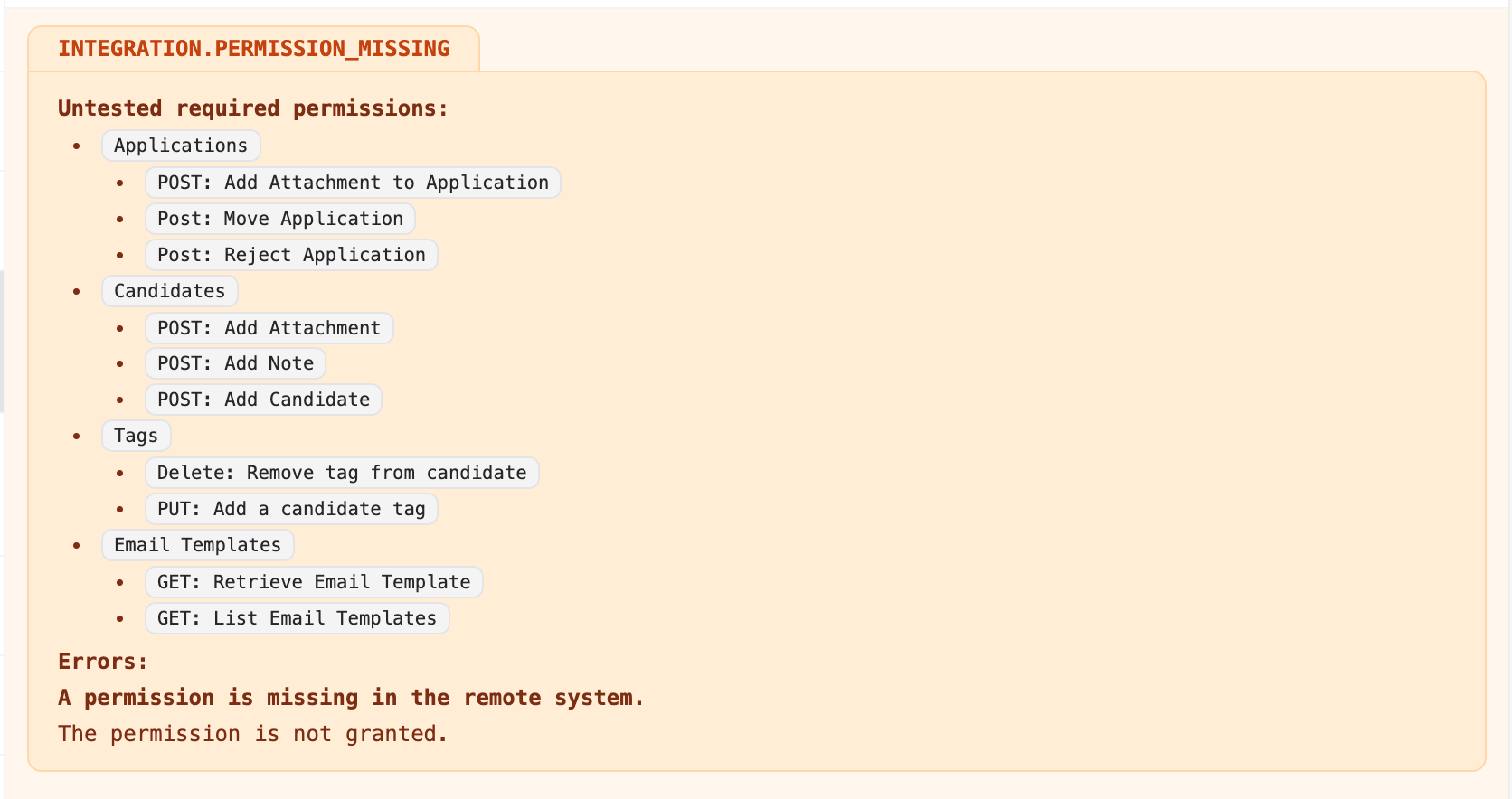
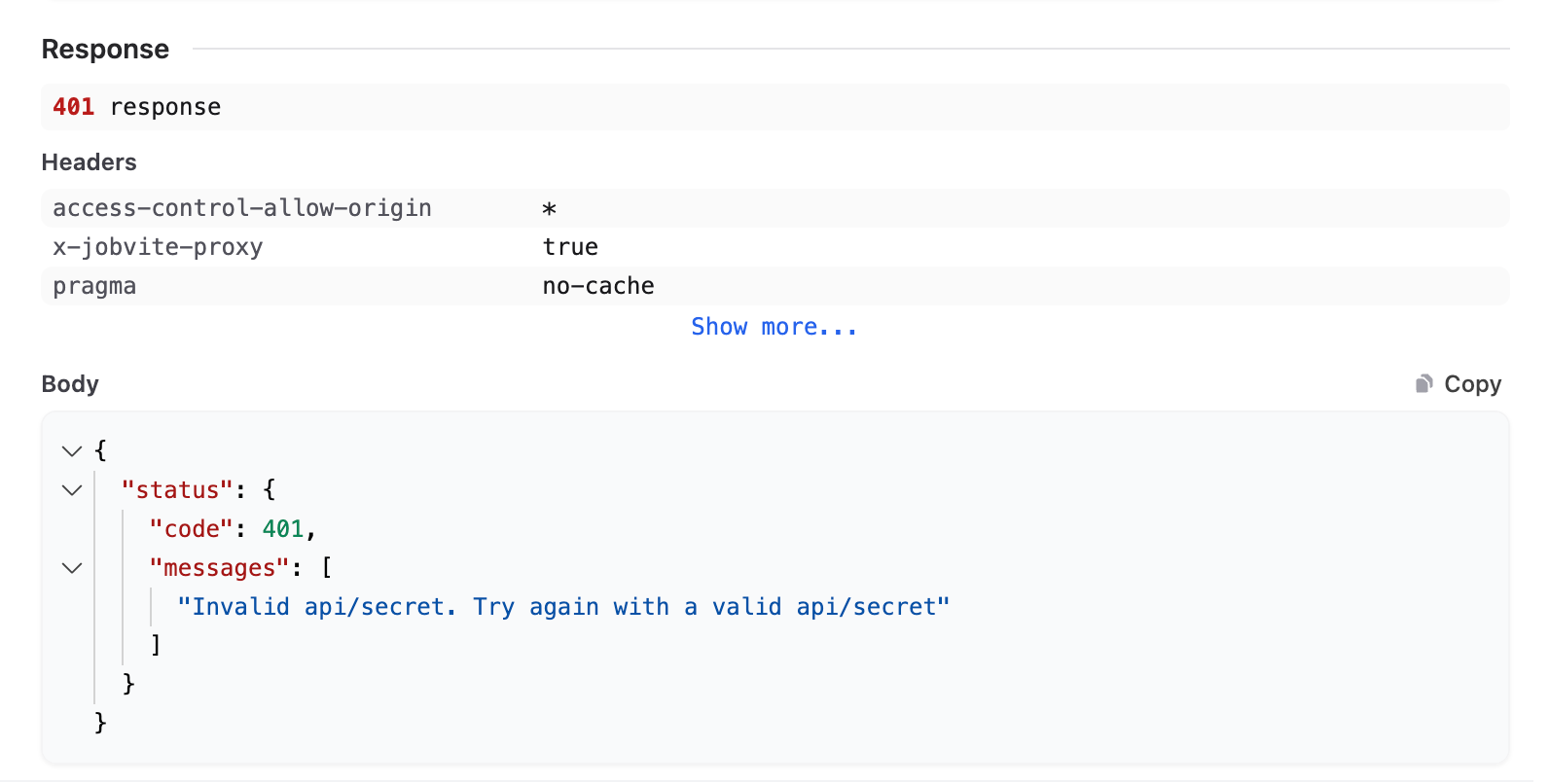
We have a dedicated Error Handling guide that covers how to handle common API errors programmatically. Below, you’ll find visual examples of the most common issues specific to actions:Missing permissions or Invalid authentication
If you receive a403 Forbidden or 401 Unauthorized error, the integration
likely lacks the necessary permissions or it’s authentication is invalid. Below
are some examples of how these errors might look in the logs:
Missing Permissions Example
Missing Permissions Example
Invalid Authentication Example
Invalid Authentication Example
Invalid input
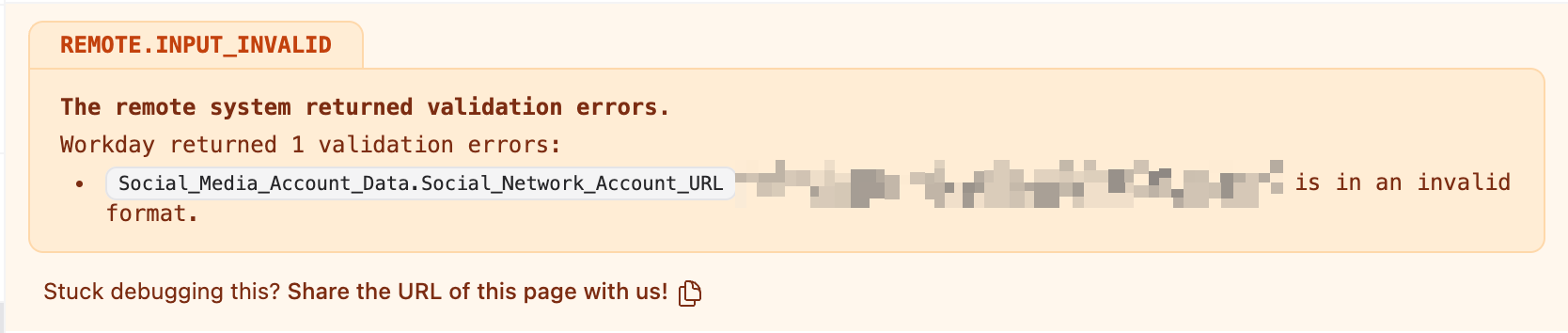
If the error is a400 Bad Request, 422 Unprocessable Entity, or a validation
error, the remote tool rejected the data you sent. Below are some examples of
how these errors might look in the logs:
Invalid Input Example 1
Invalid Input Example 1

Invalid Input Example 2
Invalid Input Example 2
- Identify the incorrect or missing data in the
Incoming Requesttab. - Use Komboman to replay the action with adjusted inputs and verify the fix.
- Check the integration’s Field Report (in the dashboard) to see which fields are required by the remote tool.
- If a connection always requires specific static inputs, you can set up Remote field overrides.
Logical errors (e.g., Job closed)
Sometimes the request is valid, but the operation cannot be performed due to the state of the remote system (e.g., applying to a closed job or creating a duplicate candidate). Below are some examples of how these errors might look in the logs:Logical Error Example 1
Logical Error Example 1

Logical Error Example 2
Logical Error Example 2
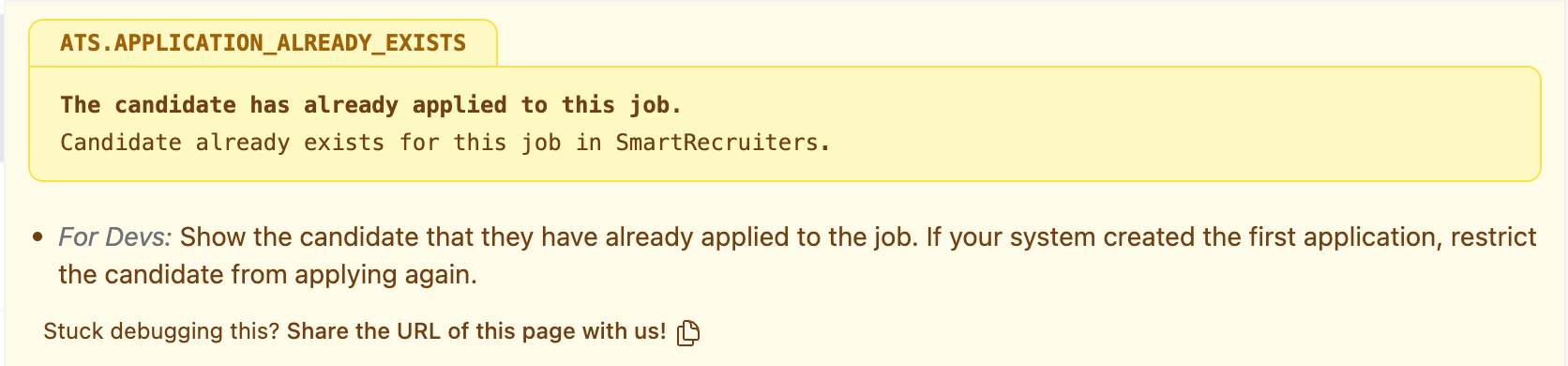
Logical Error Example 3
Logical Error Example 3
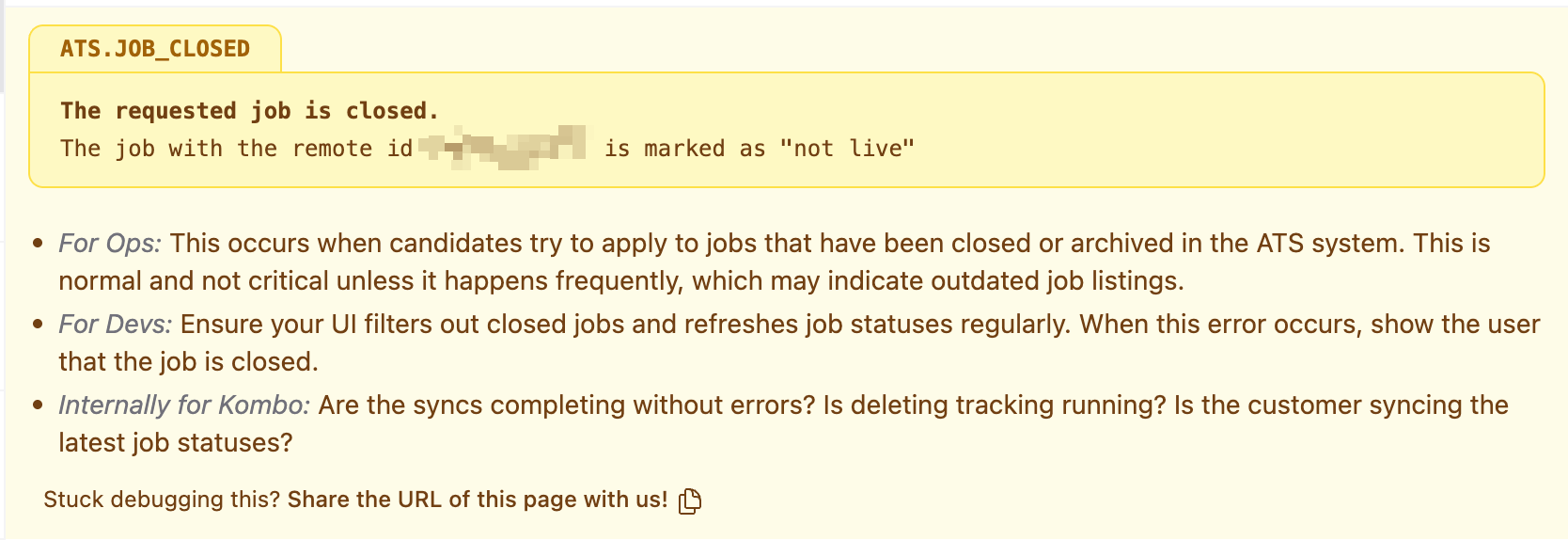
job_id open?) before sending the action, or handle these specific error codes gracefully in your application.
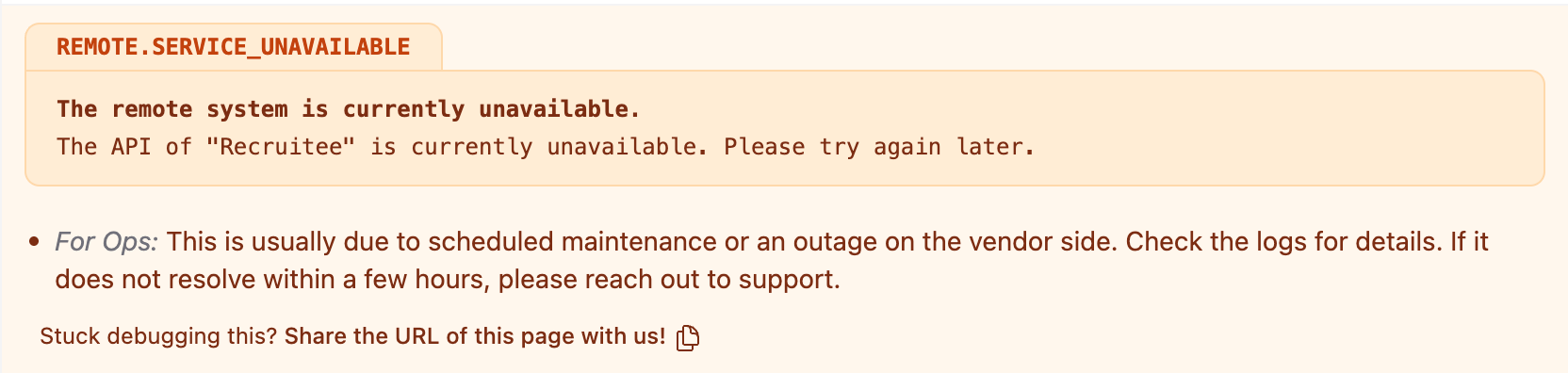
Temporary issues
If you see a500 error or a timeout from the remote tool, it might be a temporary issue. Below is an example of how this error might look in the logs:
Temporary Issue Example
Temporary Issue Example
4. Still not sure?
If the error is unclear or you suspect a bug in Kombo:- Copy the URL of the failing log entry.
- Reach out to Kombo support.
- Paste the link so we can look at the exact same trace you are seeing.