

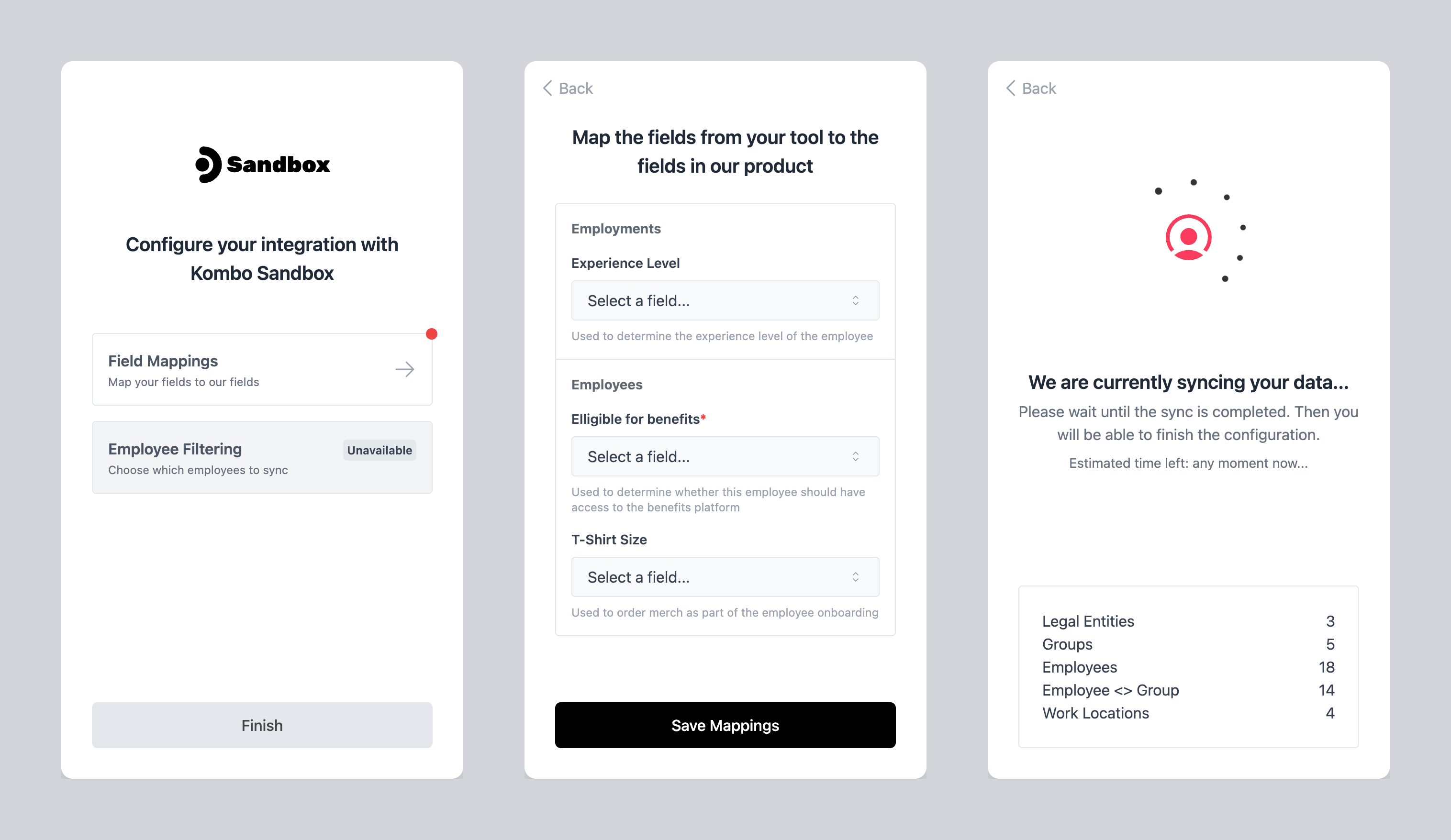
What appears in the Setup Flow
Each integration decides which steps it actually needs. The most common ones are:- Field mapping, where customers connect your custom fields to fields in their tool. Available for any category, and covers the custom fields you have enabled self-serve mapping on.
- Employee filtering, where HRIS customers choose which employees Kombo should sync.
- Tool-specific steps, surfaced automatically by some connectors (for example Greenhouse, Teamtailor, or SCIM) to handle one-time configuration that the tool itself requires, like activating webhooks or providing additional credentials.
Enabling Setup Flow steps
Field mapping and employee filtering are opt-in per integration. Tool-specific steps require no configuration on your side, they appear automatically when needed.When creating a new integration
In the Dashboard, open the Integrations page and toggle the steps you want at the bottom of the create-link form.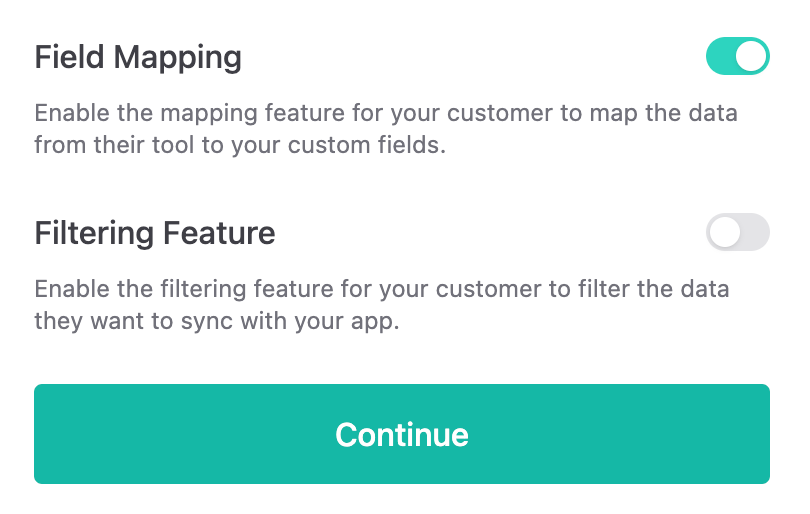
enable_field_mapping and/or
enable_filtering (HRIS only) to true on the Create Connection Link
endpoint.
For an existing integration
Open the integration in the Dashboard and use the toggles in the Integration Settings tab.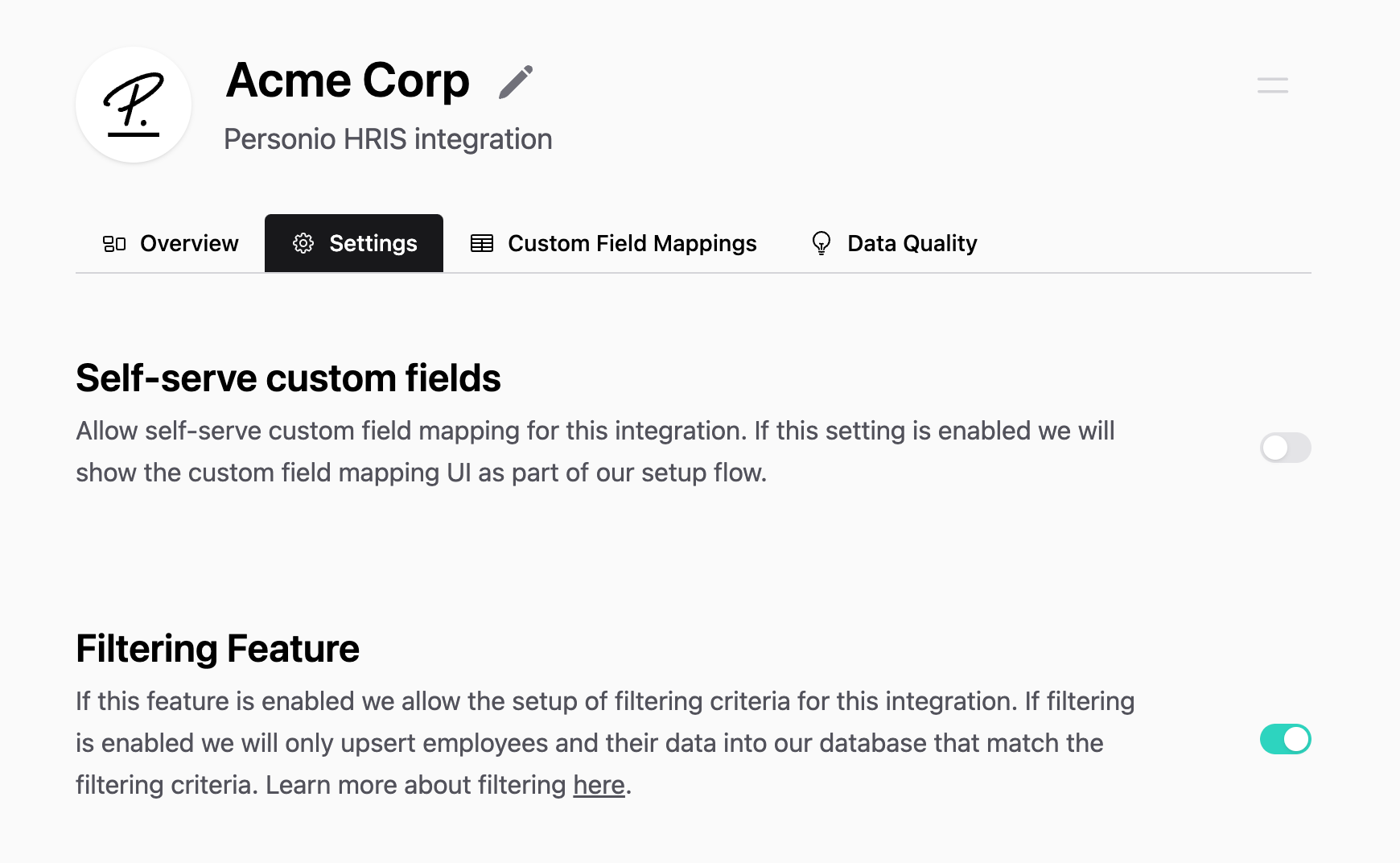
Choosing which custom fields appear
Enabling field mapping on an integration turns the step on, but it does not by itself put any fields in it. Each custom field also needs self-serve mapping enabled individually, otherwise it stays hidden from the Setup Flow. Open Configuration > Custom Fields in the Dashboard, select the field, and turn on Self-serve mapping. You can also mark the field as required there, so your customer cannot finish the step without mapping it.Self-serve mapping is switched off by default on new custom fields. If you
enable field mapping on an integration and the step shows no fields, this is
usually why.
Showing the Setup Flow to your customers
Setup Flow steps run automatically as part of the Connection Flow the first time a customer connects a tool, so the embedded flow you already have in place will pick them up without any changes. To send customers back into the Setup Flow later, for example to update field mappings or change which employees are synced, create a setup link with the Create Setup Flow link endpoint and pass it toshowKomboConnect from the Kombo Connect
SDK, the same way you do
with a connection link.
You can also generate a setup link from the Integration Details page in the
Dashboard if you’d rather not wire up the API yourself.