

1. Verify the data in Kombo
First, check if the data is actually missing or incorrect in Kombo’s own database.Check Data Quality View
Use the Data Quality View to see how many data points are synced for each model and field. This helps you to get an overview whether the data is complete.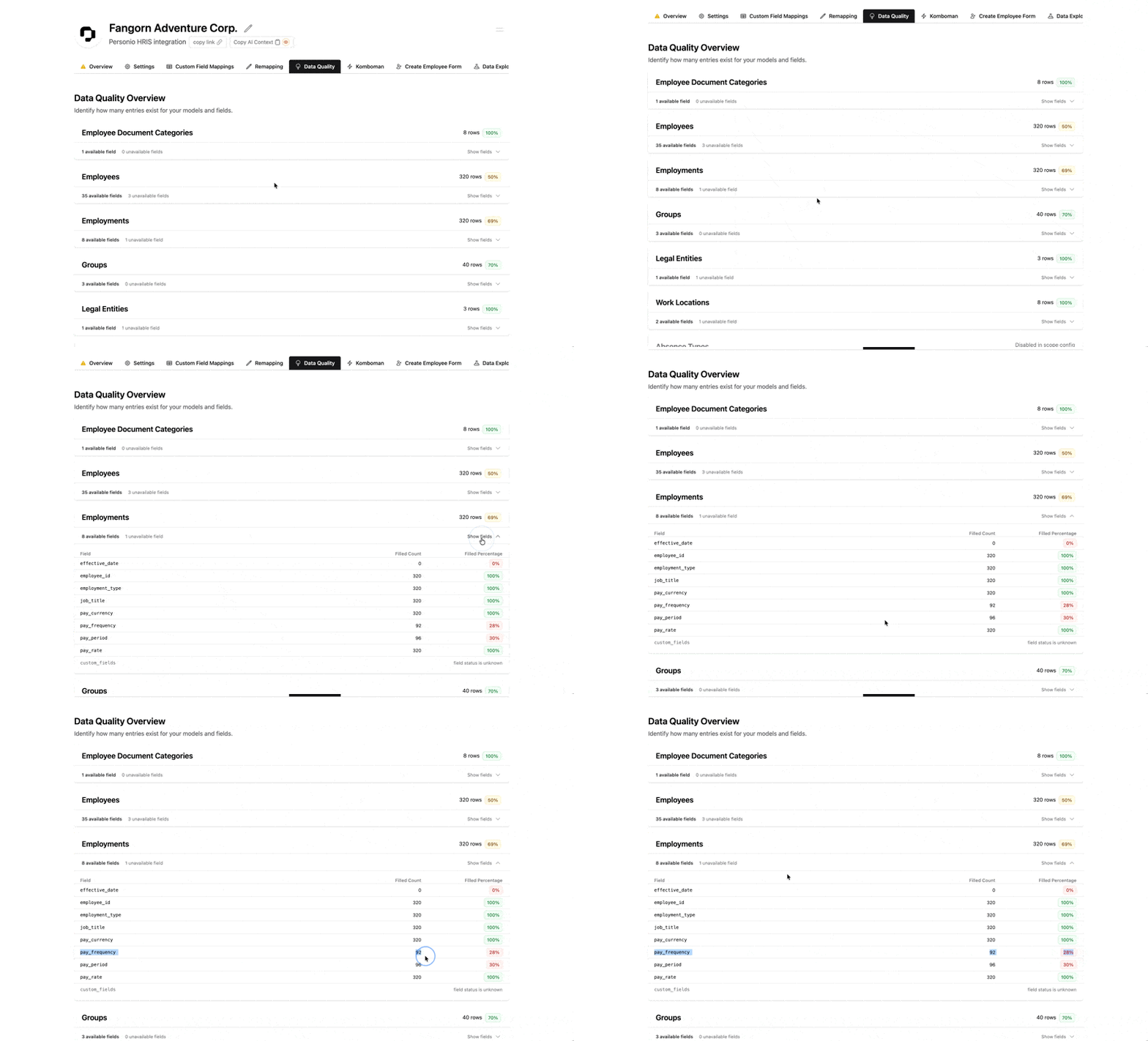
Check Data Explorer
Use the Data Explorer to inspect specific records. The data explorer shows the ground truth inside of Kombo. You can find all records and their fields values inside of the data explorer.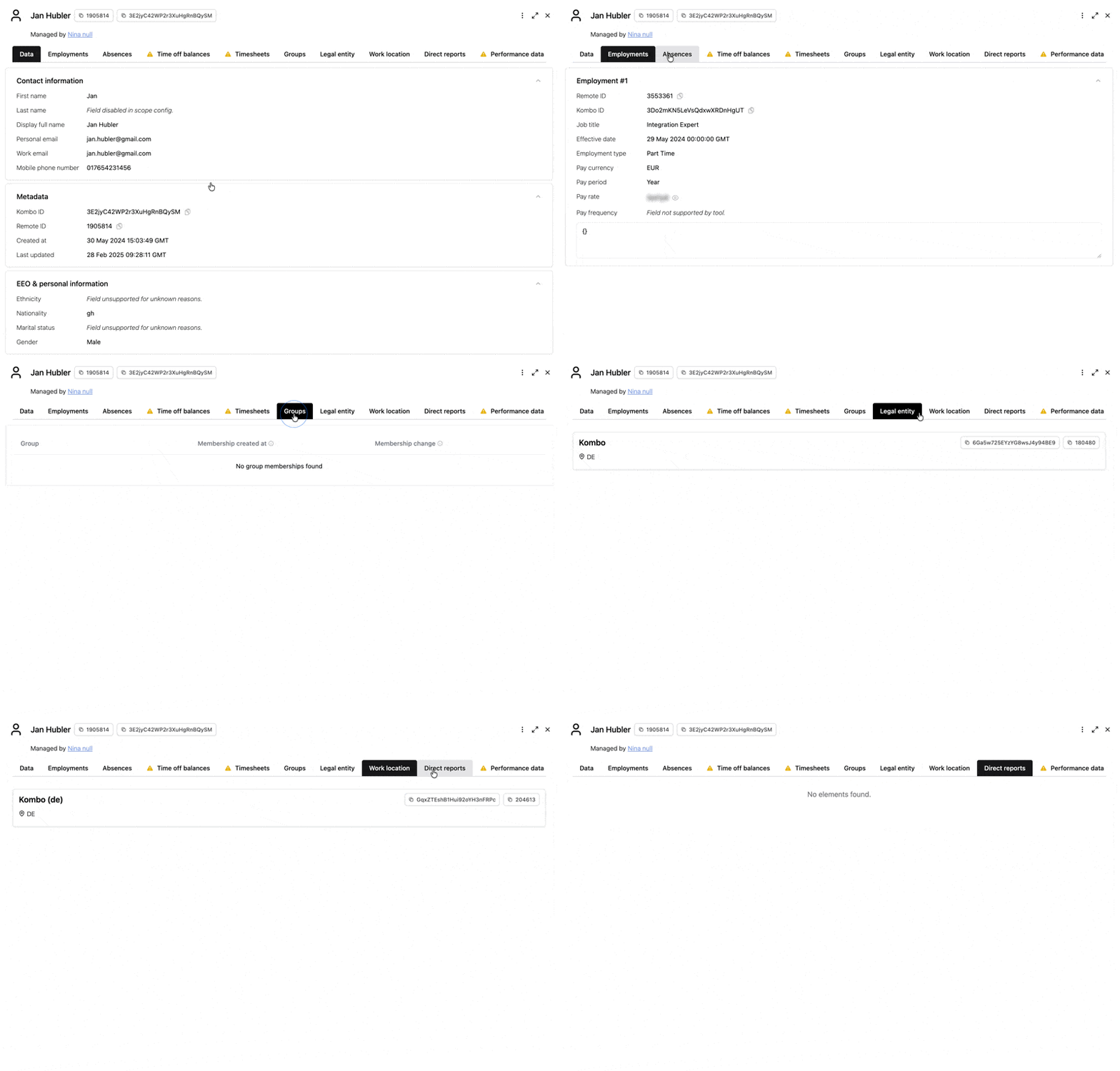
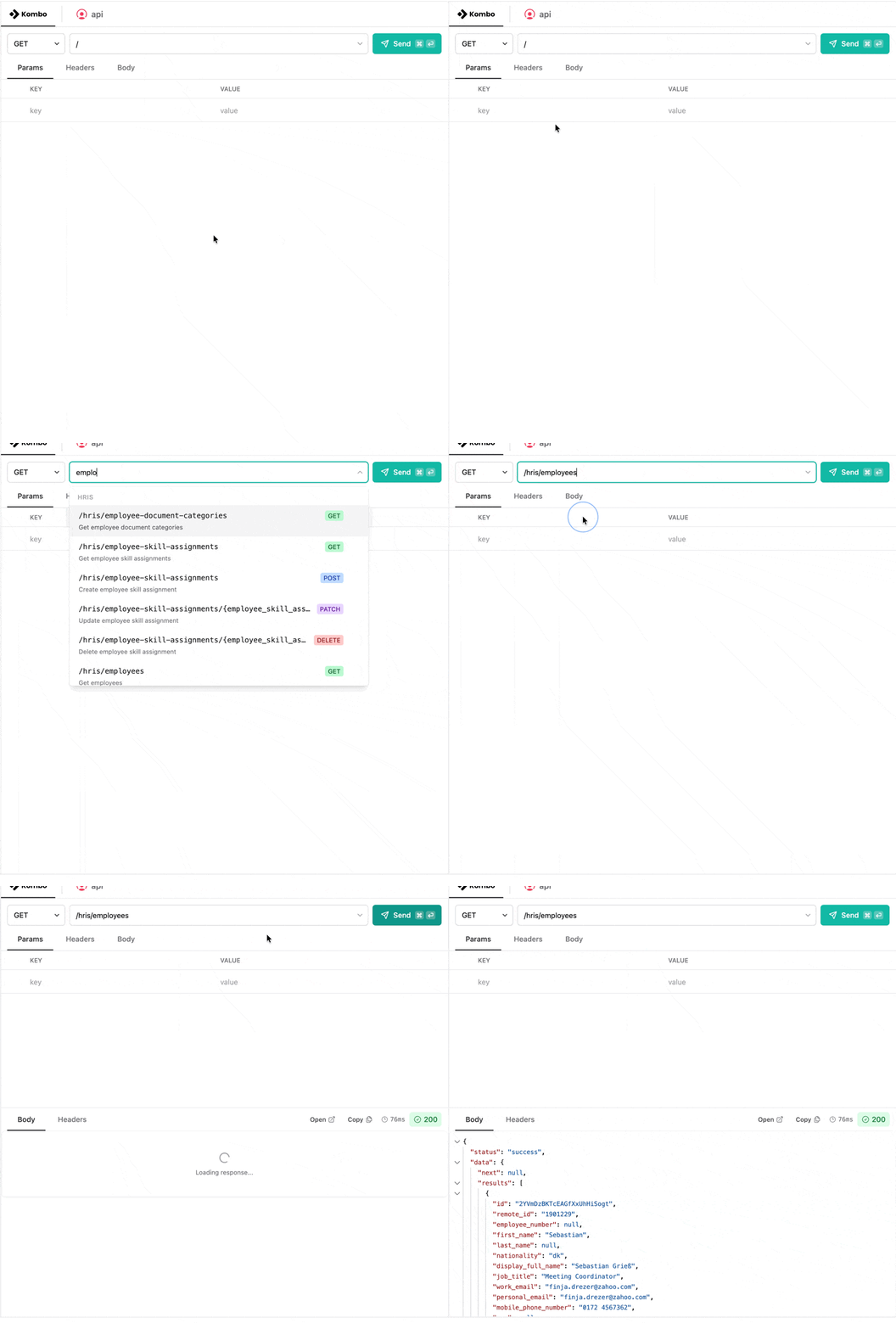
Validate with Komboman
Use Komboman to make requests to the Kombo API (e.g.,GET /hris/employees or GET /ats/applications) and check the JSON response directly.
If the data is correct and up-to-date in Kombo but missing or incorrect in
your system, the issue is likely with how you fetch data from Kombo. Ensure
you are syncing data correctly.
2. Check the data in the remote tool
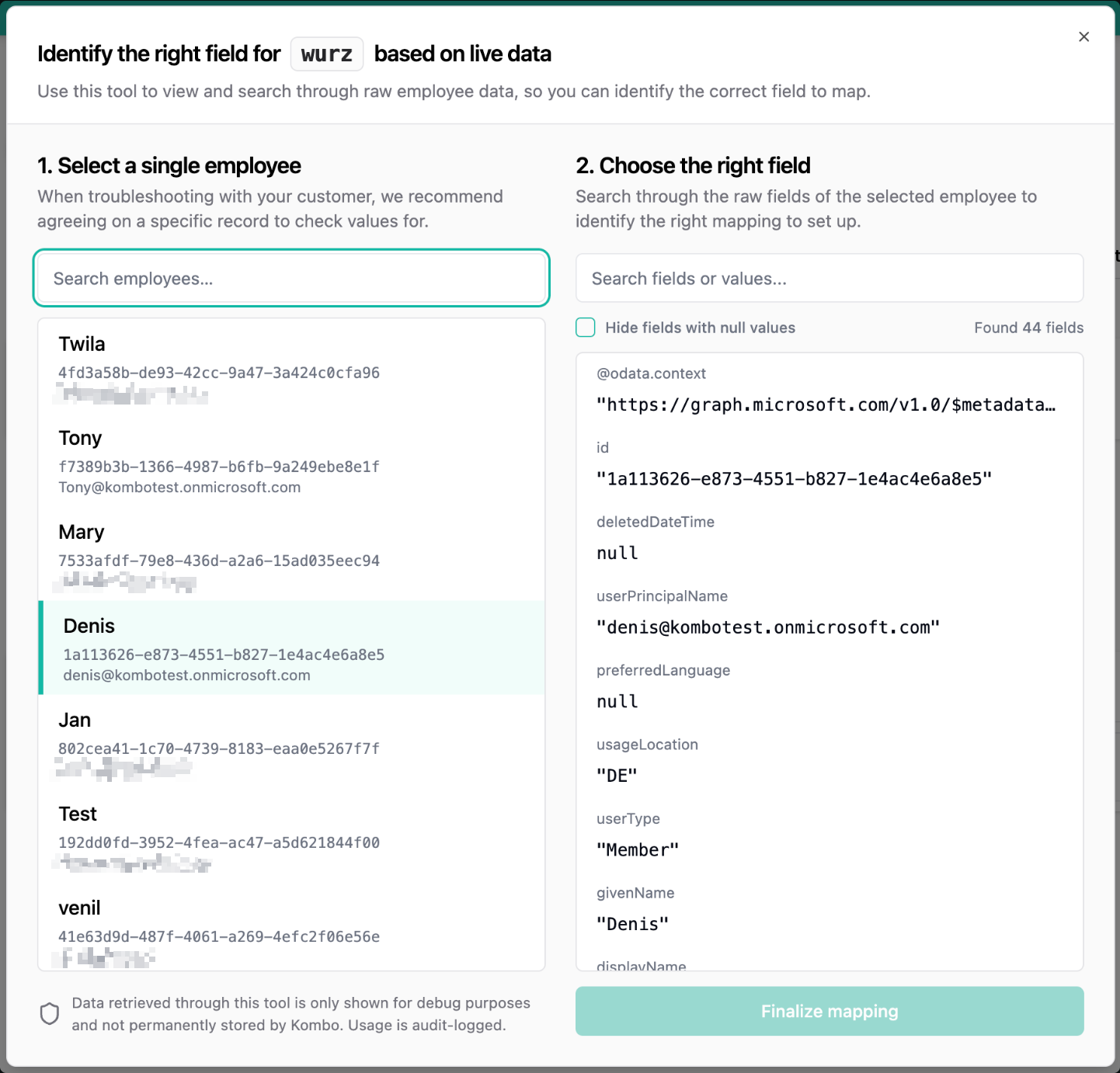
If the data is missing or wrong inside the Kombo app, we need to verify what Kombo is receiving from the remote tool.Use the Custom Field Explorer
The Custom Field Explorer shows you all the raw fields Kombo has discovered from the remote tool, including those that aren’t mapped to Kombo’s unified model.- If you see the field here, Kombo has access to the data, but it just isn’t mapped to a standard field. You can use remappings to update the mapping of the field that is wrong.
- This at times might not show all the fields.
Inspect Request Logs
Go to the Logs page to find the actual HTTP requests Kombo performed during the sync.- Look for the relevant endpoint (e.g.,
/GET employees). - Inspect the Response Body to see the raw data Kombo received.
- You can even replay the request in Komboman to see the live response.
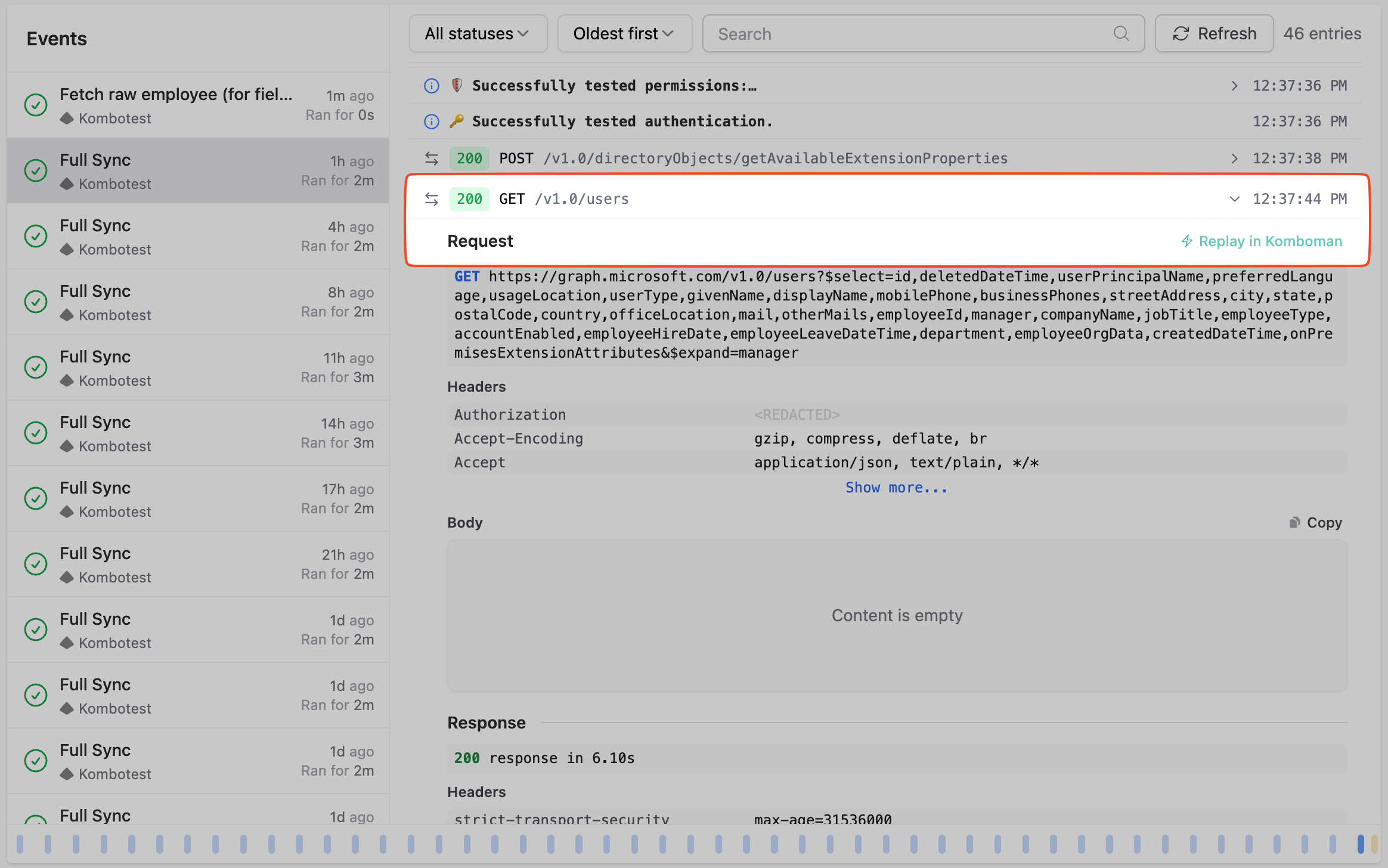
Use Komboman (Passthrough)
If you can’t find the request in the logs, use Komboman to manually send a request to the remote tool’s API (using the “Passthrough” mode).- This uses the customer’s actual credentials, so it shows you exactly what the API returns.
- Compare this raw JSON with what you expected to see.
3. Resolutions
Once you’ve identified where the data is missing, use these steps to resolve the issue.Data is not available or incorrect in the remote tool
If you cannot find the correct data in the remote tool’s API response (via Komboman or Logs), Kombo cannot sync it.- Permission Issue: The most common cause is that the API user/token connected to Kombo does not have permission to view these fields. Ask the customer to check their permissions and scope settings in the remote tool.
- Setup Issue: The specific field wasn’t exposed. Read the connection guide for the tool. Some tools require additional setup, for example, to read custom fields.
- Wrong Endpoint: Some tools return data only on specific endpoints. Verify in the tool’s documentation if the data is expected to be returned by the endpoint Kombo is calling (which you found in the logs).
Data is correct in the remote tool, but not in Kombo
If you see the correct data in the raw API response but it doesn’t appear (or appears incorrectly) in Kombo’s unified API:- Check Scope Configuration: Ensure the model or field is enabled in the integration’s scope configuration. If a scope is disabled, Kombo will drop that data.
- Check Filtering: Verify if the record is being excluded by filtering configuration. For example, employees might be filtered out based on their employment status or location (HRIS), or applications might be skipped due to upstream filtering (ATS).
- Remap the Data: If the data is present but not in the field you expect (or is a custom field), you can map it manually:
- Use Custom Fields to map the raw field to a new property in Kombo.
- Use Remapping to override where a standard field gets its value from.