

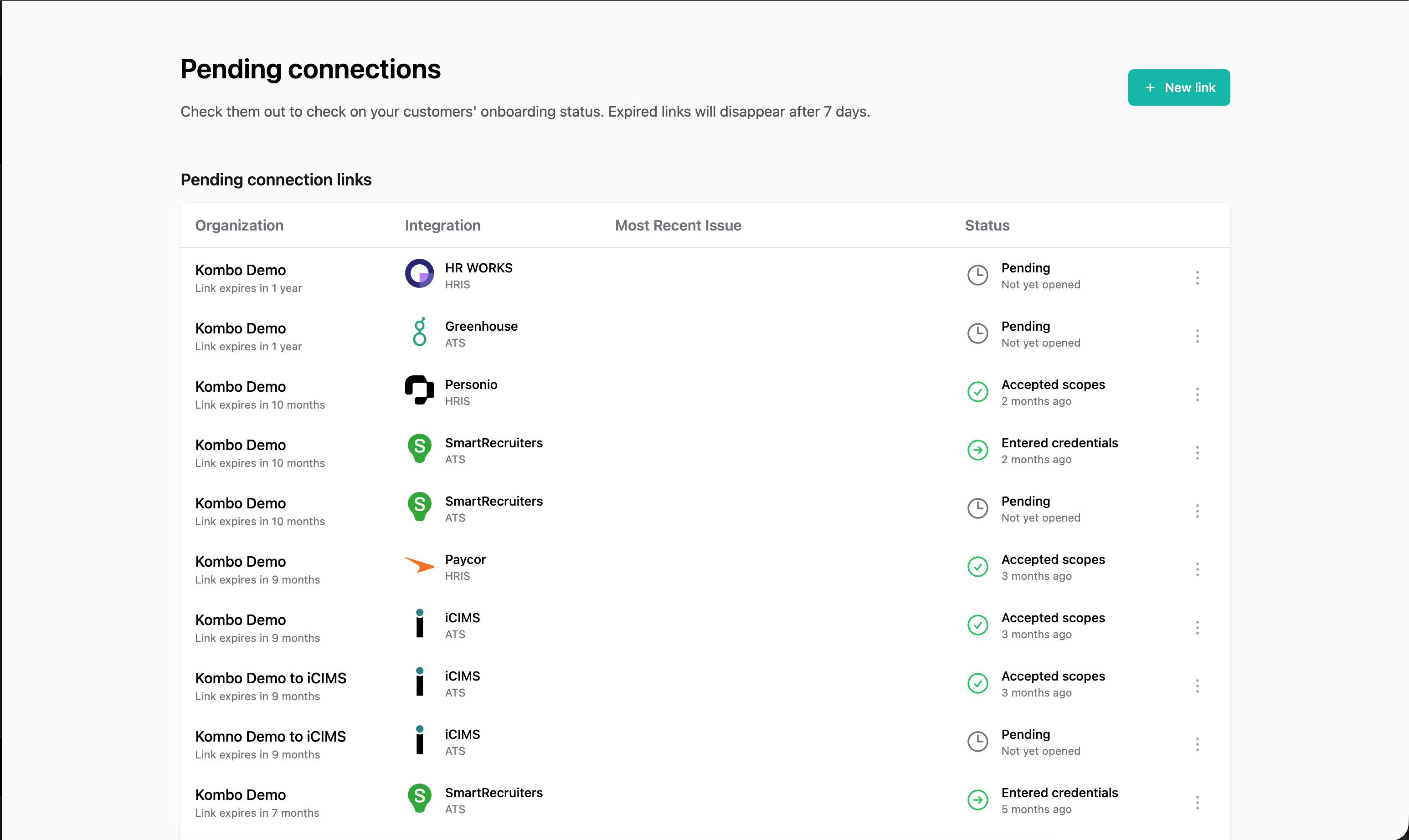
1. Identify the failing connection
- Open the Pending Connections page in the dashboard.
- Locate the affected connection and open its detail view. This page aggregates the context you need, including flow status and quick links.
- If you can’t find the connection, you can also try to locate it from the Logs page.
2. Inspect event and request logs
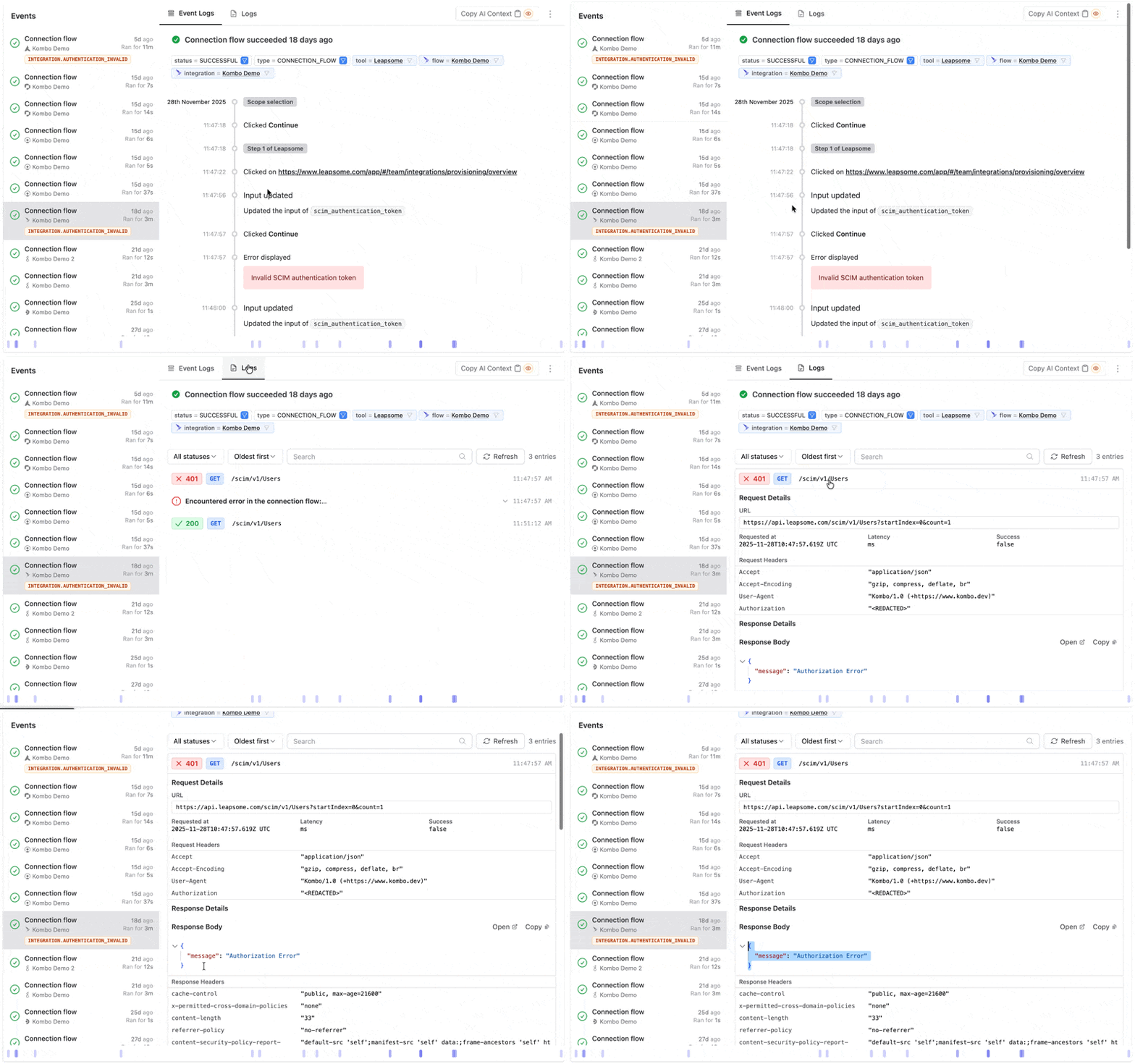
- Use the Event Log tab to understand exactly which step failed and what the customer saw in the UI. These entries often include an error message or hints the customer might have missed.
- Switch to the Logs tab to inspect the HTTP calls Kombo made:
- Review failing requests. HTTP
401/403responses typically mean a missing permission on the customer’s side. 500-level responses usually indicate a temporary issue in the remote tool—confirm their status page or retry later.- Other status codes (e.g. validation errors) can surface configuration issues on Kombo’s side.
- Also inspect the response bodies, they might contain more information on whats failing.
- Review failing requests. HTTP
3. Validate setup with connection guides
- Share the connection guide for the tool with your customer. The guide lists mandatory permissions, API scopes, and any tool-specific prerequisites.
- Confirm that the customer followed the guide
- If the guide highlights optional scopes your product relies on, ensure the customer understands why they must be enabled.