> ## Documentation Index
> Fetch the complete documentation index at: https://docs.kombo.dev/llms.txt
> Use this file to discover all available pages before exploring further.
# Creating Integrations
> Learn how to connect tools to Kombo.
This guide assumes you already have a Kombo account. If that's not the case,
visit [our website](https://www.kombo.dev/) to learn more and get access.
## Ways of Creating Integrations
There are three ways of creating integrations in Kombo:
1. **For you in development**: Use the Kombo Dashboard and enter the integration credentials yourself.
This is the easiest way to get started if you want to test out Kombo.
2. **For customers with a magic link**: Create a magic link and send that to your customer to create the integration.
This is the simplest way to launch integrations for selected customers (for example, as a POC).
3. **For customers with Kombo embedded**: Embedding Kombo into your application and allowing the customer to create the integration there.
This will give your customer the best experience and is generally recommended when rolling out Kombo to your customers.
If you are testing Kombo or developing the integration to us, make sure to
select the development environment in the top left corner.
This will not count against your billing and will have useful features like saving
the credentials that you entered and filled out some fields by default.
# Creating Integrations in the Dashboard
Recommended for development purposes.
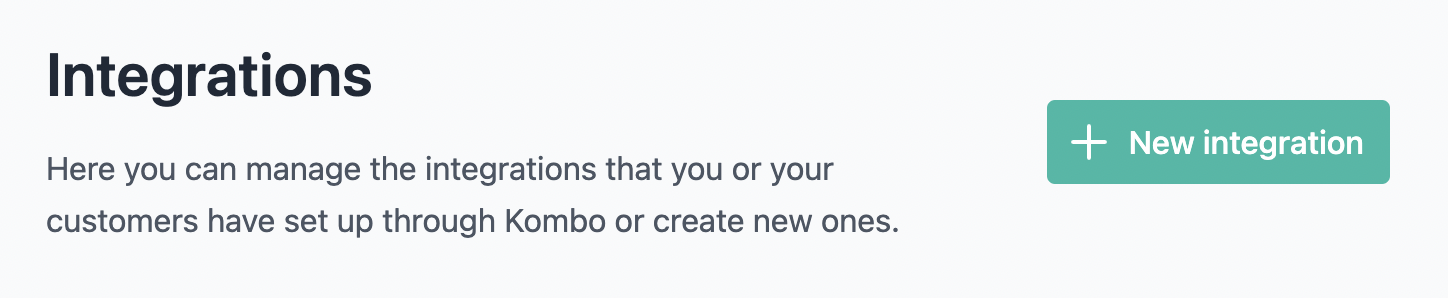
Go to the [dashboard integrations page](https://app.kombo.dev/integrations) and
click on the "Create Integration" button. Select `Create the integration yourself`.
 Select a category and continue (if you use the development environment,
the organization and email will be auto-filled). Select a tool that you have
access to and enter the credentials. The flow will explain, in most cases, what
you need to do to get the credentials out of the tool.
# Creating a magic link
Use this to get started immediately with a selected customer.
Open the [dashboard integrations page](https://app.kombo.dev/integrations) and
click on the "Create Integration" button. Select *Let your customer create the integration*.
Select the category and fill out the organization name and email address.
This data is only for you to identify who created the integration and will be used
as a label in the dashboard.
Features that you can use with the embedded flow are:
* Pre-defining a tool
* Defining a language
# Embedding Kombo into your Application
This is only necessary if you want to allow your customer to create
integrations completely on their own.
Embedding Kombo in your application requires implementing the Kombo API into your product.
Embedding Kombo allows you to provide a better experience to your customers and customize the
connection flow the most.
Features that you can use with the embedded flow are:
* Pre-defining a tool
* Defining a language
* Specifying the `remote_environment` (for using sandbox credentials with some tools)
* Using a scope config template
* Setting the `origin_id` (id of the customer in your system)
Read more about embedding Kombo into your application
[here](../guides/connect/embedded-flow).
Select a category and continue (if you use the development environment,
the organization and email will be auto-filled). Select a tool that you have
access to and enter the credentials. The flow will explain, in most cases, what
you need to do to get the credentials out of the tool.
# Creating a magic link
Use this to get started immediately with a selected customer.
Open the [dashboard integrations page](https://app.kombo.dev/integrations) and
click on the "Create Integration" button. Select *Let your customer create the integration*.
Select the category and fill out the organization name and email address.
This data is only for you to identify who created the integration and will be used
as a label in the dashboard.
Features that you can use with the embedded flow are:
* Pre-defining a tool
* Defining a language
# Embedding Kombo into your Application
This is only necessary if you want to allow your customer to create
integrations completely on their own.
Embedding Kombo in your application requires implementing the Kombo API into your product.
Embedding Kombo allows you to provide a better experience to your customers and customize the
connection flow the most.
Features that you can use with the embedded flow are:
* Pre-defining a tool
* Defining a language
* Specifying the `remote_environment` (for using sandbox credentials with some tools)
* Using a scope config template
* Setting the `origin_id` (id of the customer in your system)
Read more about embedding Kombo into your application
[here](../guides/connect/embedded-flow).