> ## Documentation Index
> Fetch the complete documentation index at: https://docs.kombo.dev/llms.txt
> Use this file to discover all available pages before exploring further.
# Using the filtering UI
## Overview
After setting up Kombo's [data filtering](/hris/features/filtering/introduction) for a connection, all endpoints that handle employee-related data will only return data related to your selected subset. For example, if you choose only to include employees with a work location in Berlin, reading absences will only include the absence data of Berlin-based employees.
## Accessing the filtering UI
There are multiple ways of accessing the filtering UI
### When creating an integration in the dashboard
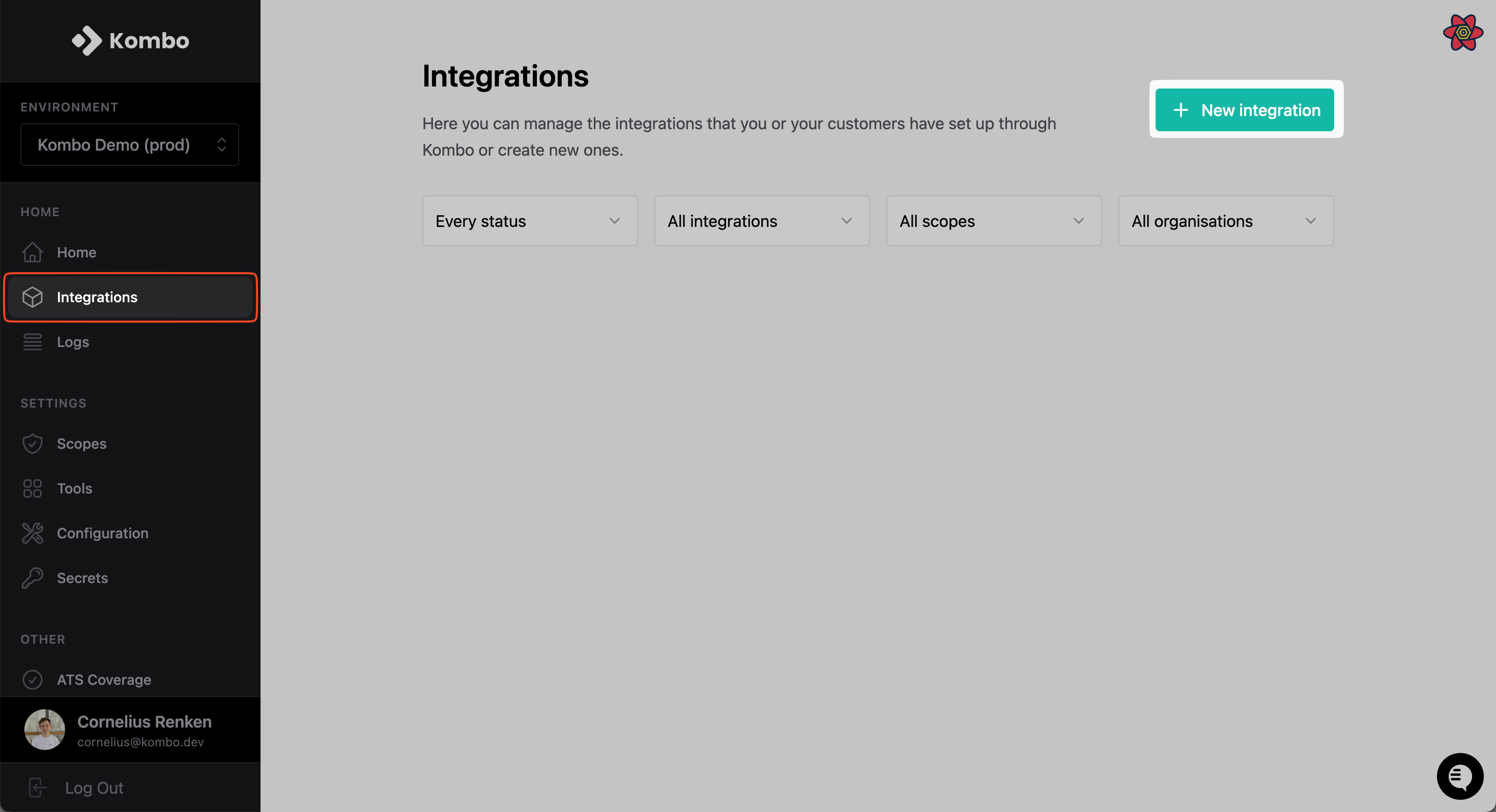
Create an integration on the integrations page.
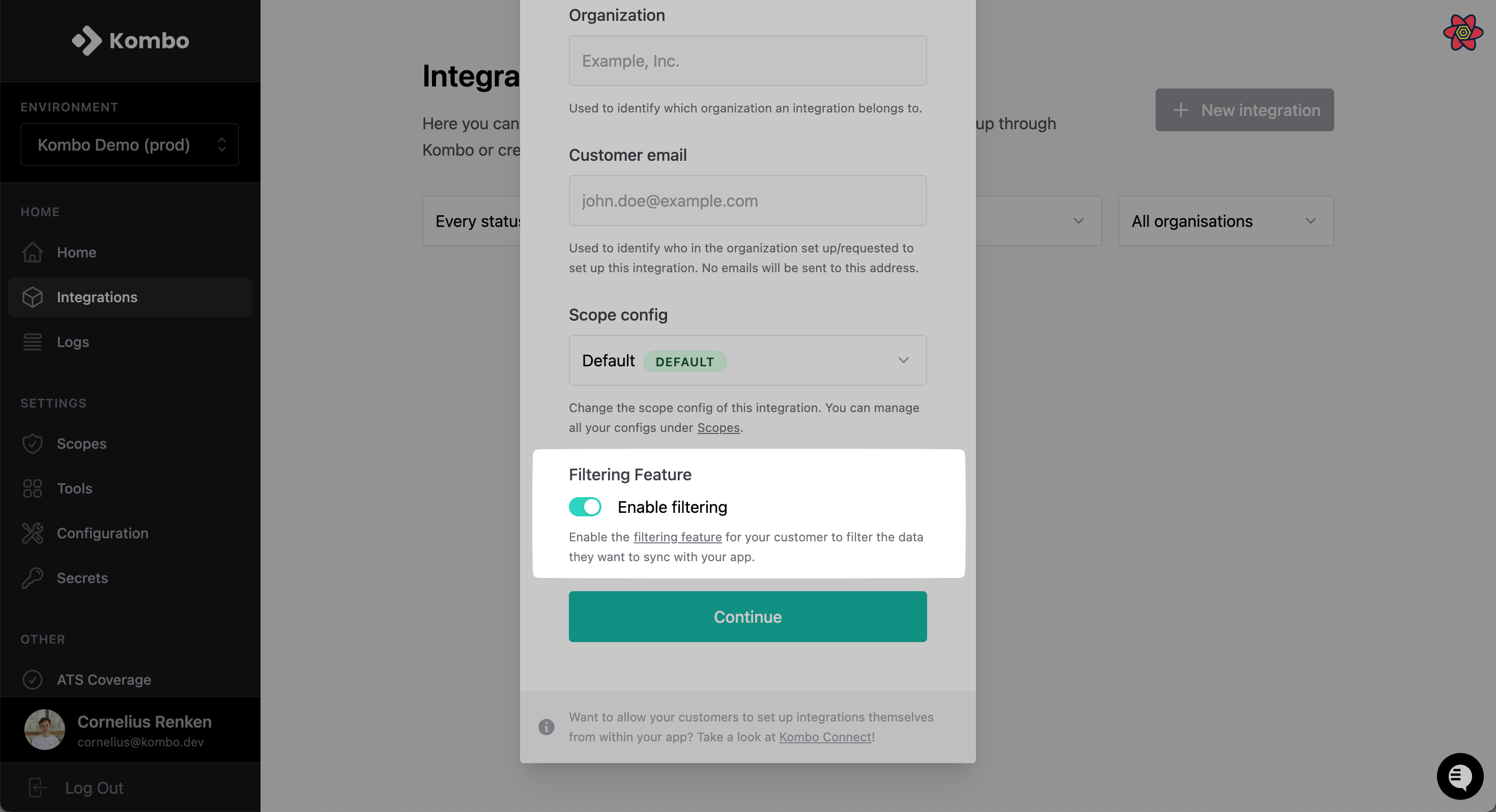
 In the integration settings, enable the filtering toggle.
 ### When creating a connection link via API
In the [create-link](/hris/v1/post-connect-create-link) endpoint, make sure to include the `enable_filtering` property in the body.
```bash theme={null}
curl --request POST \
--url https://api.kombo.dev/v1/connect/create-link \
--header 'Authorization: Bearer ' \
--header 'Content-Type: application/json' \
--data '{
"end_user_email": "test@example.com",
"end_user_organization_name": "Test Inc.",
"enable_filtering": true
}'
```
### Implementing filtering retroactively
If you have already created an integration with a customer or would prefer to separate the filtering step from the connection flow, we allow you to set up a filter in retrospect.
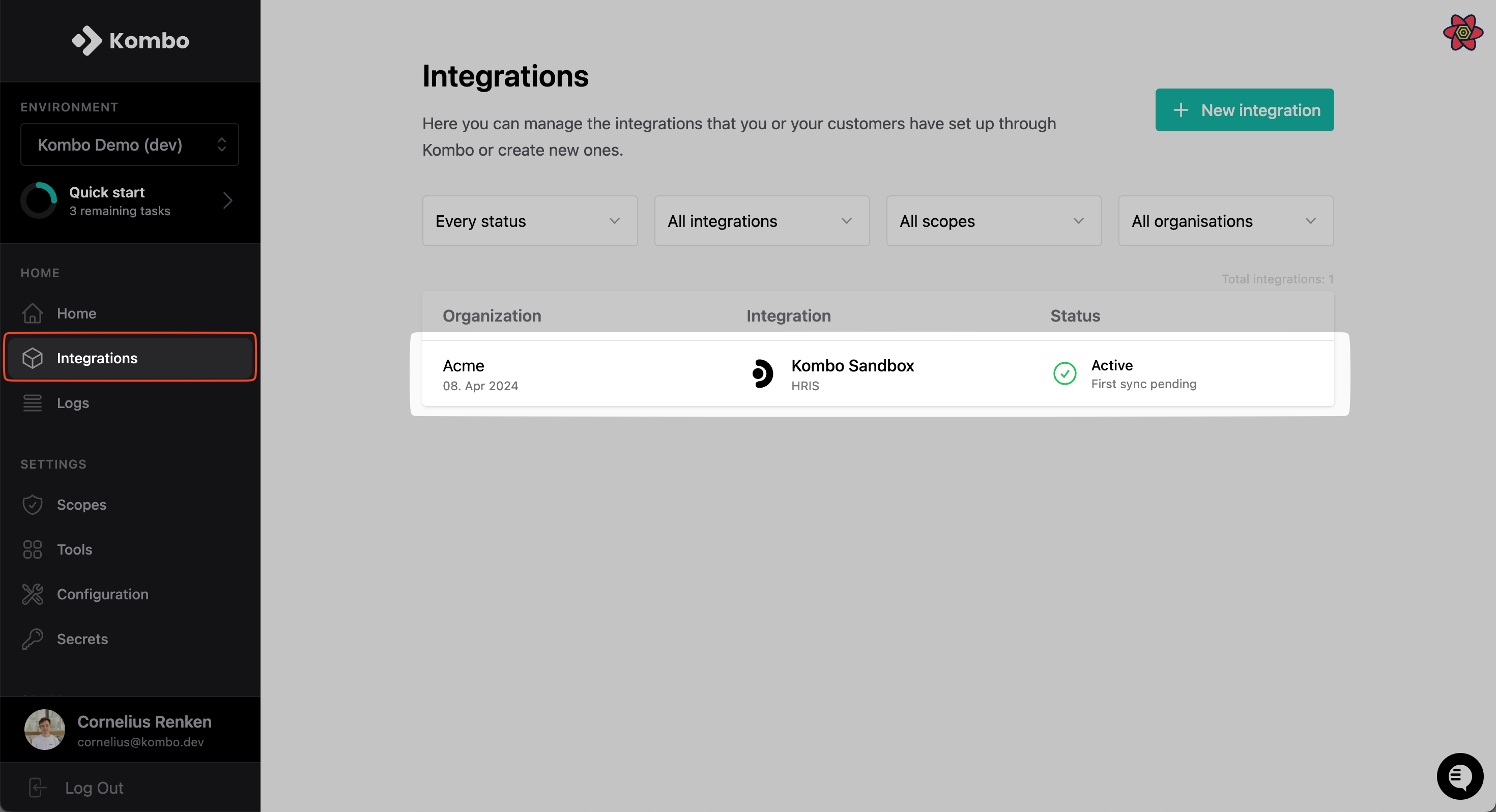
Click on the integration on the integrations page.
### When creating a connection link via API
In the [create-link](/hris/v1/post-connect-create-link) endpoint, make sure to include the `enable_filtering` property in the body.
```bash theme={null}
curl --request POST \
--url https://api.kombo.dev/v1/connect/create-link \
--header 'Authorization: Bearer ' \
--header 'Content-Type: application/json' \
--data '{
"end_user_email": "test@example.com",
"end_user_organization_name": "Test Inc.",
"enable_filtering": true
}'
```
### Implementing filtering retroactively
If you have already created an integration with a customer or would prefer to separate the filtering step from the connection flow, we allow you to set up a filter in retrospect.
Click on the integration on the integrations page.
 Enter the integration's settings, and press on **configure filters**.
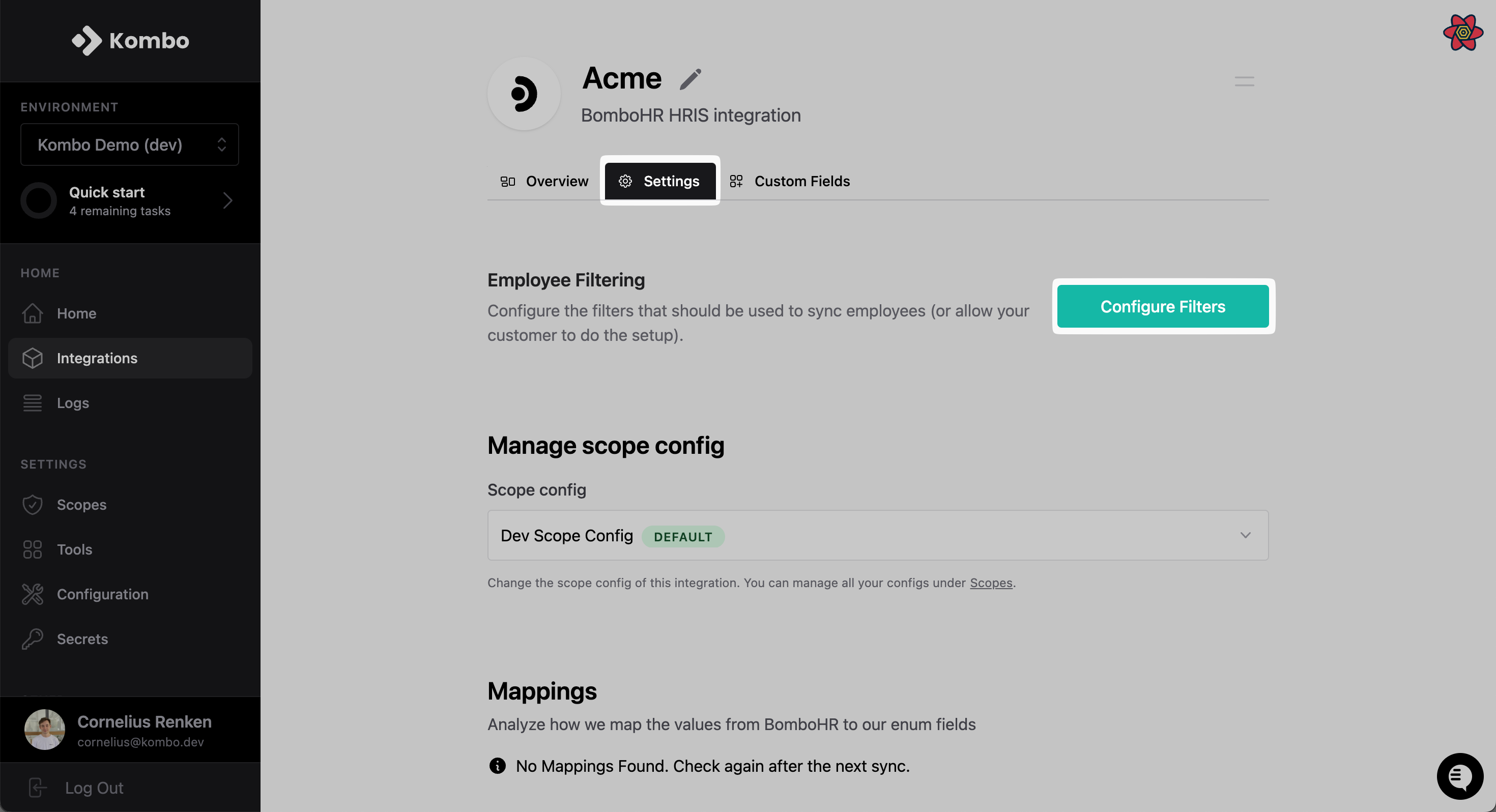 This will provide a link that you can share with a customer, or open yourself, to configure the filter.
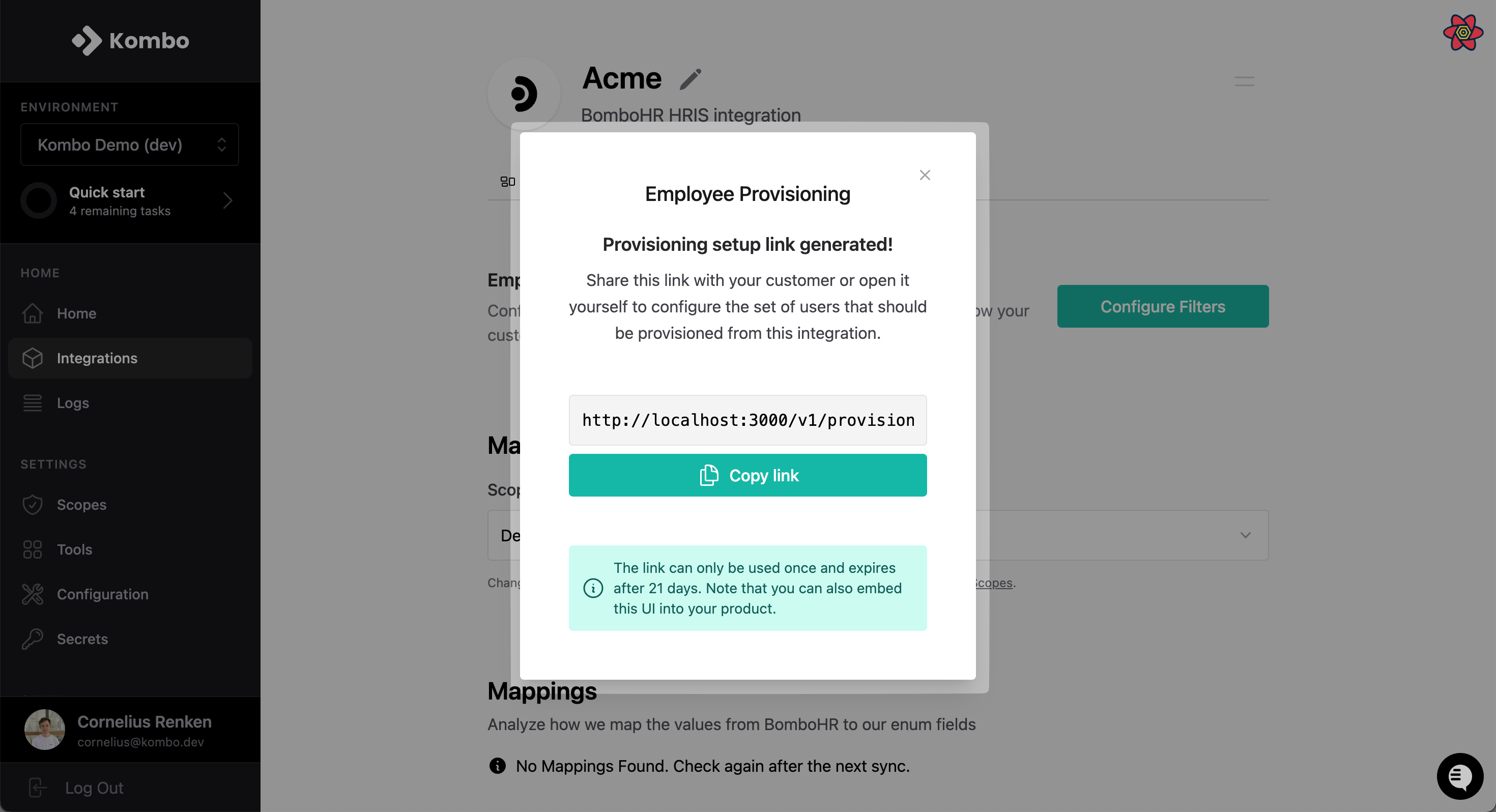 Alternatively, you can also use the [Create provisioning setup link endpoint](/hris/v1/post-provisioning-groups-group-id-setup-links) to get the same link via API, as shown below. The group ID references the provisioning group; currently only the string `"default"` is supported.
```bash theme={null}
curl --request POST \
--url https://api.kombo.dev/v1/hris/provisioning-groups/{group_id}/setup-links \
--header 'Authorization: Bearer ' \
--header 'Content-Type: application/json' \
--header 'X-Integration-Id: ' \
--data '{
"language": "en"
}'
```
## Specifying the filter
Once either your customer or you open the filtering UI, you simply have to select which employee properties should be filtered. For example, selecting **Employment status -> Active** will make the following syncs only include data related to active employees.
Selecting multiple values for the same fields filters with an **or** relationship, while different fields filter with an **and** relation.
For example, selecting **Berlin** and **Amsterdam** for `location`, and **active** for `employment_status`, will include all employees that are currently actively employed, **and** work in either Berlin **or** Amsterdam.
Alternatively, you can also use the [Create provisioning setup link endpoint](/hris/v1/post-provisioning-groups-group-id-setup-links) to get the same link via API, as shown below. The group ID references the provisioning group; currently only the string `"default"` is supported.
```bash theme={null}
curl --request POST \
--url https://api.kombo.dev/v1/hris/provisioning-groups/{group_id}/setup-links \
--header 'Authorization: Bearer ' \
--header 'Content-Type: application/json' \
--header 'X-Integration-Id: ' \
--data '{
"language": "en"
}'
```
## Specifying the filter
Once either your customer or you open the filtering UI, you simply have to select which employee properties should be filtered. For example, selecting **Employment status -> Active** will make the following syncs only include data related to active employees.
Selecting multiple values for the same fields filters with an **or** relationship, while different fields filter with an **and** relation.
For example, selecting **Berlin** and **Amsterdam** for `location`, and **active** for `employment_status`, will include all employees that are currently actively employed, **and** work in either Berlin **or** Amsterdam.
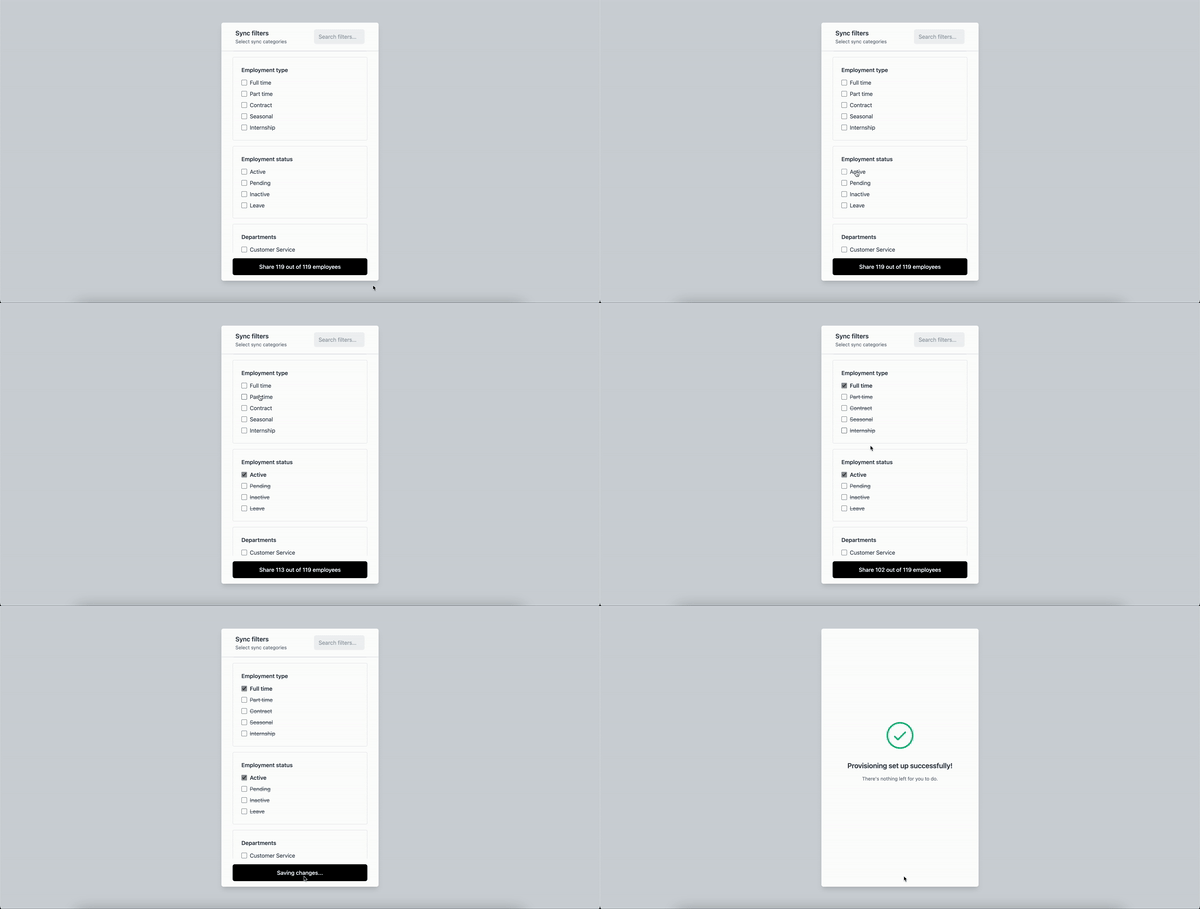 Confirm your selection by clicking on the **Share employees** button at the bottom of the filtering UI.
We also provide documentation on how we handle [data deletion](/hris/features/filtering/data-policy) when filtering.
Confirm your selection by clicking on the **Share employees** button at the bottom of the filtering UI.
We also provide documentation on how we handle [data deletion](/hris/features/filtering/data-policy) when filtering.