> ## Documentation Index
> Fetch the complete documentation index at: https://docs.kombo.dev/llms.txt
> Use this file to discover all available pages before exploring further.
# Time and Attendance
> Timesheets endpoint overview, data structure, validation, time zones, payable hours, approvals, breaks, and API usage.
**Beta Feature:** This endpoint is currently in beta. Please reach out to our
support team if you need assistance with implementation.
## Overview
The timesheets endpoint allows you to retrieve attendance data from HRIS systems and convert them into a unified data model. Each timesheet represents work time tracking for a single employee, delivered in a consistent data structure regardless of the underlying HRIS system.
### Key Use Cases
* Monitor employee attendance and working hours
* Verify if employees worked their expected hours
* Process payroll data with approved timesheets
* Track break times and compliance
* Generate attendance reports
## Prerequisites
**Important**: Timesheets are employee-centric, so you must include `employees` in your integration scope to properly sync timesheet data.
* **Default sync period**: The Last 2 months of timesheets get synced
* **Employee filtering**: When employee filters are applied, only filtered employees' timesheets are synced
* **Retention**: Timesheets outside the sync period are marked as deleted on the next full sync. Configure a larger sync period upfront or archive timesheets on your side if you need long-term history.
For the full API data model and all query/filter options, see the
GET timesheets endpoint.
## Understanding Timesheet Data Structure
### Complete vs Incomplete Timesheets
Timesheets can exist in various states of completion depending on the employee's clocking behavior and system reliability:
**Complete Timesheet** (Ideal scenario)
```jsx theme={null}
{
"started_at": "2025-04-16T09:02:00.000Z",
"ended_at": "2025-04-16T16:59:00.000Z",
"payable_hours": 8
}
```
**Incomplete Timesheets**
*Start time only:*
```jsx theme={null}
{
"started_at": "2025-04-16T09:02:00.000Z",
"ended_at": null,
"payable_hours": null
}
```
*End time only:*
```jsx theme={null}
{
"started_at": null,
"ended_at": "2025-04-16T16:59:00.000Z",
"payable_hours": null
}
```
* **Open timesheet**: Missing end time, could indicate ongoing work or system issues
* **Start time only**: Employee clocked in but hasn't clocked out (may still be working)
* **End time only**: Clock-in wasn't registered, only clock-out recorded
* **Sync updates**: Incomplete timesheets are often updated and completed during the next sync cycle once the employee clocks out
If timesheets remain incomplete or validation issues persist, reach out to
your customer with the specific employee name and timesheet times so they can
correct the data in their HRIS system. After the next full sync, the corrected
data should be properly reflected.
### Timesheet Overlap Validation
Important rule: timesheets cannot overlap for the same employee.
* ❌ Invalid: Timesheet from 09:00–17:00 and another from 16:00–19:00 has a 1-hour overlap
* ✅ Valid: Timesheet from 09:00–12:00 and another from 13:00–17:00 with no overlap
When overlapping timesheets are detected:
* Sync continues but generates warnings
* We won’t upsert the overlapping timesheet
* This can indicate a issue or wrong timesheet in the HRIS
### Open Timesheet Validation
* An open timesheet, without an end time, cannot exist within the time range of a closed timesheet
* Multiple consecutive open timesheets are allowed since they do not have defined end boundaries
## Time Zones and Time Handling
All timesheet times are provided in UTC format for consistency, along with the local timezone offset:
```json theme={null}
{
"started_at": "2025-04-16T09:02:00.000Z",
"ended_at": "2025-04-16T16:59:00.000Z",
"timezone": "-04:00"
}
```
Implementation tip: Use the timezone offset to display times in the employee's local timezone in your UI.
Timezone awareness is essential for accurate approvals and schedule comparisons:
* Always show the employee's local time alongside UTC when reviewing/approving.
* The `timezone` field is an ISO‑8601 offset (e.g., `-04:00`) captured for that shift. Use it to reconstruct the shift's local time historically. Do not recompute using your current local offset — DST changes between then and now can happen.
* When comparing scheduled vs. received times, convert both into the same local timezone (either the schedule's zone or the record's offset) before comparing.
* Respect local day boundaries. If a shift crosses midnight, compare by local day if your policies are day-based.
## Payable Hours Logic
```json theme={null}
{
"payable_hours": 8,
"started_at": "2025-04-16T09:02:00.000Z",
"ended_at": "2025-04-16T16:59:00.000Z"
}
```
`payable_hours` is never auto-calculated by Kombo. This value comes directly
from the HRIS system.
### Grace Periods
Payable hours may differ from calculated work time due to grace periods:
* Employee starts 5 minutes late, for example 07:05 instead of 07:00
* Grace period allows full pay despite late start
* `payable_hours` reflects the grace period adjustment
* If `payable_hours` is null, the HRIS does not support this feature
### Fallback Calculation
When `payable_hours` is null, meaning the HRIS doesn't support this feature, you can calculate payable hours using: `end_time - start_time - unpaid_break_minutes`. This provides a reasonable approximation for payroll purposes when grace period data is not available.
This calculation is at your own risk, as the HRIS system might still apply
grace periods or overtime calculations that aren't exposed through the API.
Your calculated values may differ from the official payroll figures.
## Approval Workflow
### Approval Status
```json theme={null}
{
"approval_status": "APPROVED",
"approved_at": "2025-04-16T17:05:31.000Z"
}
```
Use cases:
* Payroll processing: Only process approved timesheets
* Manager oversight: Identify pending approvals
* Compliance: Track approval timestamps for audit trails
## Break Time Implementation Patterns
Break handling varies significantly across HRIS systems. Check the coverage grid for system-specific support levels.
**Need implementation support?**
Break patterns can vary across HRIS systems and use cases. If you need
guidance on implementing break logic for your specific requirements, our
support team is ready to help. Reach out to schedule a call where we can
discuss the best approach for your integration.
Break data rules:
* Only complete breaks, with both start and end times, are included
* Open breaks are never accepted and won’t be upserted, but we will show a warning.
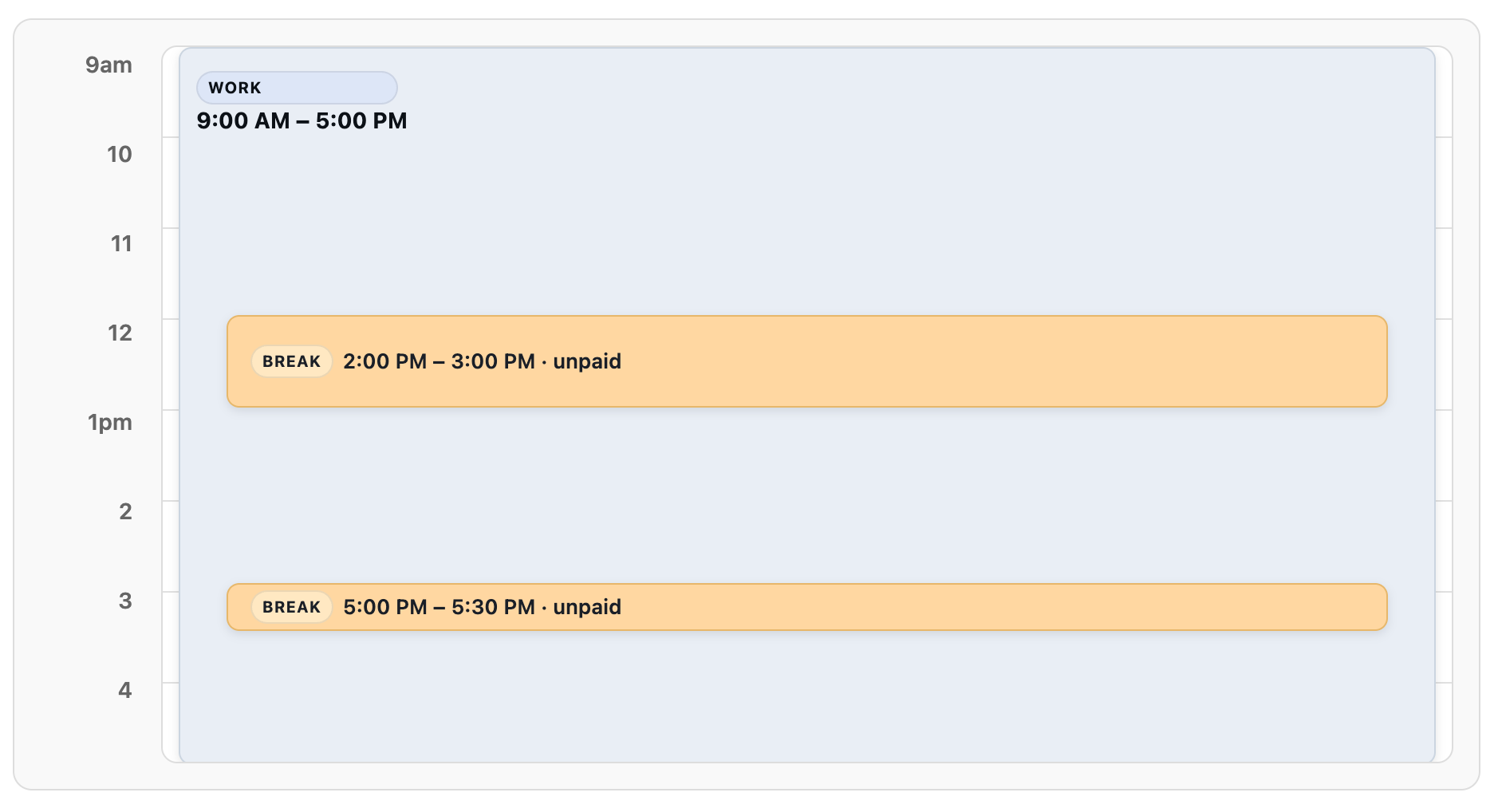
* `unpaid_break_minutes` is calculated from unpaid breaks or provided directly by the HRIS
```json theme={null}
{
"started_at": "2025-04-16T09:00:00.000Z",
"ended_at": "2025-04-16T17:00:00.000Z",
"unpaid_break_minutes": 90,
"breaks": [
{
"started_at": "2025-04-16T12:00:00.000Z",
"ended_at": "2025-04-16T13:00:00.000Z",
"paid": false
},
{
"started_at": "2025-04-16T15:00:00.000Z",
"ended_at": "2025-04-16T15:30:00.000Z",
"paid": false
}
]
}
```
 ```json theme={null}
{
"started_at": "2025-04-16T09:00:00.000Z",
"ended_at": "2025-04-16T17:00:00.000Z",
"unpaid_break_minutes": 30,
"breaks": null
}
```
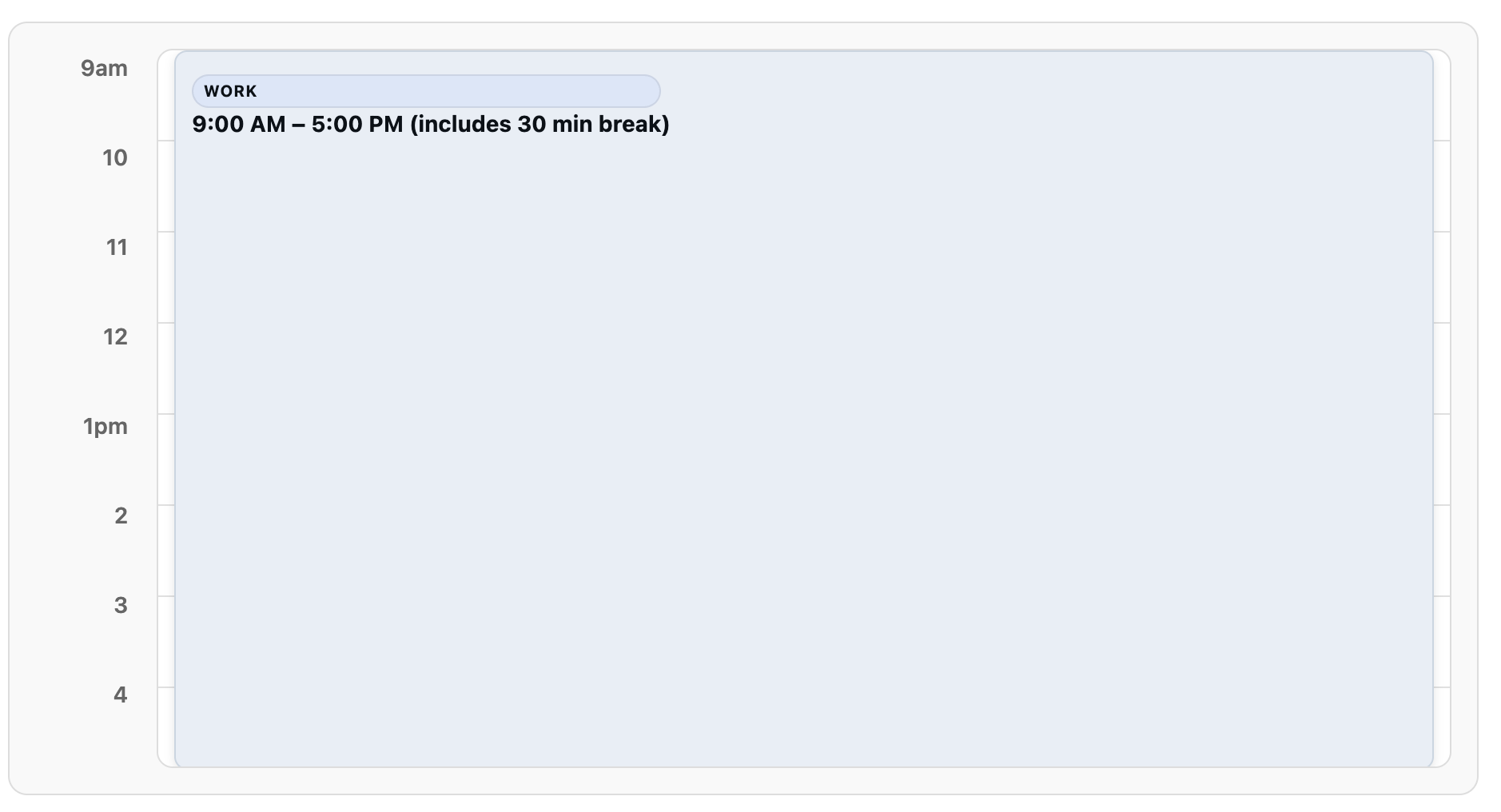
The HRIS indicates 30 minutes of breaks were taken but does not provide specific break times.
```json theme={null}
{
"started_at": "2025-04-16T09:00:00.000Z",
"ended_at": "2025-04-16T17:00:00.000Z",
"unpaid_break_minutes": 30,
"breaks": null
}
```
The HRIS indicates 30 minutes of breaks were taken but does not provide specific break times.
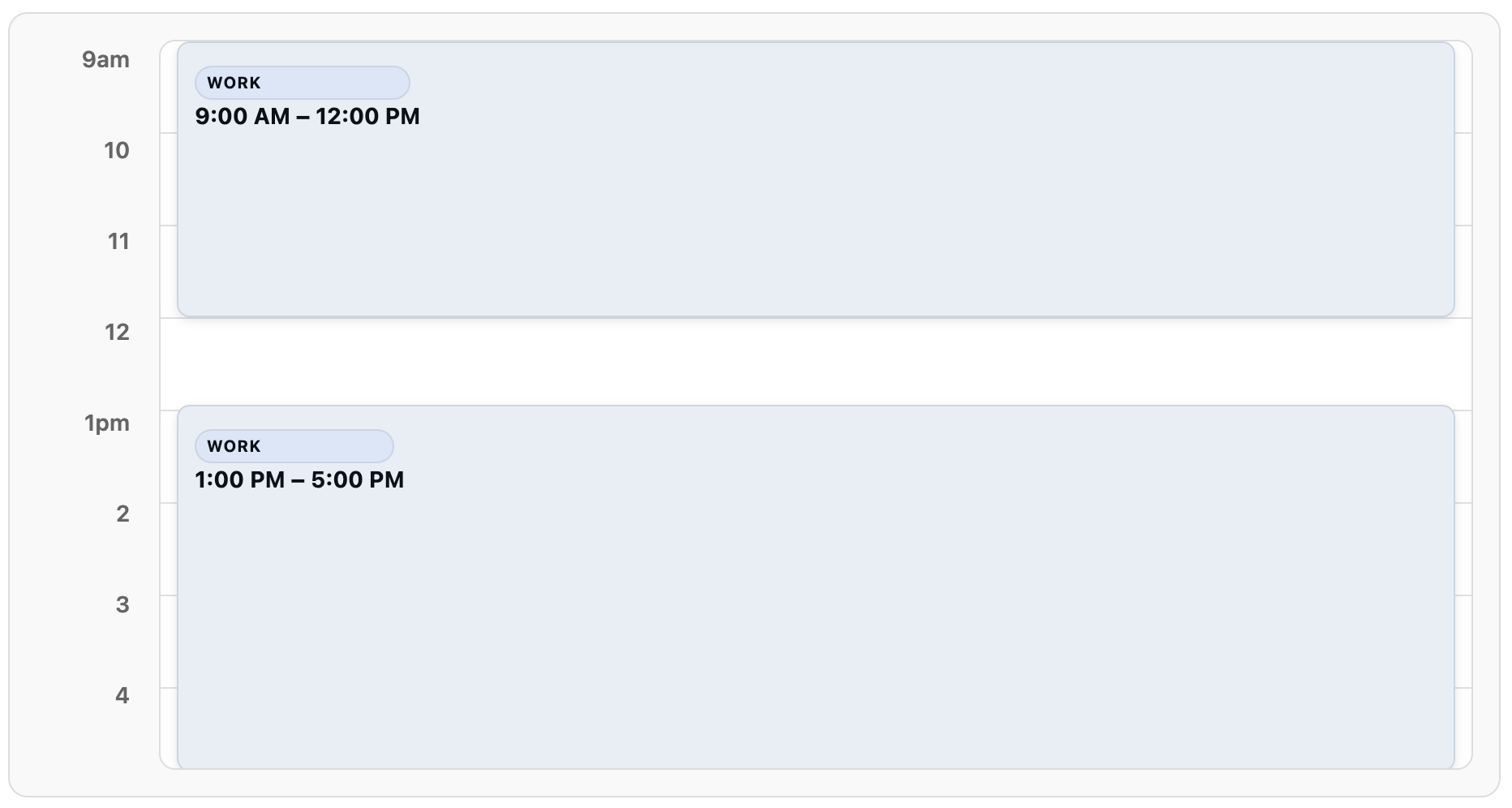
 ```json theme={null}
[
{
"started_at": "2025-04-16T09:00:00.000Z",
"ended_at": "2025-04-16T12:00:00.000Z"
},
{
"started_at": "2025-04-16T13:00:00.000Z",
"ended_at": "2025-04-16T17:00:00.000Z"
}
]
```
```json theme={null}
[
{
"started_at": "2025-04-16T09:00:00.000Z",
"ended_at": "2025-04-16T12:00:00.000Z"
},
{
"started_at": "2025-04-16T13:00:00.000Z",
"ended_at": "2025-04-16T17:00:00.000Z"
}
]
```
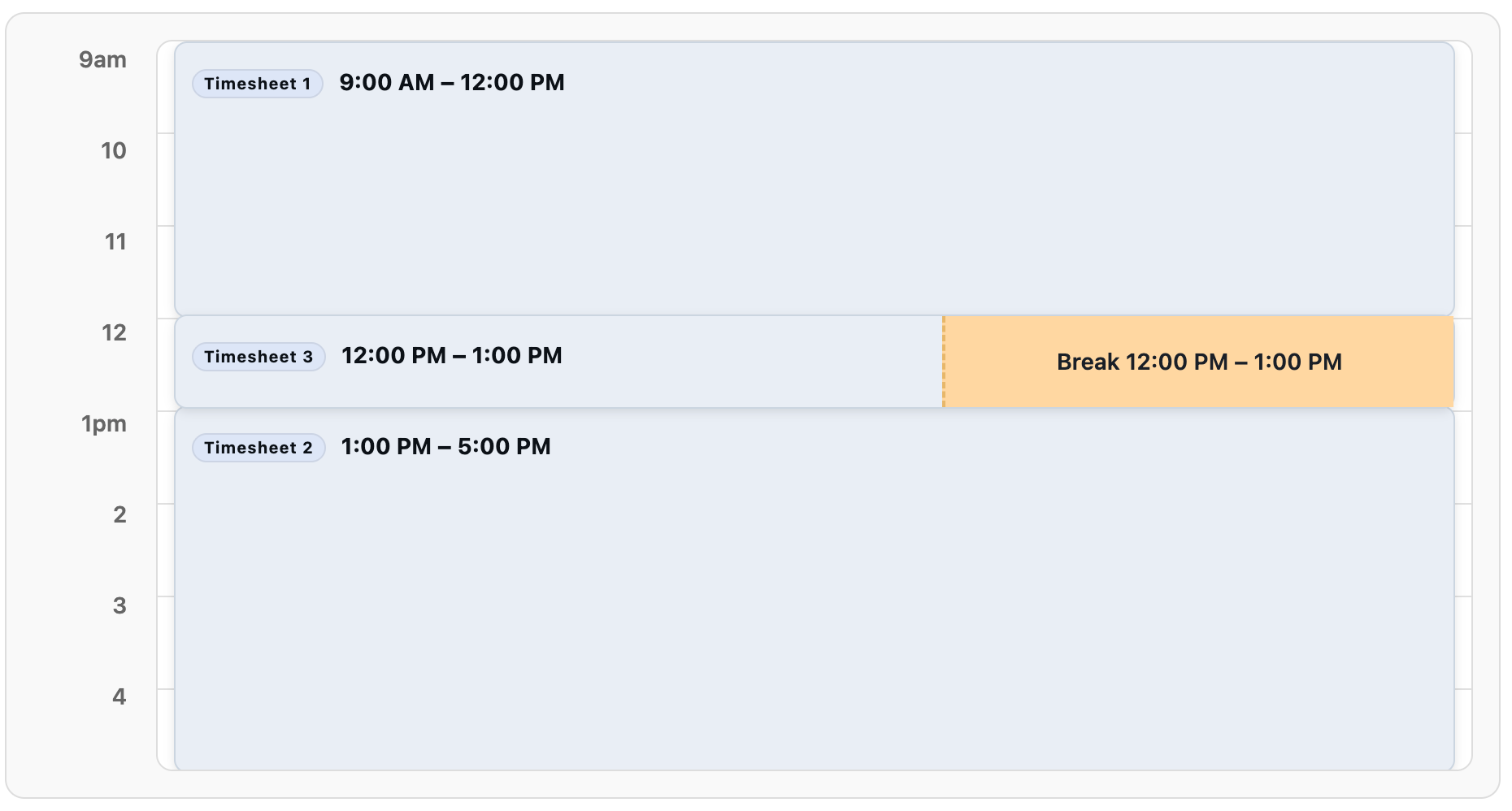
 This pattern occurs in HRIS tools where break data doesn't belong to a specific work timesheet. Instead, Kombo creates a standalone timesheet entry that represents the entire break period, with the actual break details nested within it. This provides complete break tracking while maintaining the tool's original data structure.
```json theme={null}
[
{
"started_at": "2025-04-16T09:00:00.000Z",
"ended_at": "2025-04-16T12:00:00.000Z",
"remote_id": "Timesheet 1"
},
{
"started_at": "2025-04-16T13:00:00.000Z",
"ended_at": "2025-04-16T17:00:00.000Z",
"remote_id": "Timesheet 2"
},
{
"started_at": "2025-04-16T12:00:00.000Z",
"ended_at": "2025-04-16T13:00:00.000Z",
"remote_id": "Timesheet 3",
"unpaid_break_minutes": 60,
"breaks": [
{
"started_at": "2025-04-16T12:00:00.000Z",
"ended_at": "2025-04-16T13:00:00.000Z",
"paid": false
}
]
}
]
```
This pattern occurs in HRIS tools where break data doesn't belong to a specific work timesheet. Instead, Kombo creates a standalone timesheet entry that represents the entire break period, with the actual break details nested within it. This provides complete break tracking while maintaining the tool's original data structure.
```json theme={null}
[
{
"started_at": "2025-04-16T09:00:00.000Z",
"ended_at": "2025-04-16T12:00:00.000Z",
"remote_id": "Timesheet 1"
},
{
"started_at": "2025-04-16T13:00:00.000Z",
"ended_at": "2025-04-16T17:00:00.000Z",
"remote_id": "Timesheet 2"
},
{
"started_at": "2025-04-16T12:00:00.000Z",
"ended_at": "2025-04-16T13:00:00.000Z",
"remote_id": "Timesheet 3",
"unpaid_break_minutes": 60,
"breaks": [
{
"started_at": "2025-04-16T12:00:00.000Z",
"ended_at": "2025-04-16T13:00:00.000Z",
"paid": false
}
]
}
]
```
 ## API Usage Examples
### Basic Timesheet Retrieval
```
GET /hris/timesheets?employee_id=H77fDF8uvEzGNPRubiz5DvQ7
```
### Date Range Filtering
```
GET /hris/timesheets?started_after=2025-04-01T00:00:00.000Z&ended_before=2025-04-30T23:59:59.000Z
```
## Implementation Best Practices
1. Handle multiple break patterns
* Parse detailed break arrays when available
* Fall back to break minutes calculation
* Detect break periods from split timesheets
2. Timezone considerations
* Always store times in UTC
* Use timezone offsets for display purposes
* Consider employee location for compliance reporting
3. Error handling
* Handle cases where `payable_hours` is null
* Account for missing break data
* Plan for partial timesheet data
4. Filtering and performance
* Use date range filters to limit data volume
* Implement pagination for large datasets
* Filter by specific employees when possible
## Common Integration Scenarios
### Payroll Processing
1. Filter timesheets by approval status, for example `APPROVED`
2. Use `payable_hours` when available, otherwise calculate from time ranges
3. Factor in `unpaid_break_minutes` for accurate pay calculations
4. Verify approval timestamps meet payroll cutoff requirements
### Attendance Monitoring
1. Check for incomplete timesheets that are missing start or end times
2. Monitor for unusual patterns such as very short or very long shifts
3. Track break compliance based on company policies
4. Generate alerts for timesheet anomalies
## API Usage Examples
### Basic Timesheet Retrieval
```
GET /hris/timesheets?employee_id=H77fDF8uvEzGNPRubiz5DvQ7
```
### Date Range Filtering
```
GET /hris/timesheets?started_after=2025-04-01T00:00:00.000Z&ended_before=2025-04-30T23:59:59.000Z
```
## Implementation Best Practices
1. Handle multiple break patterns
* Parse detailed break arrays when available
* Fall back to break minutes calculation
* Detect break periods from split timesheets
2. Timezone considerations
* Always store times in UTC
* Use timezone offsets for display purposes
* Consider employee location for compliance reporting
3. Error handling
* Handle cases where `payable_hours` is null
* Account for missing break data
* Plan for partial timesheet data
4. Filtering and performance
* Use date range filters to limit data volume
* Implement pagination for large datasets
* Filter by specific employees when possible
## Common Integration Scenarios
### Payroll Processing
1. Filter timesheets by approval status, for example `APPROVED`
2. Use `payable_hours` when available, otherwise calculate from time ranges
3. Factor in `unpaid_break_minutes` for accurate pay calculations
4. Verify approval timestamps meet payroll cutoff requirements
### Attendance Monitoring
1. Check for incomplete timesheets that are missing start or end times
2. Monitor for unusual patterns such as very short or very long shifts
3. Track break compliance based on company policies
4. Generate alerts for timesheet anomalies