> ## Documentation Index
> Fetch the complete documentation index at: https://docs.kombo.dev/llms.txt
> Use this file to discover all available pages before exploring further.
# How to integrate your customer via Kombo
> A checklist for connecting a customer end to end: your setup, their connection flow, and what changes for enterprise tools.
Every integration has two sides: **your setup**, and **your customer connecting
their tool**. Use this page as a checklist for the whole path.
For step-by-step tool instructions (API keys, OAuth screens, required
permissions), use the [Connection Guides](/help-center/connection-guides). For
embedding the flow in your product, see
[Kombo Connect](/hris/guides/connect/embedded-flow).
***
## 1. What you do
### Prerequisites
* **Configure [scopes](https://app.kombo.dev).** The exact data points Kombo
requests. Keep them as tight as your use case allows. See
[Permissions and scopes](/permissions-and-scopes).
* **Check coverage.** Confirm the tool is supported and that it supports your
use case on the [coverage grid](https://app.kombo.dev) and
[tools page](https://app.kombo.dev).
### Checklist
* [ ] **Step 1 — Confirm the tool is enabled and read the limitations**
* Open the [Tools page](https://app.kombo.dev) and confirm the tool is
enabled for your environment.
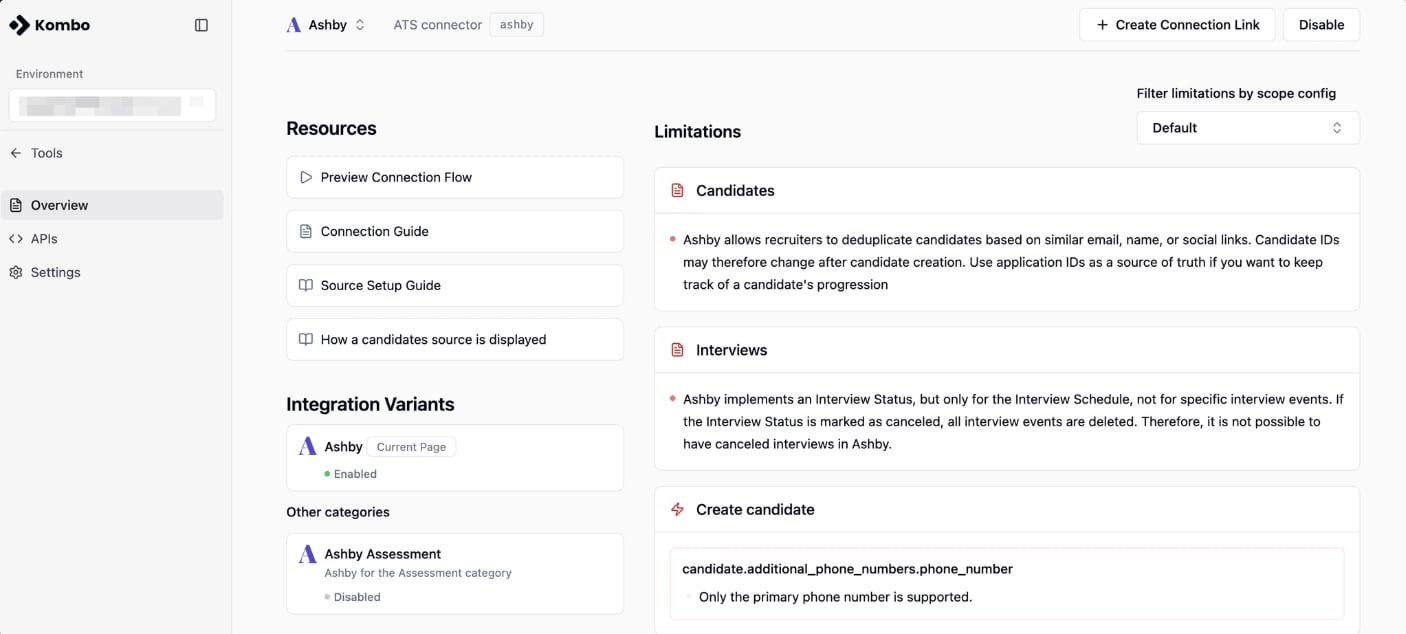
* Read the tool’s limitations before you invite the customer. Not every tool
exposes everything through its API — some have partial APIs or need
workarounds, and a few fields or write actions may not be available.
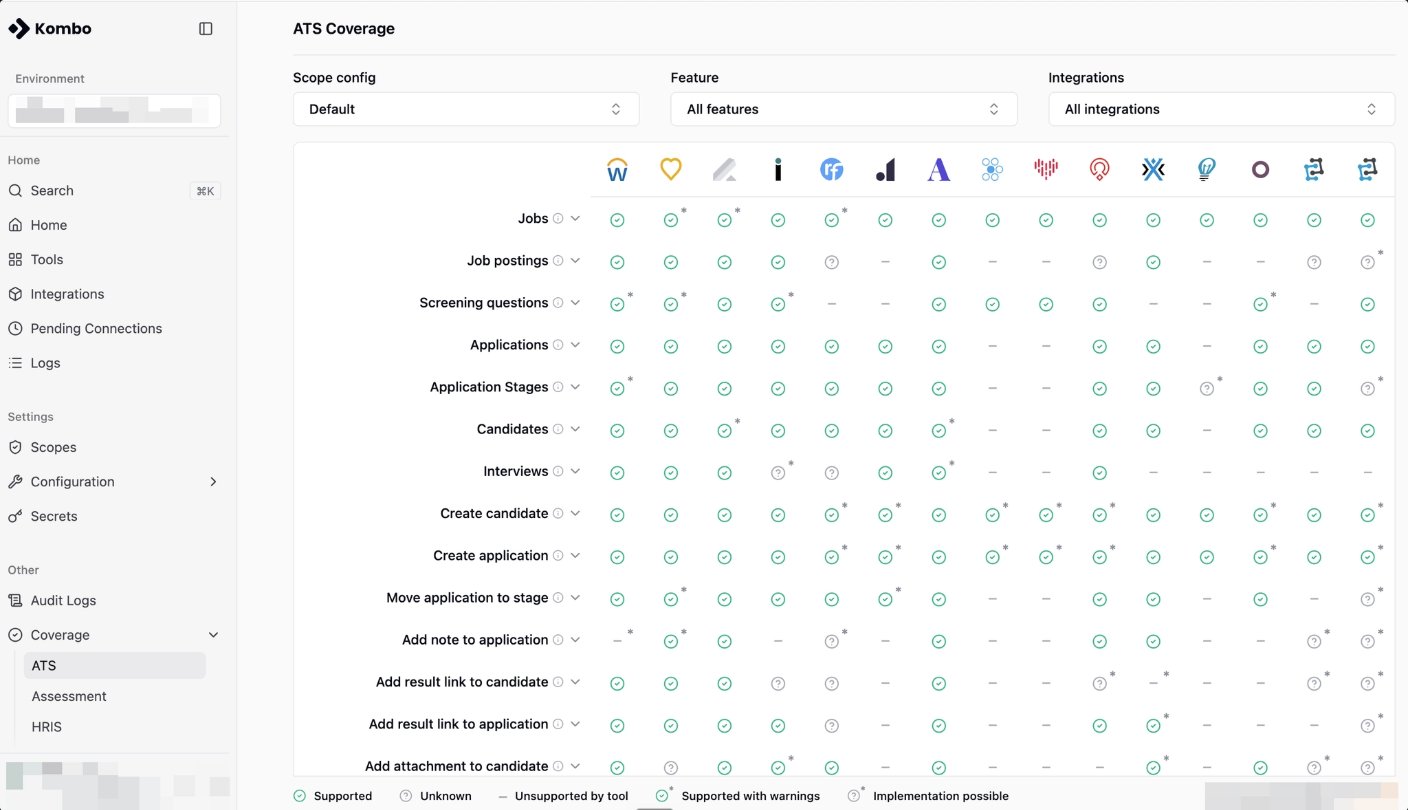
* Use **Coverage** for a high-level overview (tip: filter by your scope).
 * Open the specific **tool page** for details, the connection flow, guides,
and other docs (tip: filter limitations by your scope).
* Open the specific **tool page** for details, the connection flow, guides,
and other docs (tip: filter limitations by your scope).
 * [ ] **Step 2 — Choose how your customer connects**
| Path | How it works | Best for |
| ------------------- | --------------------------------------------------------------------------------------------------------- | ----------------------------- |
| **Embedded flow** | Kombo Connect lives inside your product. The customer opens your product, picks their tool, and connects. | Self-serve |
| **Connection link** | Generate a connection link from **Integrations** or **Tools**, then send it to your customer. | Enterprise or guided launches |
For the engineering setup of the embedded flow, see [Embedded
flow](/hris/guides/connect/embedded-flow).
* [ ] **Step 3 — Send the link (or point them to your product)**
* Embedded flow: customer starts from your product.
* Connection link: send the link you generated in Step 2.
* [ ] **Step 4 — Monitor progress**
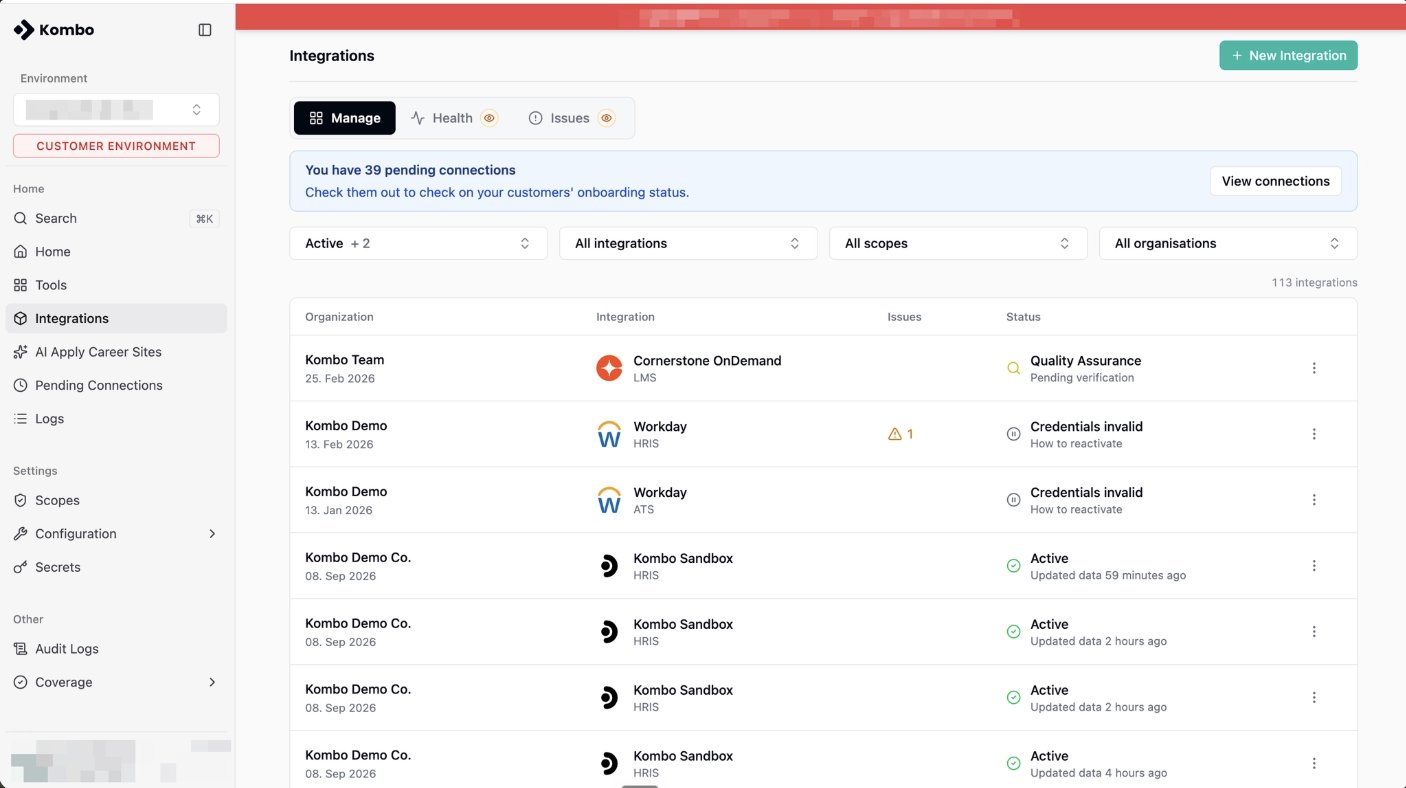
* **[Pending Connections](https://app.kombo.dev)** — integrations that have
not been started or finished.
* **[Integrations](https://app.kombo.dev)** — successfully connected
integrations (statuses can vary).
* [ ] **Step 2 — Choose how your customer connects**
| Path | How it works | Best for |
| ------------------- | --------------------------------------------------------------------------------------------------------- | ----------------------------- |
| **Embedded flow** | Kombo Connect lives inside your product. The customer opens your product, picks their tool, and connects. | Self-serve |
| **Connection link** | Generate a connection link from **Integrations** or **Tools**, then send it to your customer. | Enterprise or guided launches |
For the engineering setup of the embedded flow, see [Embedded
flow](/hris/guides/connect/embedded-flow).
* [ ] **Step 3 — Send the link (or point them to your product)**
* Embedded flow: customer starts from your product.
* Connection link: send the link you generated in Step 2.
* [ ] **Step 4 — Monitor progress**
* **[Pending Connections](https://app.kombo.dev)** — integrations that have
not been started or finished.
* **[Integrations](https://app.kombo.dev)** — successfully connected
integrations (statuses can vary).
 ***
## 2. What your customer does
### Prerequisites
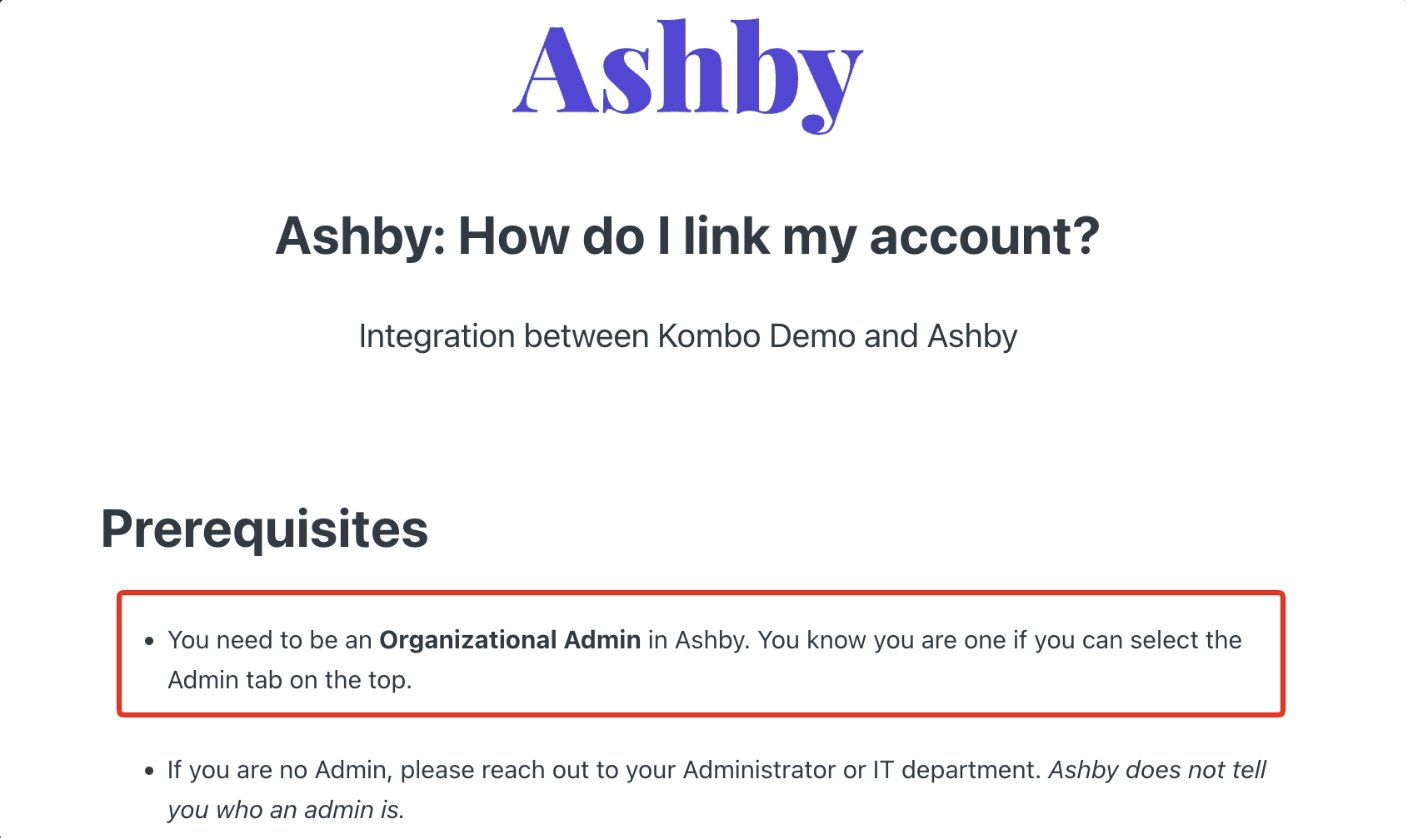
* The person connecting needs **admin access**. They must have the right admin
level in their tool to authorise the connection and grant the requested
scopes. This is generally an admin or equivalent.
Line this person up **before** you send the link. The wrong person is the
number-one reason a connection stalls. The [connection
guide](/help-center/connection-guides) for each tool highlights the required
access level.
***
## 2. What your customer does
### Prerequisites
* The person connecting needs **admin access**. They must have the right admin
level in their tool to authorise the connection and grant the requested
scopes. This is generally an admin or equivalent.
Line this person up **before** you send the link. The wrong person is the
number-one reason a connection stalls. The [connection
guide](/help-center/connection-guides) for each tool highlights the required
access level.
 ### Checklist
* [ ] **Step 1 — Open the connection**
* They open the connection link you sent them.
* If Kombo is embedded in your product, they select their tool from there.
* [ ] **Step 2 — Follow the connection flow**
* They review and approve the requested data (your scopes).
* [ ] **Step 3 — Authorise the connection**
* **OAuth tools** — they sign in and approve access, like single sign-on.
Nothing to create.
### Checklist
* [ ] **Step 1 — Open the connection**
* They open the connection link you sent them.
* If Kombo is embedded in your product, they select their tool from there.
* [ ] **Step 2 — Follow the connection flow**
* They review and approve the requested data (your scopes).
* [ ] **Step 3 — Authorise the connection**
* **OAuth tools** — they sign in and approve access, like single sign-on.
Nothing to create.
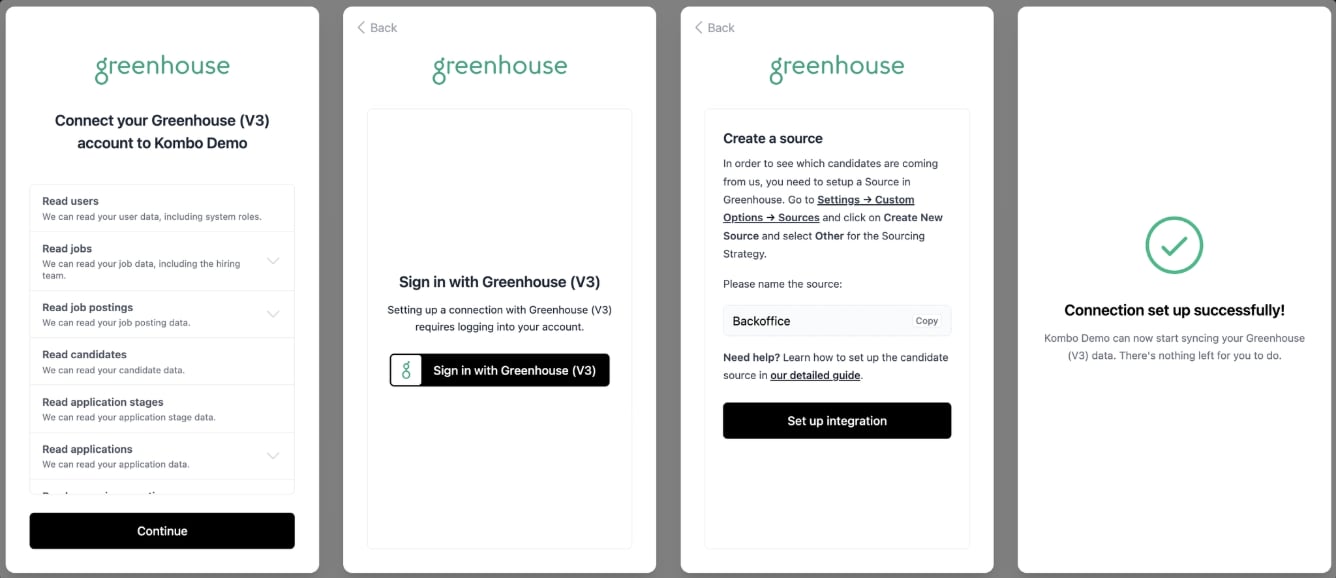 * **API-credential tools** — they generate an API key (sometimes a secret)
inside their tool and paste it in.
* **API-credential tools** — they generate an API key (sometimes a secret)
inside their tool and paste it in.
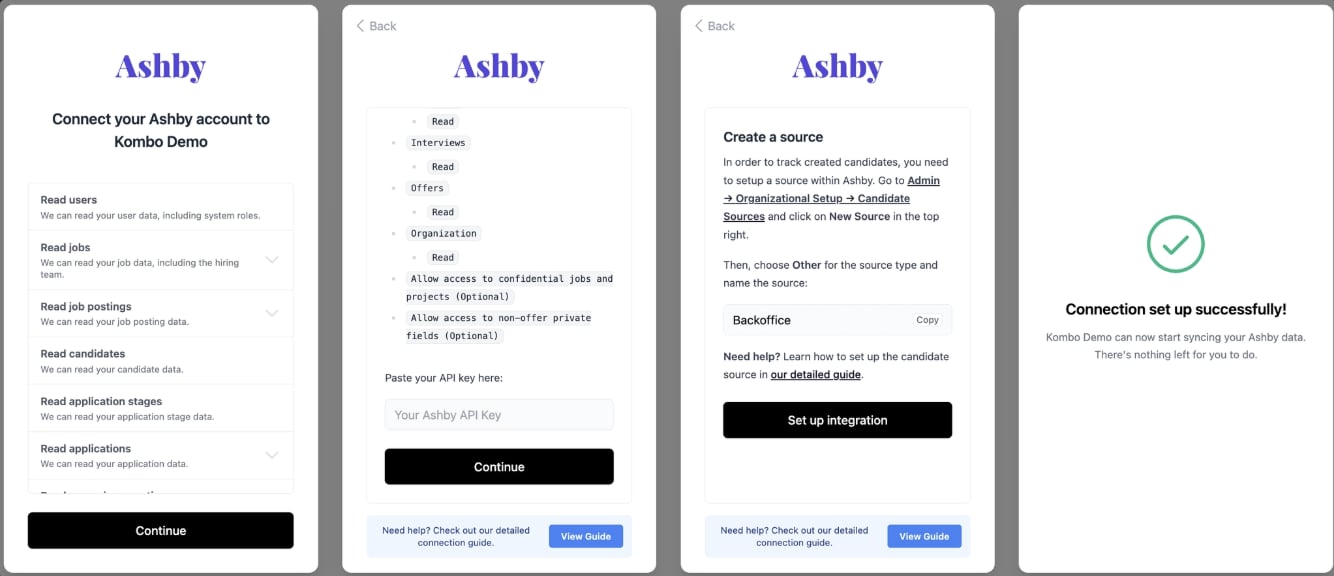 * [ ] **Step 4 — Confirm success**
* When the integration is successful, no further action is required from your
customer.
***
## Enterprise customers and enterprise tools
Enterprise customers generally use enterprise systems (for example Workday,
SuccessFactors, Oracle). These tools often require more time and steps. Treat
them as **guided launches**, not self-serve.
* [ ] **Step 4 — Confirm success**
* When the integration is successful, no further action is required from your
customer.
***
## Enterprise customers and enterprise tools
Enterprise customers generally use enterprise systems (for example Workday,
SuccessFactors, Oracle). These tools often require more time and steps. Treat
them as **guided launches**, not self-serve.
 ### Checklist
* [ ] **Prepare for security questions** — Expect questions about data security
and access. Keep scopes tight and be ready to explain exactly what you
request.
* [ ] **Line up the right person early** — They need admin rights and the
ability to set permissions. This may be someone you are not yet speaking
with.
* [ ] **Run through the process with your customer** — Enterprise tools often
gate data behind specific permission areas. Know those requirements
before your customer hits them in the flow.
***
## Connection stuck or not completing?
See [Troubleshoot connection flow problems](/hris/guides/debugging/debug-connection-flow)
for statuses and the most common issues.
***
## Related docs
* [Onboarding your customers](/help-center/onboarding) — Connect flows, invite
links, and rollout
* [Connection guides](/help-center/connection-guides) — Per-tool setup
instructions
* [Permissions and scopes](/permissions-and-scopes) — Request only the data you
need
* [Embedded flow](/hris/guides/connect/embedded-flow) — Implement Kombo Connect
in your product
* [Best practices](/help-center/best-practices) — Scopes, syncing, and error
handling
### Checklist
* [ ] **Prepare for security questions** — Expect questions about data security
and access. Keep scopes tight and be ready to explain exactly what you
request.
* [ ] **Line up the right person early** — They need admin rights and the
ability to set permissions. This may be someone you are not yet speaking
with.
* [ ] **Run through the process with your customer** — Enterprise tools often
gate data behind specific permission areas. Know those requirements
before your customer hits them in the flow.
***
## Connection stuck or not completing?
See [Troubleshoot connection flow problems](/hris/guides/debugging/debug-connection-flow)
for statuses and the most common issues.
***
## Related docs
* [Onboarding your customers](/help-center/onboarding) — Connect flows, invite
links, and rollout
* [Connection guides](/help-center/connection-guides) — Per-tool setup
instructions
* [Permissions and scopes](/permissions-and-scopes) — Request only the data you
need
* [Embedded flow](/hris/guides/connect/embedded-flow) — Implement Kombo Connect
in your product
* [Best practices](/help-center/best-practices) — Scopes, syncing, and error
handling