> ## Documentation Index
> Fetch the complete documentation index at: https://docs.kombo.dev/llms.txt
> Use this file to discover all available pages before exploring further.
# Troubleshoot connection flow problems
> Investigate and resolve issues that prevent your customers from connecting.
 When a customer cannot finish the connection flow, work through the steps below to isolate whether the problem originates from the customer’s configuration, Kombo, or the remote tool.
## 1. Identify the failing connection
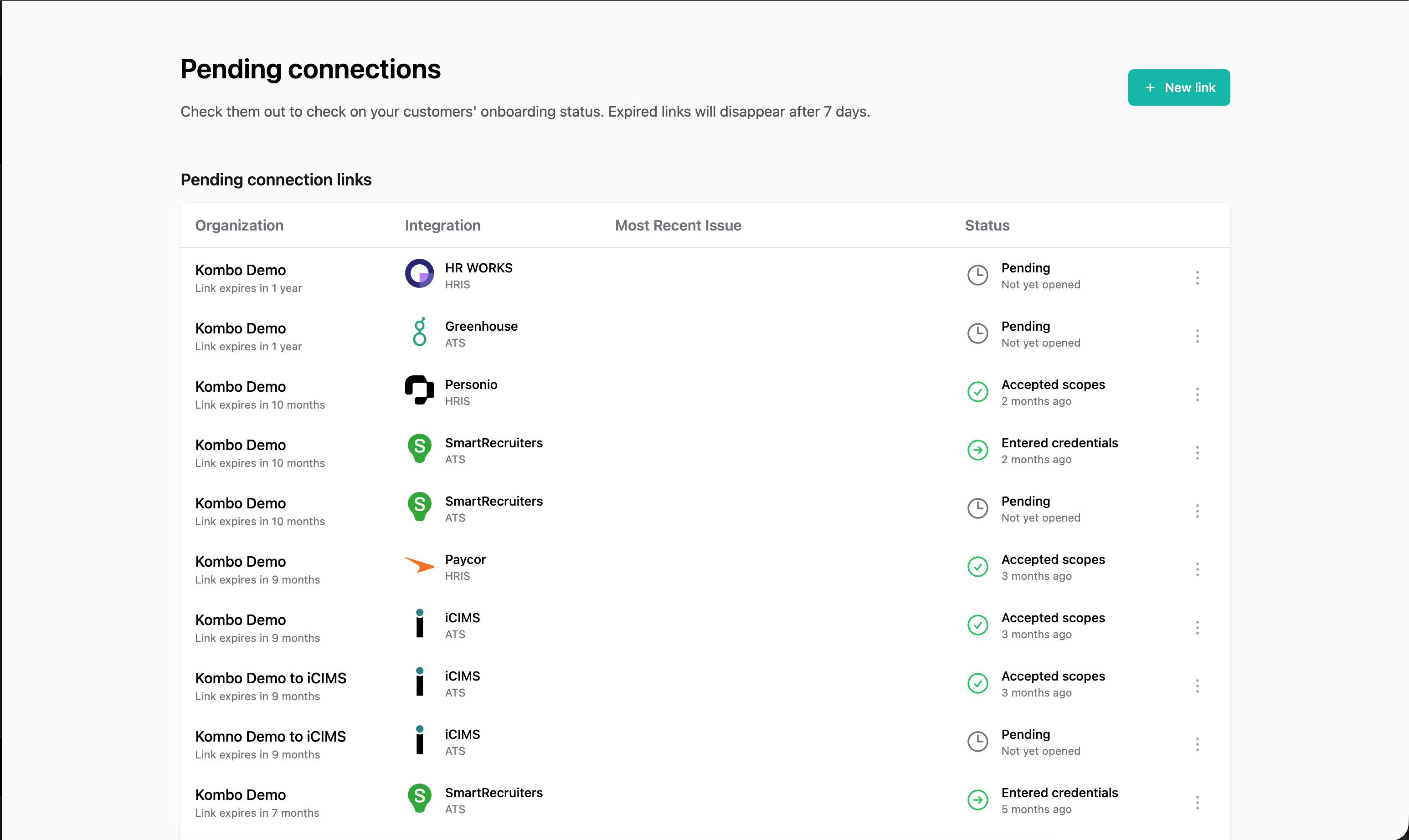
* Open the [Pending Connections page](https://app.kombo.dev/pending-connections) in the dashboard.
* Locate the affected connection and open its detail view. This page aggregates the context you need, including flow status and quick links.
* If you can't find the connection, you can also try to locate it from the [Logs page](../../features/logs).
## 2. Inspect event and request logs
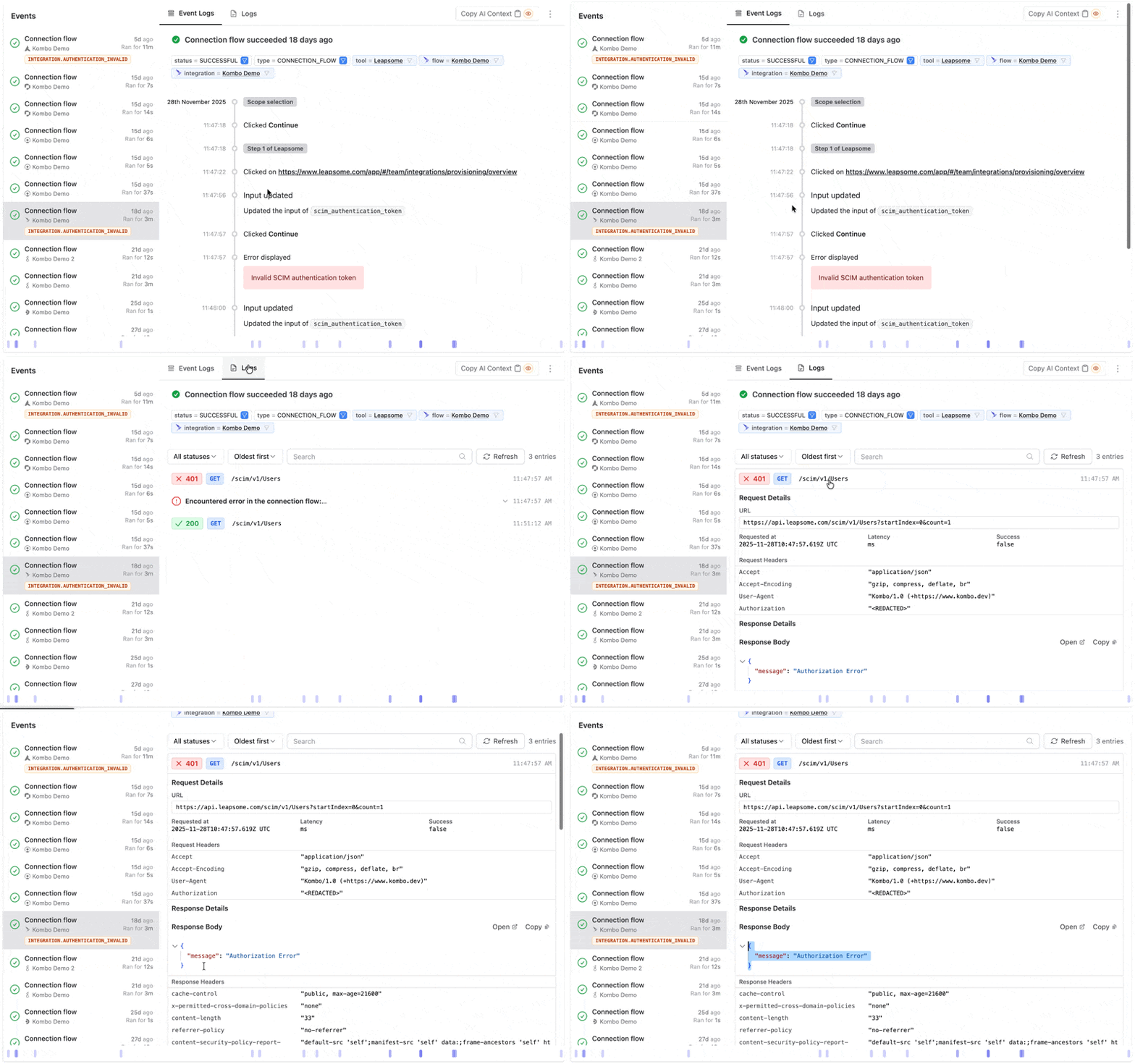
* Use the **Event Log** tab to understand exactly which step failed and what the customer saw in the UI. These entries often include an error message or hints the customer might have missed.
* Switch to the **Logs** tab to inspect the HTTP calls Kombo made:
* Review failing requests. HTTP `401`/`403` responses typically mean a missing permission on the customer’s side.
* `500`-level responses usually indicate a temporary issue in the remote tool—confirm their status page or retry later.
* Other status codes (e.g. validation errors) can surface configuration issues on Kombo’s side.
* Also inspect the response bodies, they might contain more information on whats failing.
When a customer cannot finish the connection flow, work through the steps below to isolate whether the problem originates from the customer’s configuration, Kombo, or the remote tool.
## 1. Identify the failing connection
* Open the [Pending Connections page](https://app.kombo.dev/pending-connections) in the dashboard.
* Locate the affected connection and open its detail view. This page aggregates the context you need, including flow status and quick links.
* If you can't find the connection, you can also try to locate it from the [Logs page](../../features/logs).
## 2. Inspect event and request logs
* Use the **Event Log** tab to understand exactly which step failed and what the customer saw in the UI. These entries often include an error message or hints the customer might have missed.
* Switch to the **Logs** tab to inspect the HTTP calls Kombo made:
* Review failing requests. HTTP `401`/`403` responses typically mean a missing permission on the customer’s side.
* `500`-level responses usually indicate a temporary issue in the remote tool—confirm their status page or retry later.
* Other status codes (e.g. validation errors) can surface configuration issues on Kombo’s side.
* Also inspect the response bodies, they might contain more information on whats failing.
 For a deeper dive into logs, see [Logs](../../features/logs) and [Komboman](../../features/komboman) for reproducing calls manually.
## 3. Validate setup with connection guides
* Share the [connection guide](https://help.kombo.dev/hc/en-us/sections/14349683218961-Connection-Guides) for the tool with your customer. The guide lists mandatory permissions, API scopes, and any tool-specific prerequisites.
* Confirm that the customer followed the guide
* If the guide highlights optional scopes your product relies on, ensure the customer understands why they must be enabled.
For a deeper dive into logs, see [Logs](../../features/logs) and [Komboman](../../features/komboman) for reproducing calls manually.
## 3. Validate setup with connection guides
* Share the [connection guide](https://help.kombo.dev/hc/en-us/sections/14349683218961-Connection-Guides) for the tool with your customer. The guide lists mandatory permissions, API scopes, and any tool-specific prerequisites.
* Confirm that the customer followed the guide
* If the guide highlights optional scopes your product relies on, ensure the customer understands why they must be enabled.