> ## Documentation Index
> Fetch the complete documentation index at: https://docs.kombo.dev/llms.txt
> Use this file to discover all available pages before exploring further.
# Remapping date fields
> Learn how to use the remapping feature to adjust Kombo date fields based on fields in your customer's systems.
## Remapping a date field
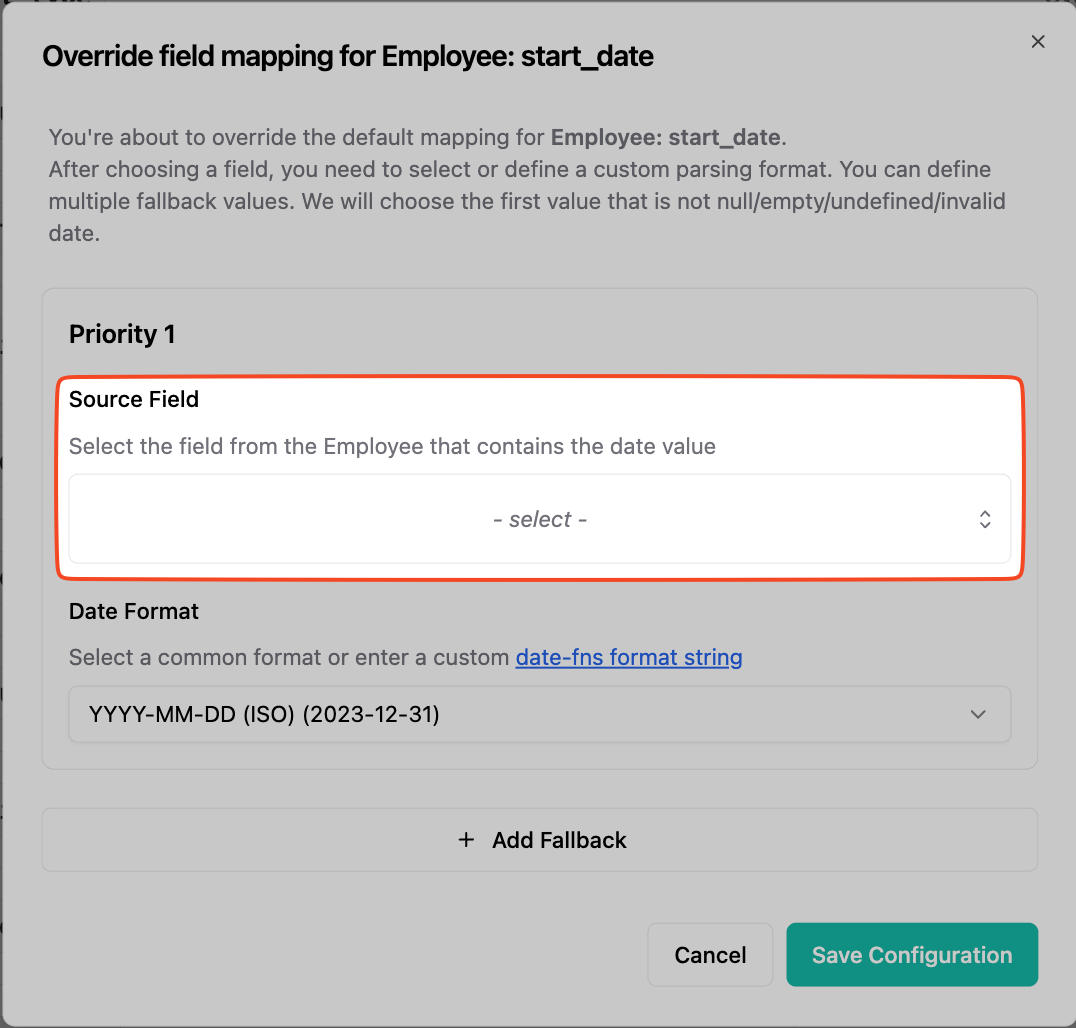
1. Select the source field of the date. It can bei either a string or number.
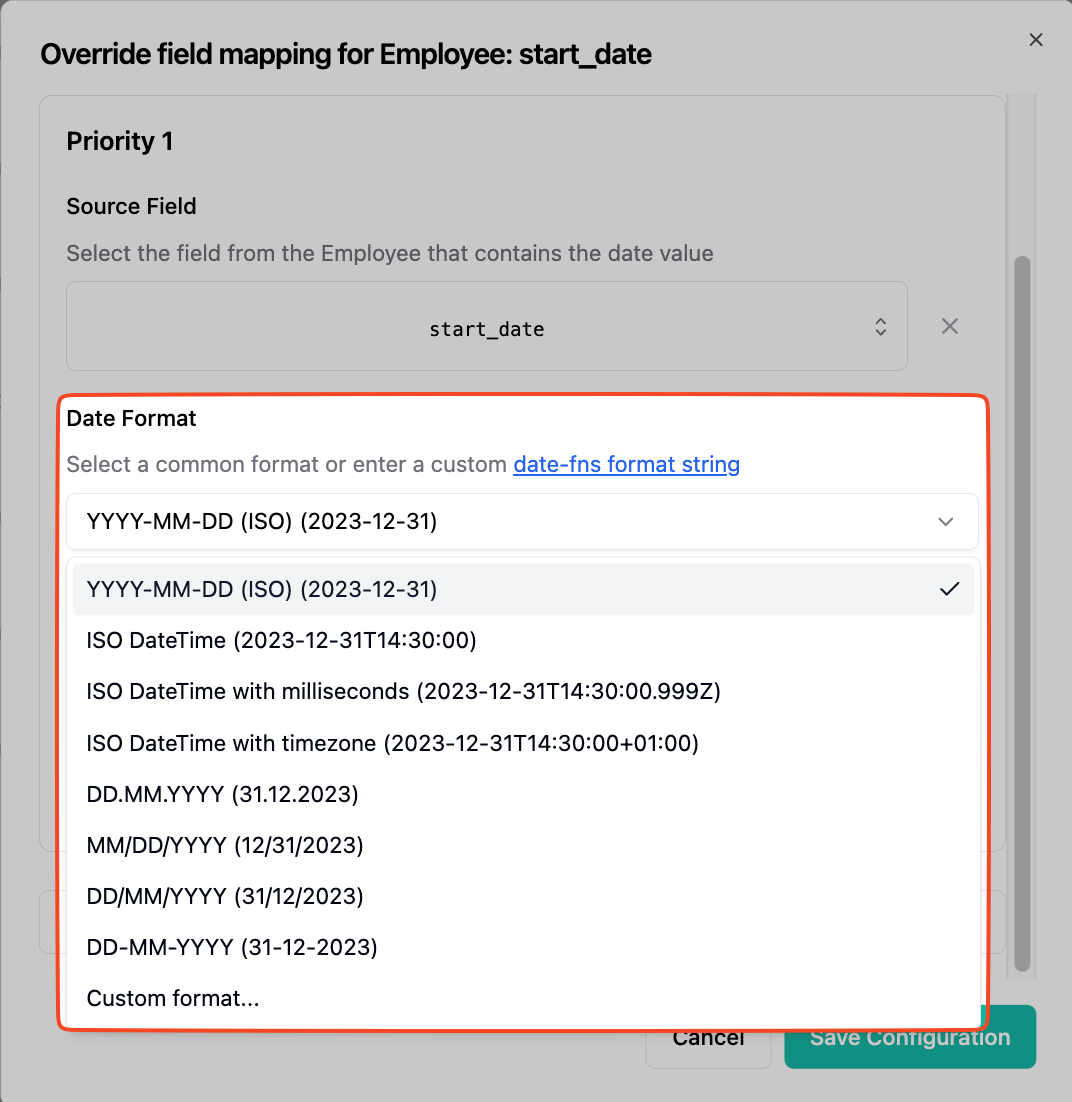
 2. Pick a date format from our presets or choose `Custom format`.
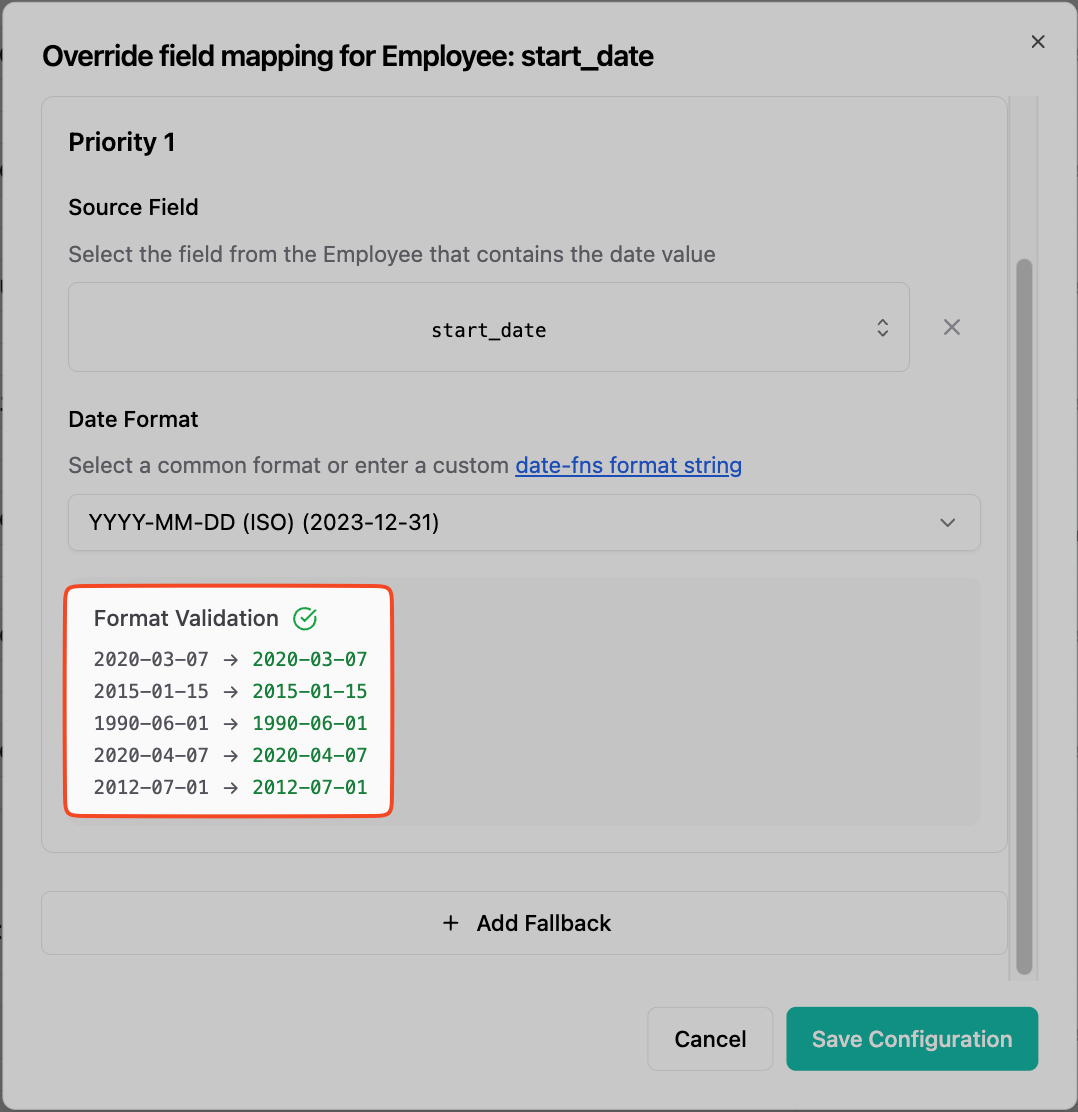
 3. (optional) If you have custom field examples enabled we will display a validation section below. Adjust the format until the dates are parsed as desired.
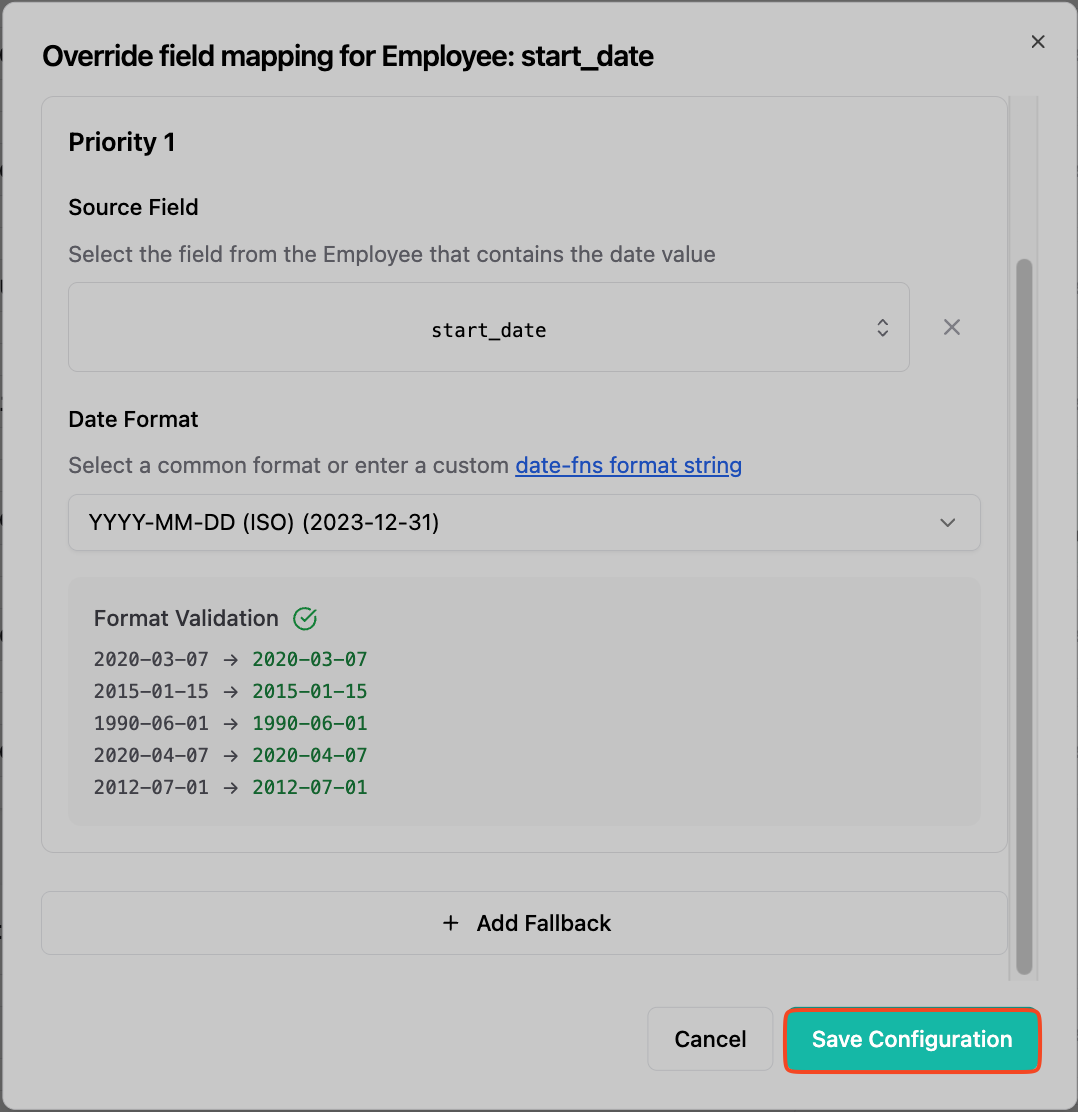
 4. Press the `Save configuration` button on the bottom right.