> ## Documentation Index
> Fetch the complete documentation index at: https://docs.kombo.dev/llms.txt
> Use this file to discover all available pages before exploring further.
# Remapping enum fields
> Learn how to use the remapping feature to adjust Kombo enum fields based on fields in your customer's systems.
## Remapping an enum field
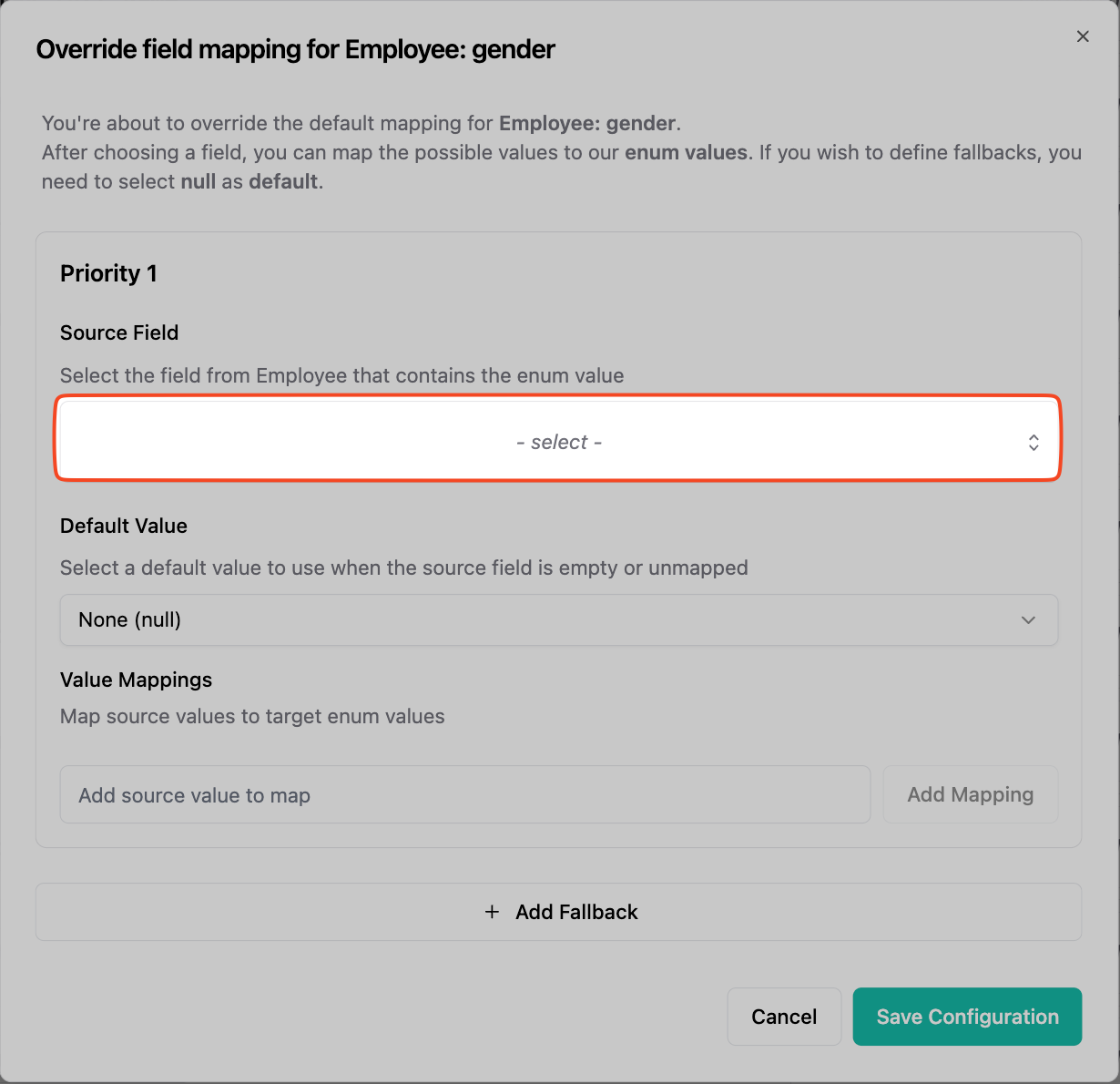
1. Select the source field to map the enum from.
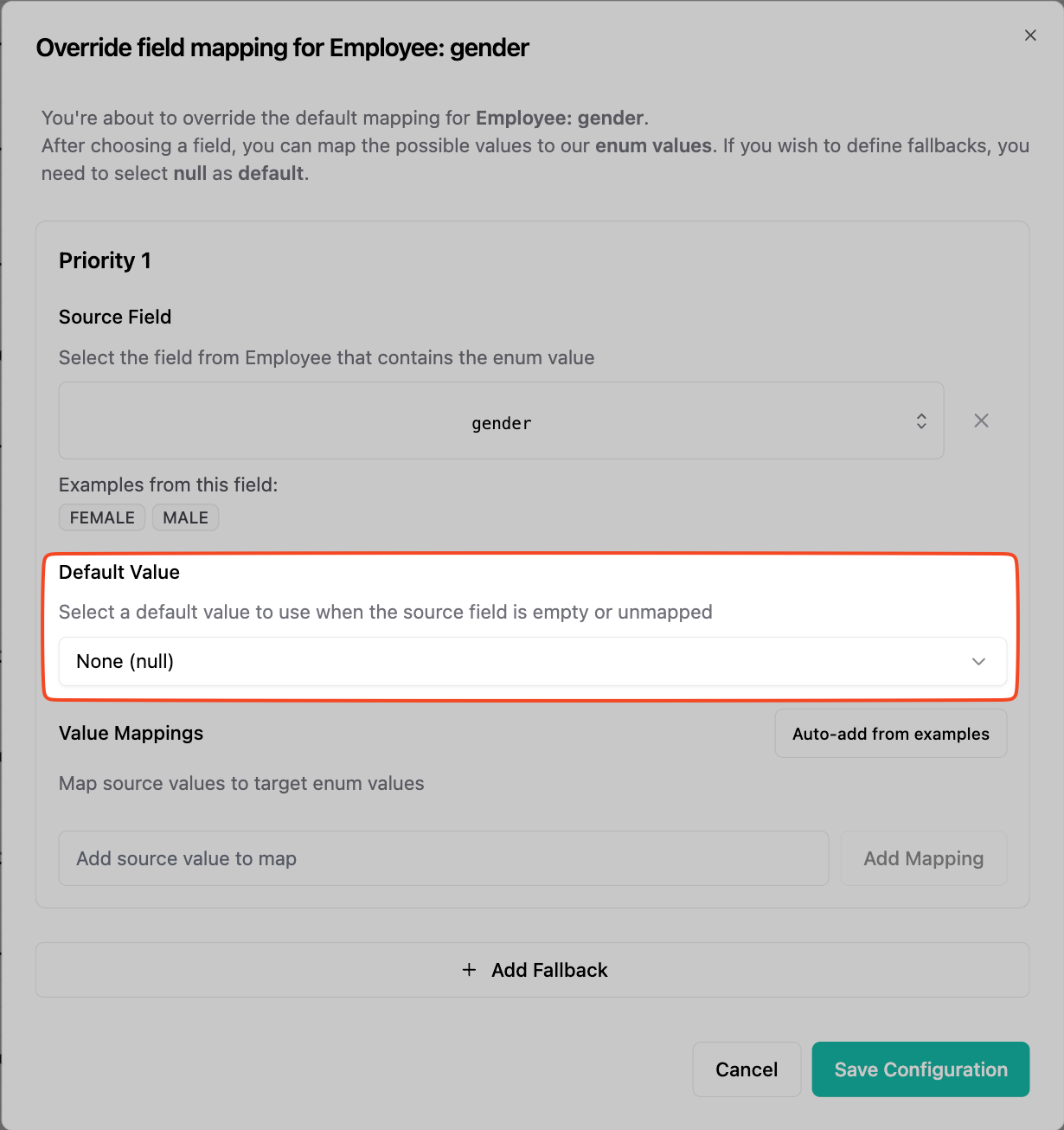
 2. Define a default value. This will be the result in case the value is not mapped or null. If you want to use `fallbacks` make sure to select `None (null)` here.
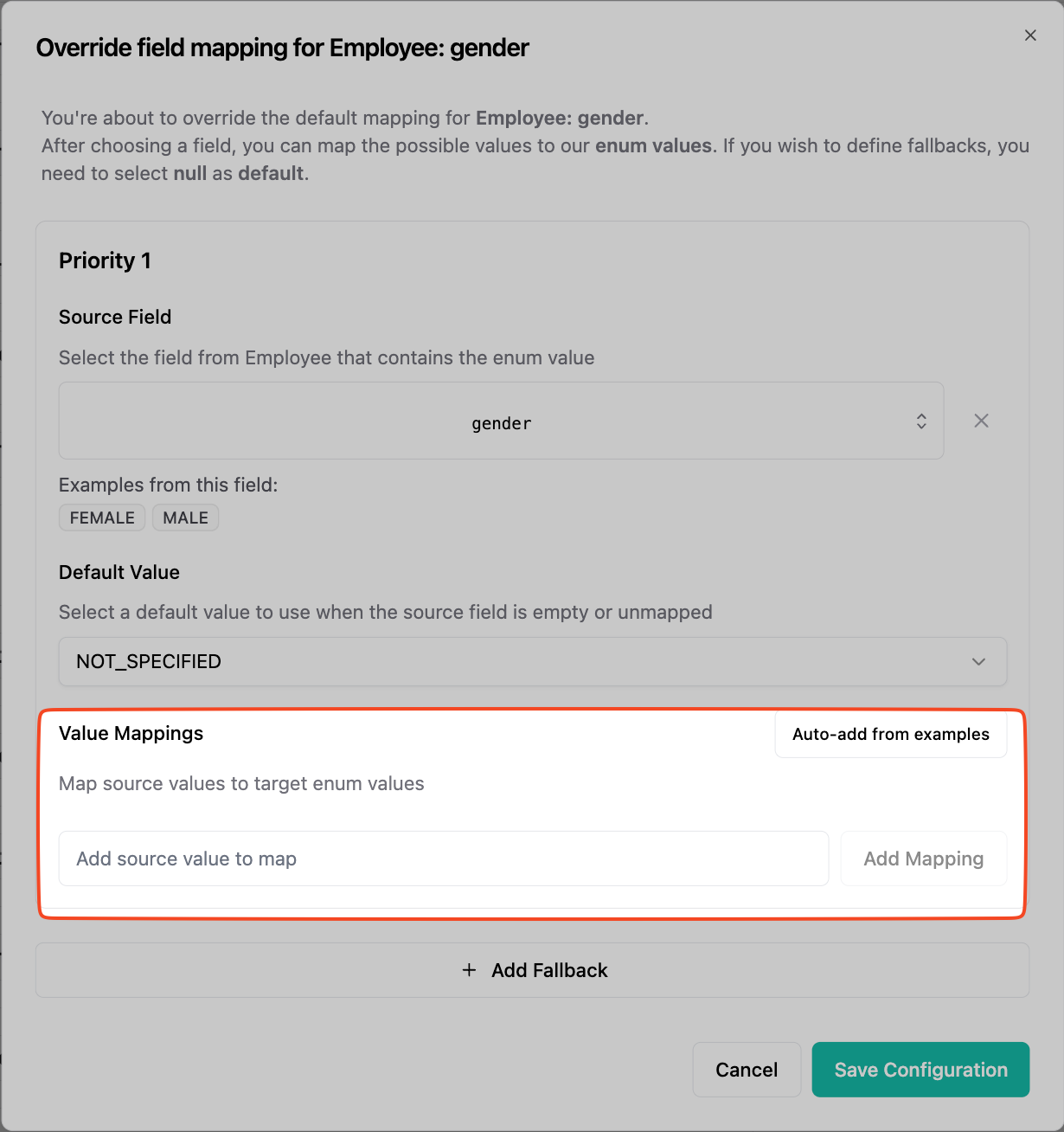
 3. Define an enum map. For this you first input the source string on the left. Then click the `Add mapping` button.
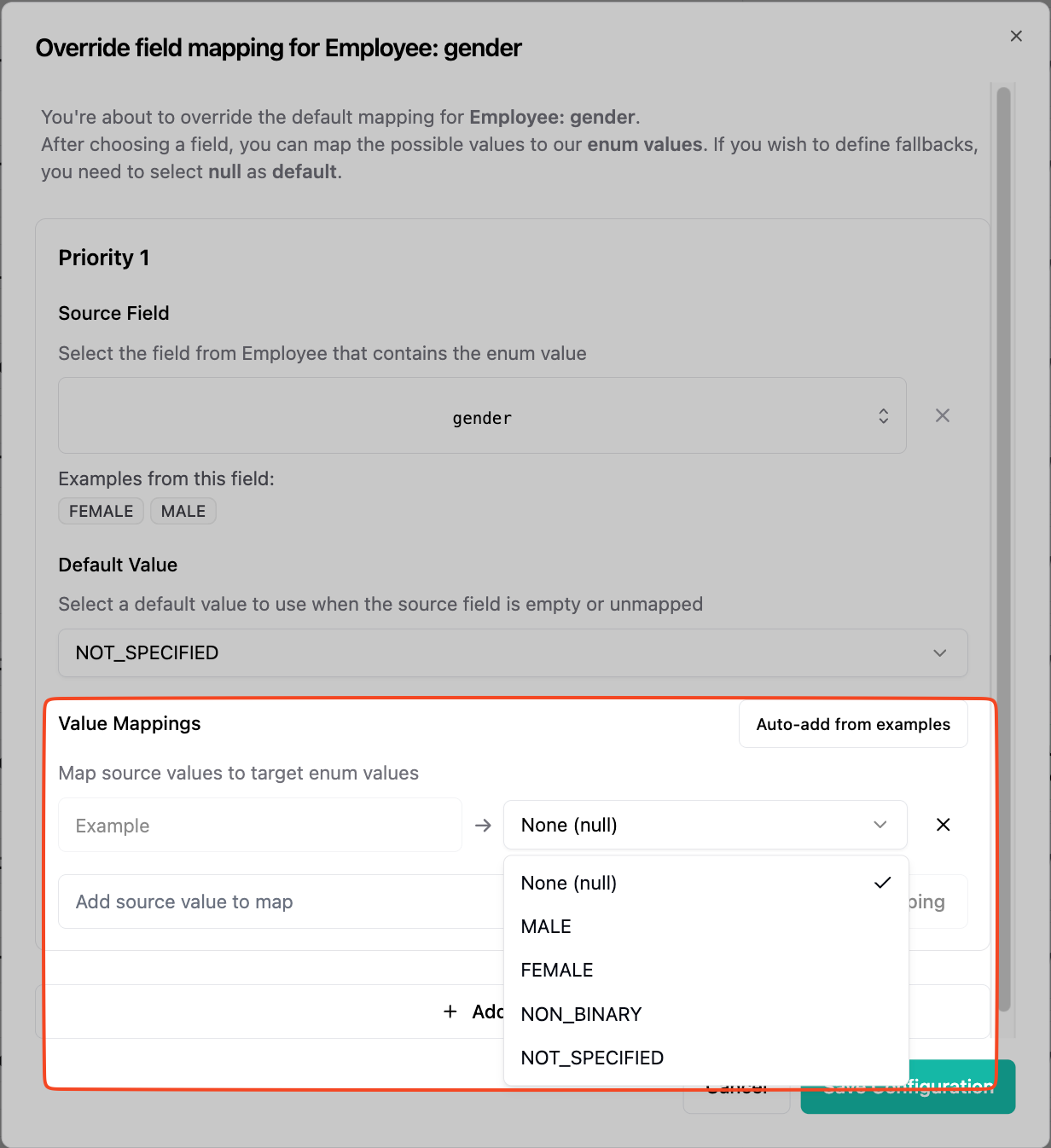
 After adding the source string, select one of the Kombo enum values.