> ## Documentation Index
> Fetch the complete documentation index at: https://docs.kombo.dev/llms.txt
> Use this file to discover all available pages before exploring further.
# Issues
> See which integrations need attention, and how long the problem has been going on.
When an integration starts failing, you want to know about it before your customer does. Issues put those problems on the dashboard as soon as Kombo observes them, so you can act before the end customer complains.
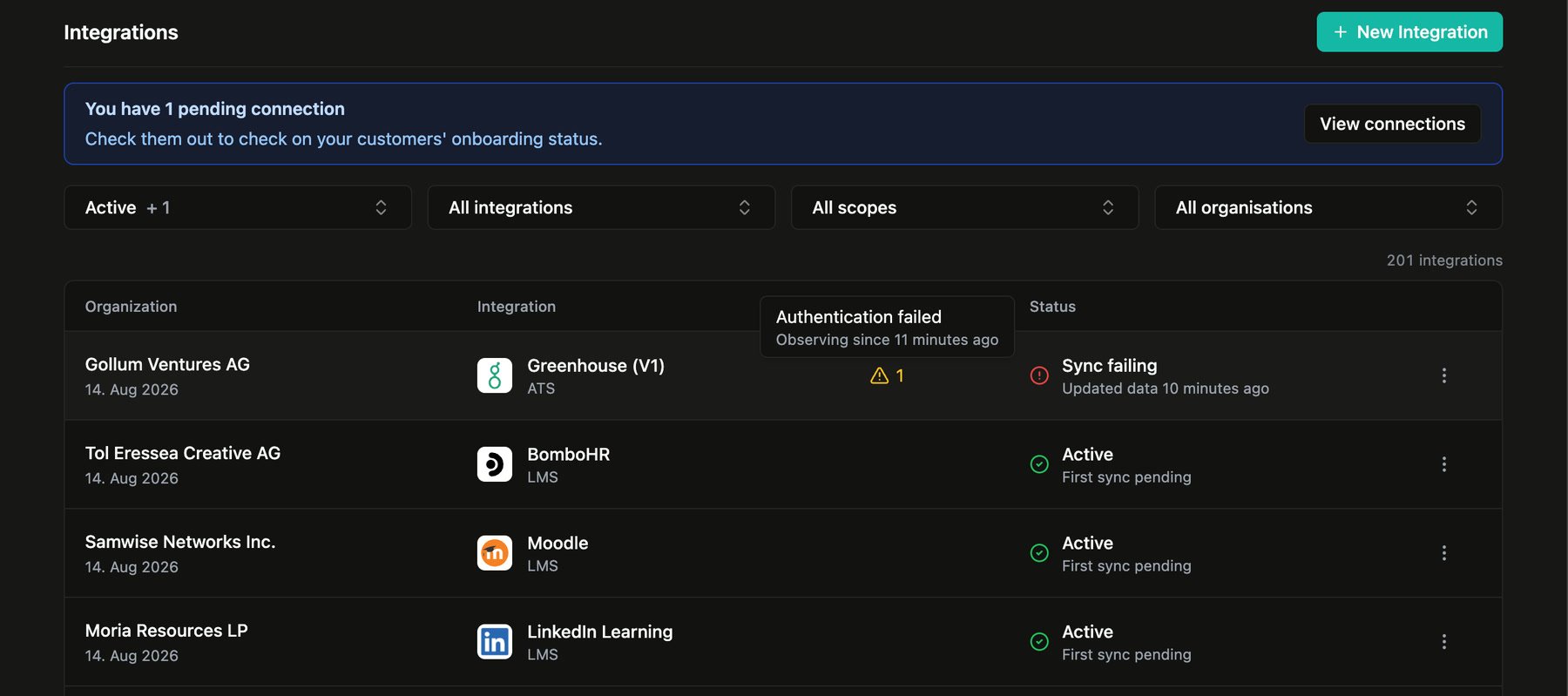 The integrations list shows an issue count on any integration that currently has an open issue. Hover the count to see the title and how long Kombo has been observing it.
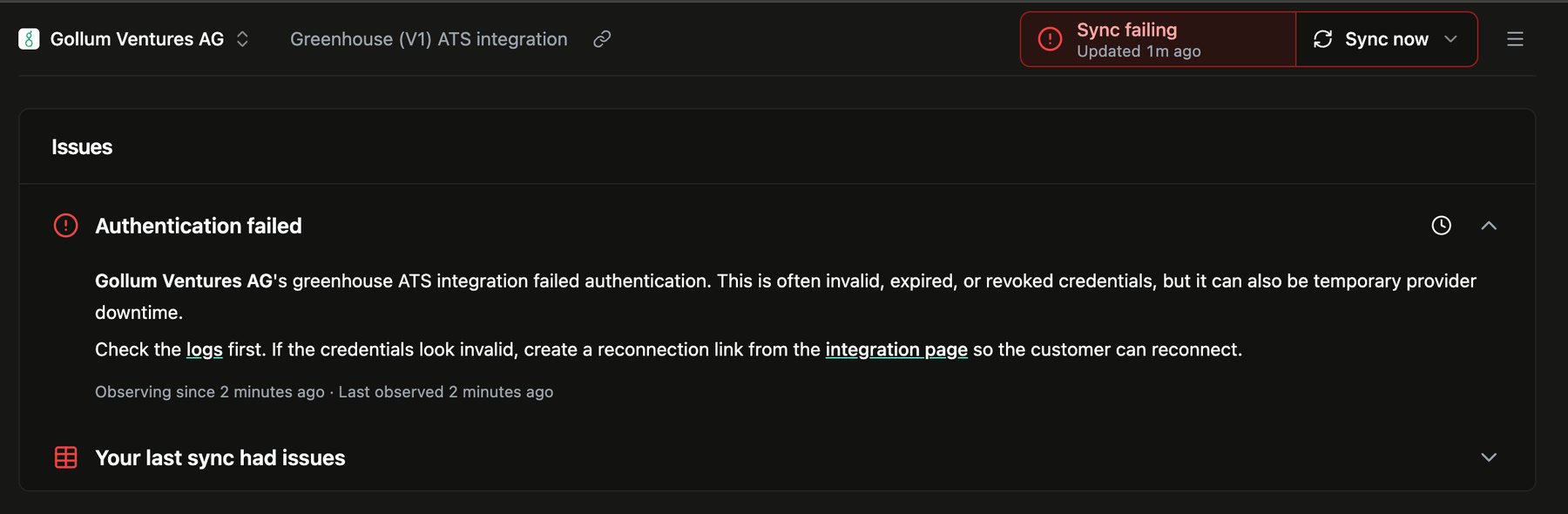
Open the integration to read what is wrong and what to do next.
The integrations list shows an issue count on any integration that currently has an open issue. Hover the count to see the title and how long Kombo has been observing it.
Open the integration to read what is wrong and what to do next.
 ## What an issue is
Kombo's issues track a problem of an integration over time. Kombo raises them when a condition is true (for example, authentication is failing) and keeps it open while that condition is still observed. When the condition clears, the issue resolves on its own.
Each issue tells you:
* what is broken
* how to investigate or fix it
* when Kombo first observed it, and when it last saw it again
As we are rolling out issues, more types will follow.
## What to do when you see one
1. Open the integration from the list.
2. Read the issue. Follow the linked [logs](./logs) if you need the underlying requests.
3. If credentials are invalid, [reconnect the integration](../guides/connect/reconnection).
The [integration state](../guides/integration-states) on the same page is the current snapshot (`Active`, `Sync failing`, `Authentication failing`). The issue is the durable record that the problem is still happening, and for how long.
You can snooze an issue to hide it in the Kombo dashboard for a while. Snoozing only affects the UI. The issue stays open, Kombo keeps observing it, and it does not send an [`issue-status-changed`](../guides/webhooks#issue-status-changed) webhook.
Subscribe to that webhook to get raised and resolved events as they happen. Slack notifications will follow.
Inspect the requests behind a failing sync or action.
Restore credentials when authentication has failed.
Read the current operational status of an integration.
Get raised and resolved issue events as they happen.
## What an issue is
Kombo's issues track a problem of an integration over time. Kombo raises them when a condition is true (for example, authentication is failing) and keeps it open while that condition is still observed. When the condition clears, the issue resolves on its own.
Each issue tells you:
* what is broken
* how to investigate or fix it
* when Kombo first observed it, and when it last saw it again
As we are rolling out issues, more types will follow.
## What to do when you see one
1. Open the integration from the list.
2. Read the issue. Follow the linked [logs](./logs) if you need the underlying requests.
3. If credentials are invalid, [reconnect the integration](../guides/connect/reconnection).
The [integration state](../guides/integration-states) on the same page is the current snapshot (`Active`, `Sync failing`, `Authentication failing`). The issue is the durable record that the problem is still happening, and for how long.
You can snooze an issue to hide it in the Kombo dashboard for a while. Snoozing only affects the UI. The issue stays open, Kombo keeps observing it, and it does not send an [`issue-status-changed`](../guides/webhooks#issue-status-changed) webhook.
Subscribe to that webhook to get raised and resolved events as they happen. Slack notifications will follow.
Inspect the requests behind a failing sync or action.
Restore credentials when authentication has failed.
Read the current operational status of an integration.
Get raised and resolved issue events as they happen.