> ## Documentation Index
> Fetch the complete documentation index at: https://docs.kombo.dev/llms.txt
> Use this file to discover all available pages before exploring further.
# Assessment UI
> View assessment packages and orders from the Kombo dashboard.
## Overview
The Assessment UI is a visual interface in the Kombo dashboard that allows you to view assessment packages, track orders, and inspect order details for your assessment integrations.
This makes it easy to debug issues, monitor assessment order statuses, and
verify that your integration is working correctly.
 ## Features
Below are the key features available in the Assessment UI.
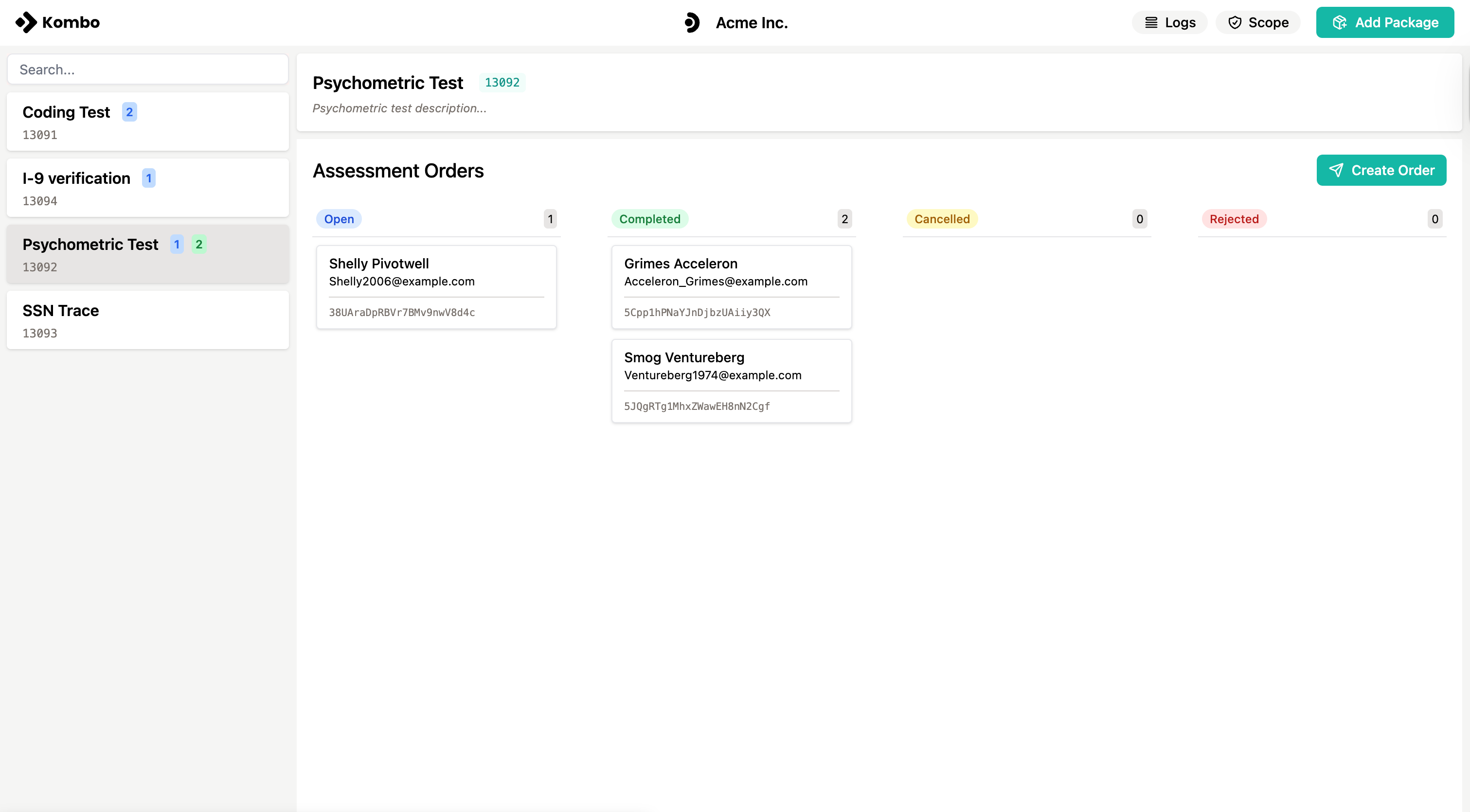
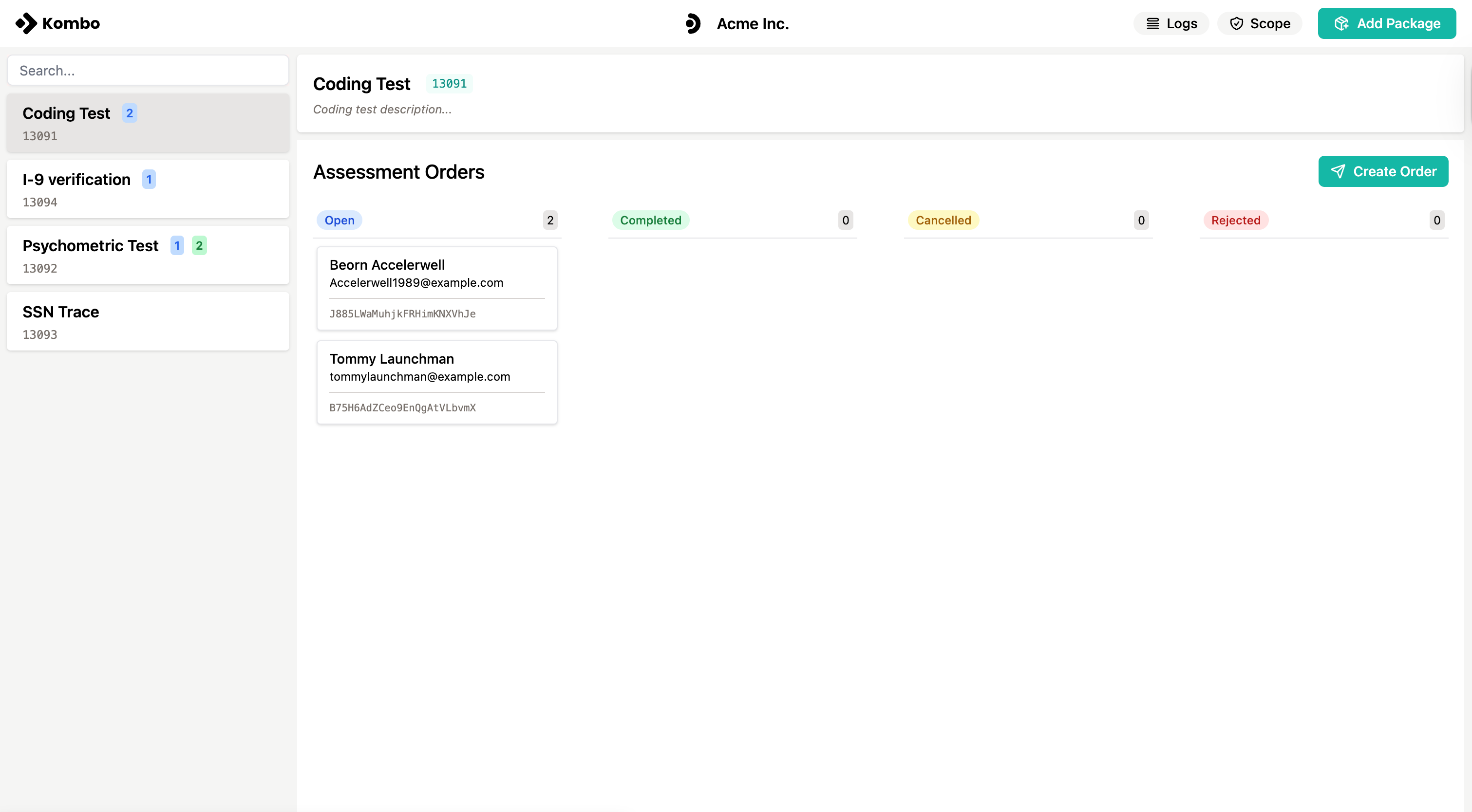
The Assessment UI displays all assessment packages for an integration in a
sidebar. Clicking on a package will reveal its orders organised by their
`status`.
## Features
Below are the key features available in the Assessment UI.
The Assessment UI displays all assessment packages for an integration in a
sidebar. Clicking on a package will reveal its orders organised by their
`status`.
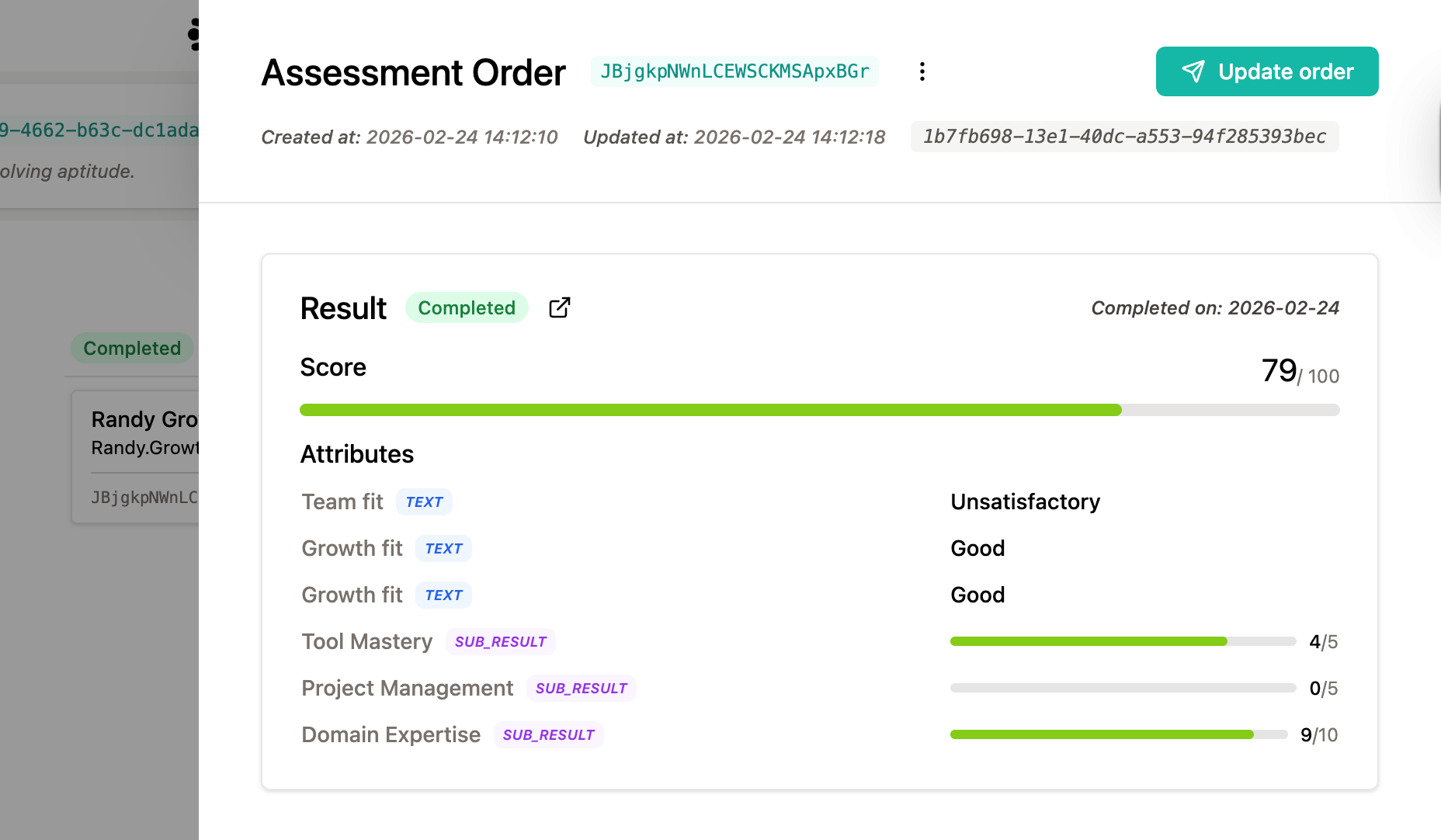
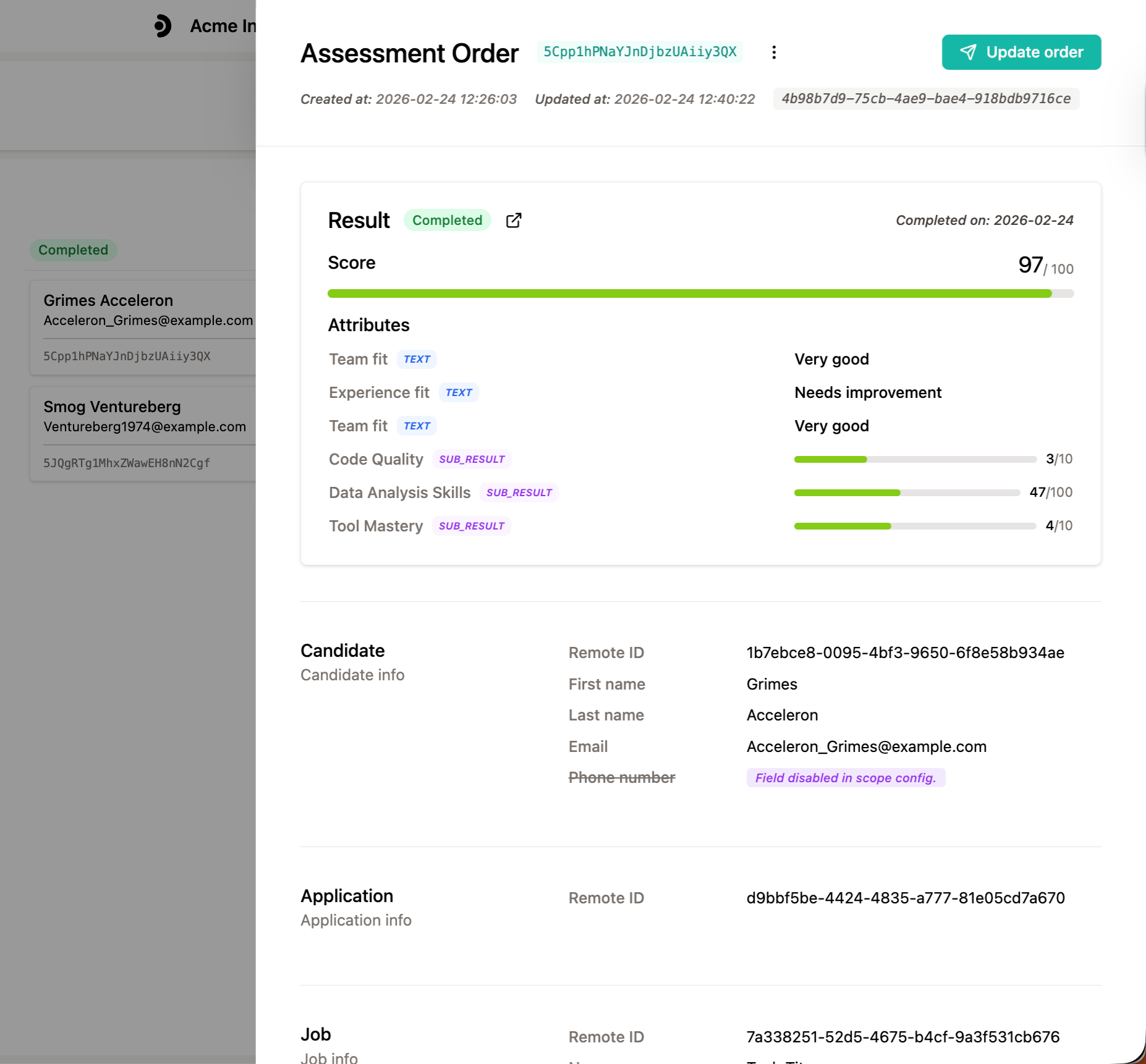
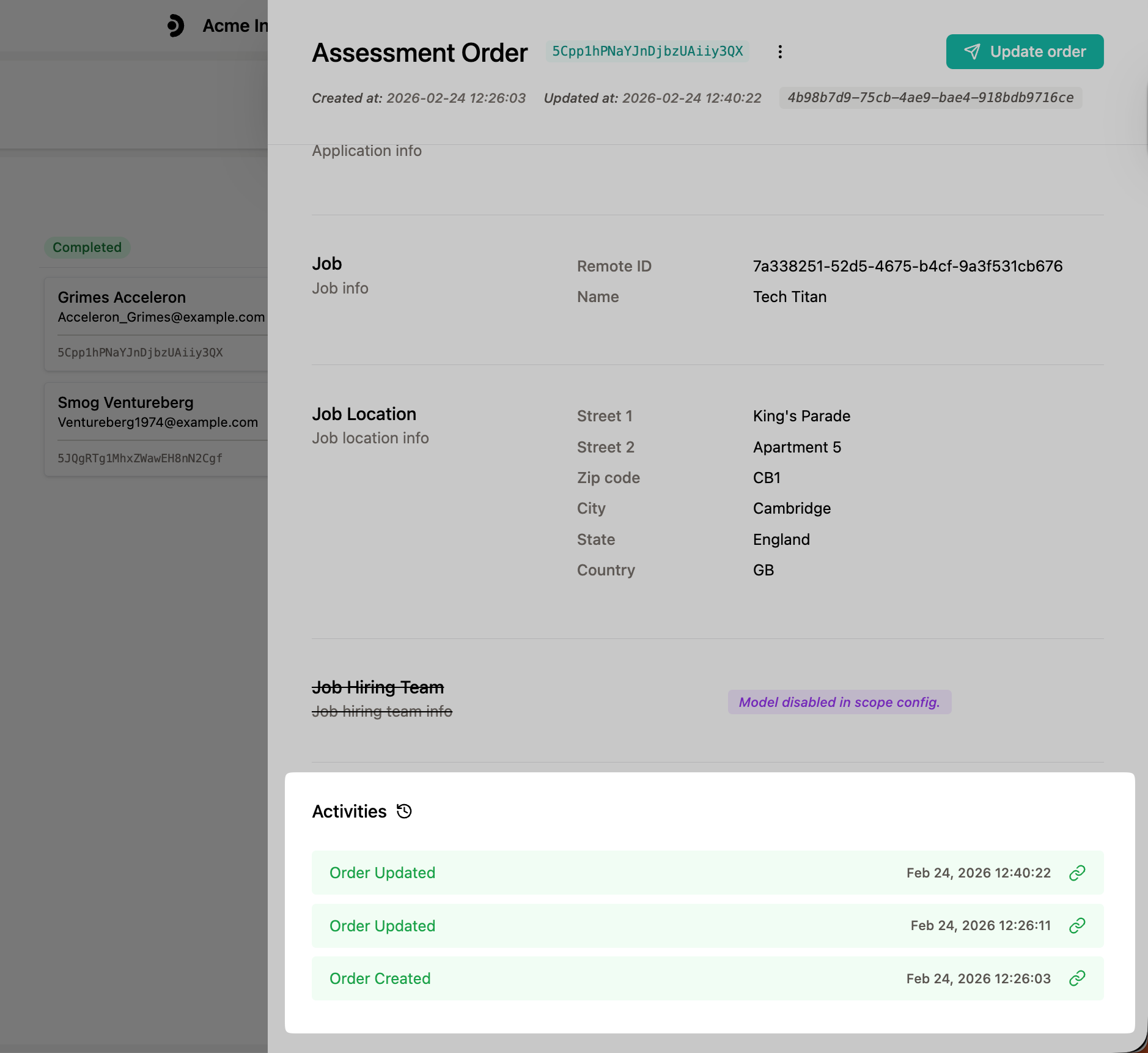
 Clicking an order opens a sliding drawer that contains the order's details
including the data points contained in the order, the coverage status of the
models and their data points, and the order's result.
Clicking an order opens a sliding drawer that contains the order's details
including the data points contained in the order, the coverage status of the
models and their data points, and the order's result.
 Each order displays an activity timeline showing all interactions (create
and update events). Each activity entry will link you to Kombo's
[Logs](/assessment/features/logs) page.
Each order displays an activity timeline showing all interactions (create
and update events). Each activity entry will link you to Kombo's
[Logs](/assessment/features/logs) page.
 Interaction logs are only stored for 30 days.
## Where to Find the Assessment UI
The Assessment UI is located within individual integration pages in the Kombo
dashboard:
1. **Go to Integrations**: Navigate to the [Integrations page](https://app.kombo.dev/integrations) in your dashboard.
2. **Select an Integration**: Click on any connected assessment integration.
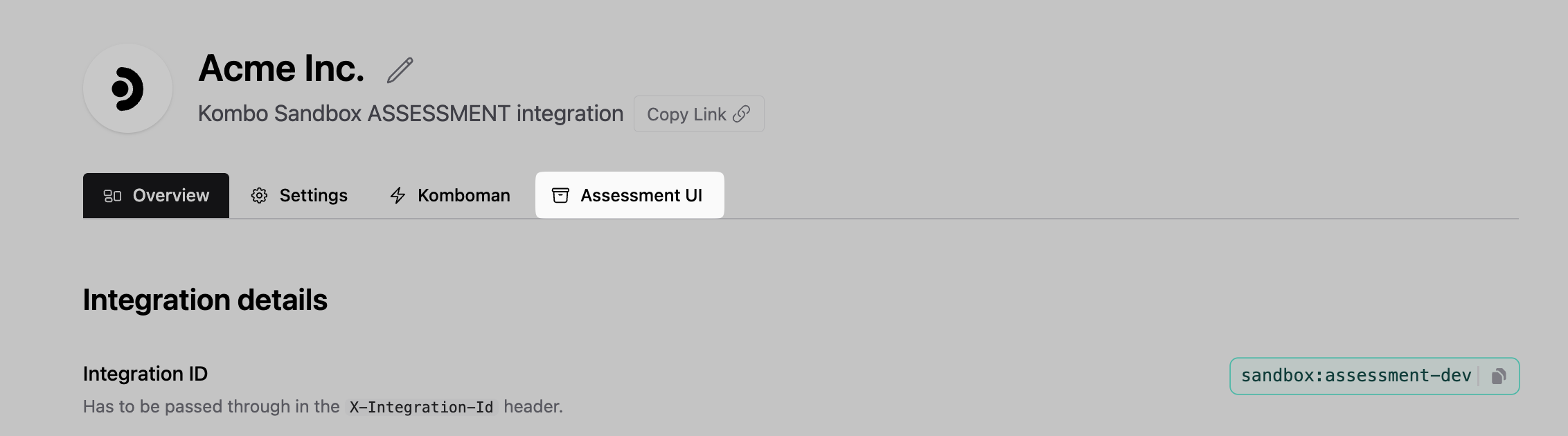
3. **Access Assessment UI**: Click the ***"Assessment UI"*** tab in the integration interface.
Interaction logs are only stored for 30 days.
## Where to Find the Assessment UI
The Assessment UI is located within individual integration pages in the Kombo
dashboard:
1. **Go to Integrations**: Navigate to the [Integrations page](https://app.kombo.dev/integrations) in your dashboard.
2. **Select an Integration**: Click on any connected assessment integration.
3. **Access Assessment UI**: Click the ***"Assessment UI"*** tab in the integration interface.
 # Sandbox Integration
The sandbox integration is built on top of the Assessment UI, and it aims to speed up your development by testing Kombo’s Assessment API end-to-end without needing access to a real ATS.
Use the Assessment Sandbox as your primary development environment to iterate
quickly and test the full lifecycle: creating packages, receiving orders via
webhooks, and submitting results.
### Development Flow
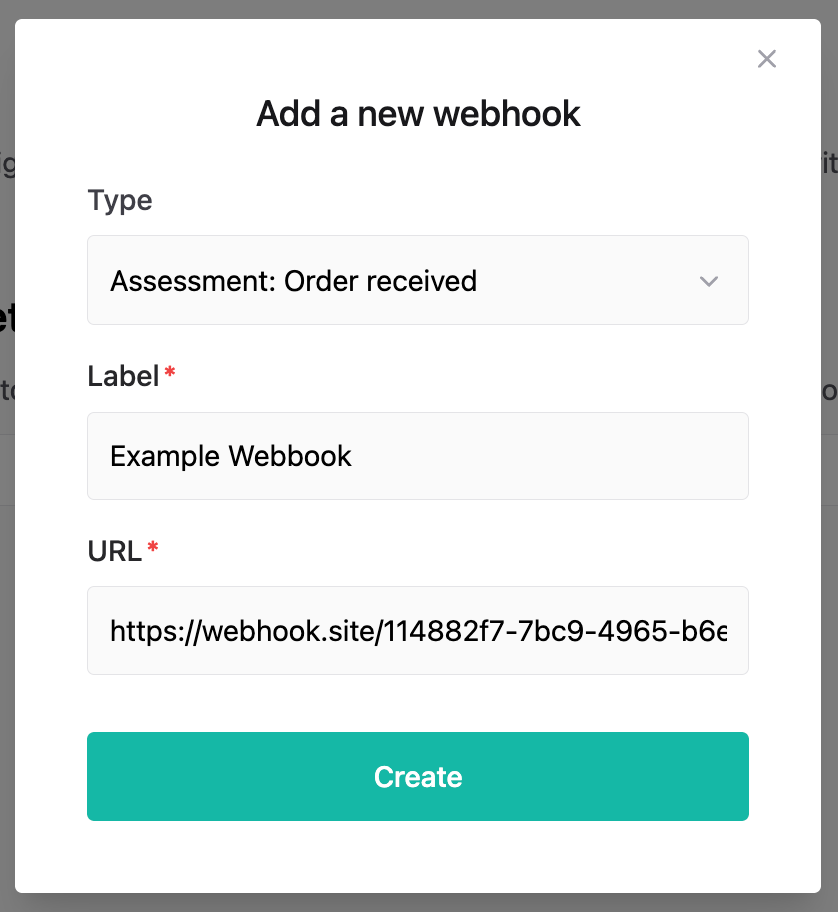
In the Kombo dashboard's [Configuration
page](https://app.kombo.dev/configuration/webhooks), create an [Assessment
Order Received](/assessment/guides/webhooks#assessment-order-received)
webhook configuration.
# Sandbox Integration
The sandbox integration is built on top of the Assessment UI, and it aims to speed up your development by testing Kombo’s Assessment API end-to-end without needing access to a real ATS.
Use the Assessment Sandbox as your primary development environment to iterate
quickly and test the full lifecycle: creating packages, receiving orders via
webhooks, and submitting results.
### Development Flow
In the Kombo dashboard's [Configuration
page](https://app.kombo.dev/configuration/webhooks), create an [Assessment
Order Received](/assessment/guides/webhooks#assessment-order-received)
webhook configuration.
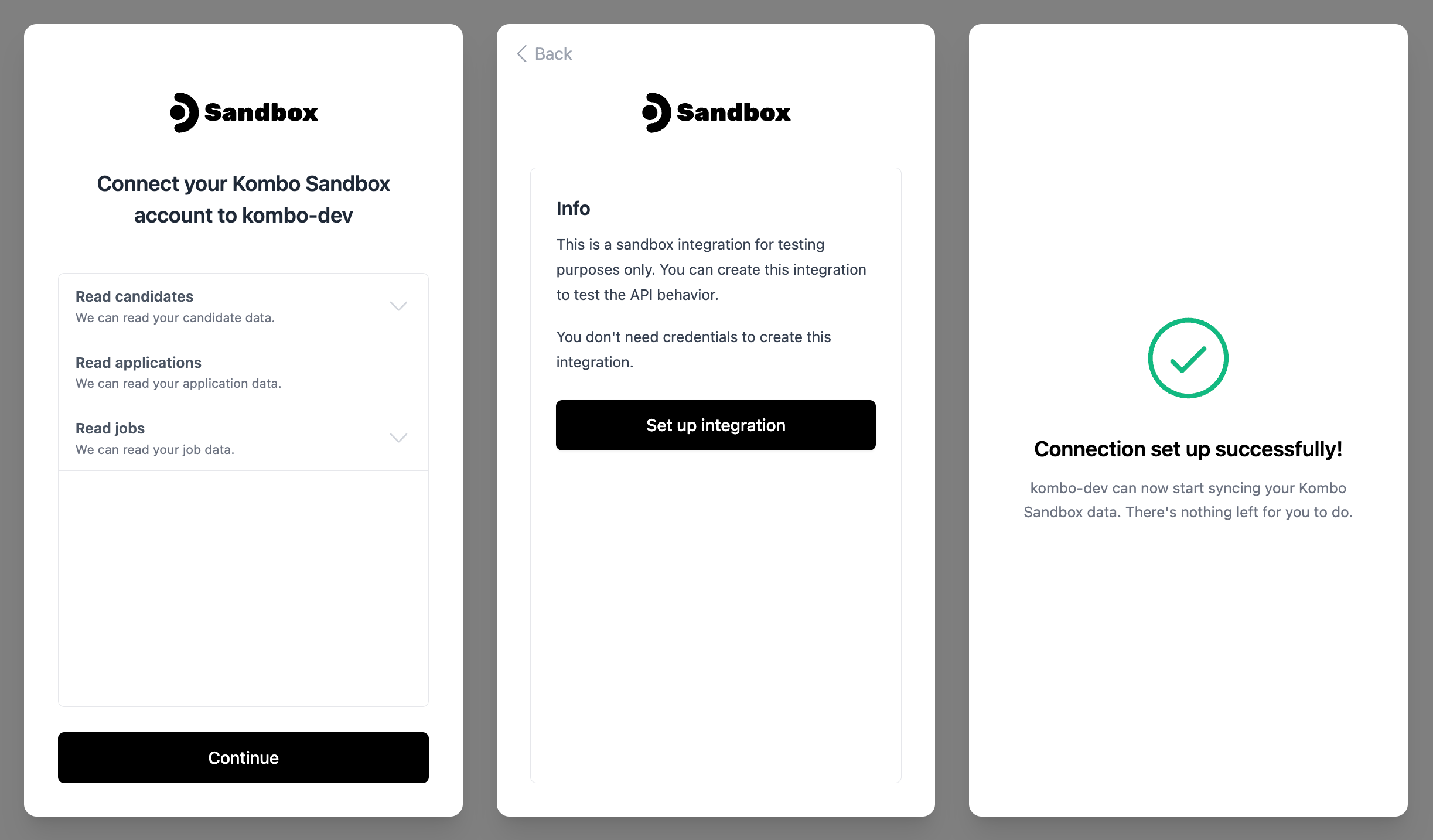
 Go to the [Kombo dashboard](https://app.kombo.dev/) (development
environment), create a new integration, and select the Assessment Sandbox.
Go to the [Kombo dashboard](https://app.kombo.dev/) (development
environment), create a new integration, and select the Assessment Sandbox.
 Click the ***"Add Package"*** button to open the package creation form.
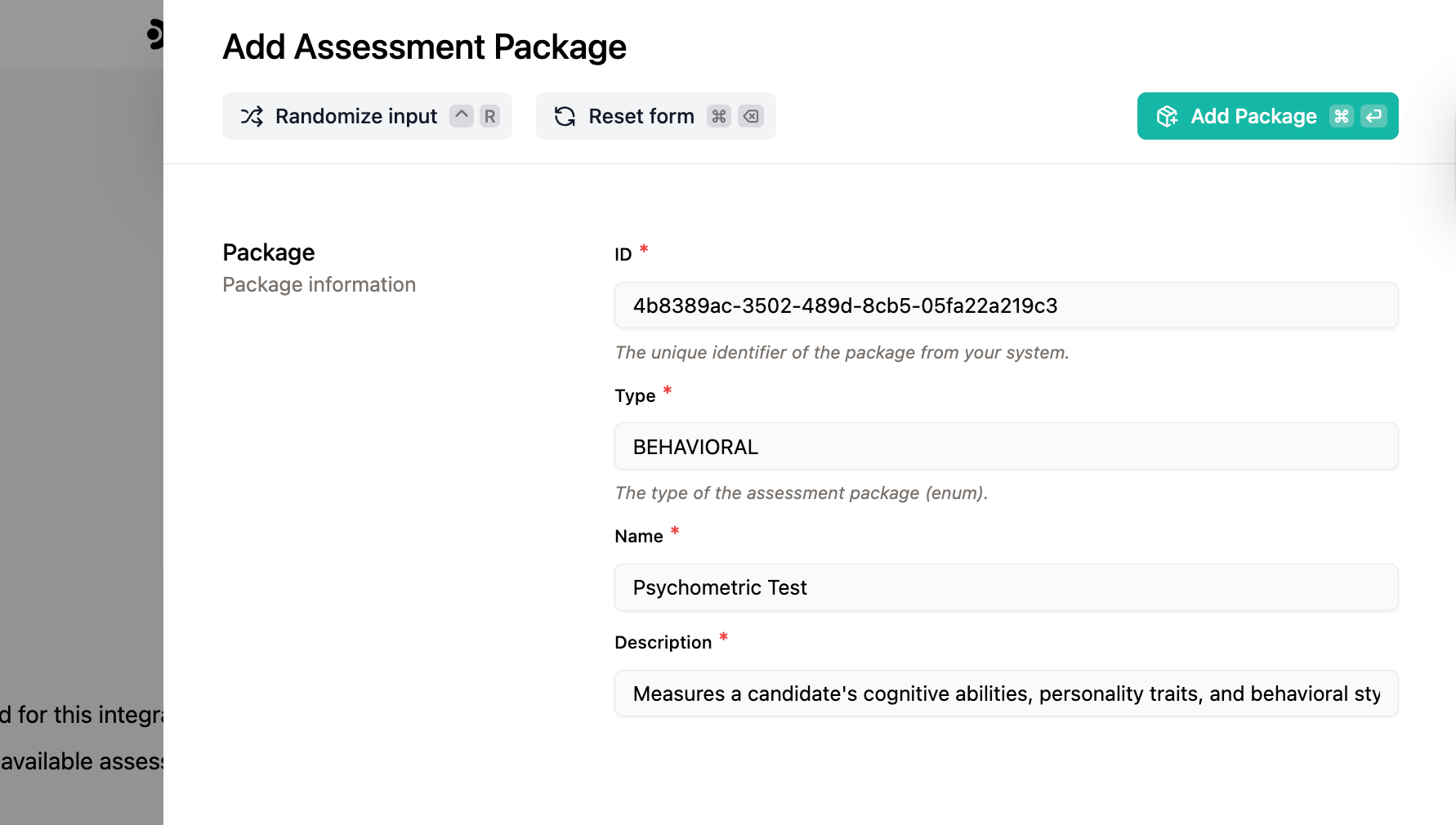 You can also create packages programmatically via the [Set
Packages](/assessment/v1/put-packages) endpoint. This is useful when you
want to automate your test setup.
Select a package, and click the ***"Create Order"*** button to open the
order form.
You can also create packages programmatically via the [Set
Packages](/assessment/v1/put-packages) endpoint. This is useful when you
want to automate your test setup.
Select a package, and click the ***"Create Order"*** button to open the
order form.
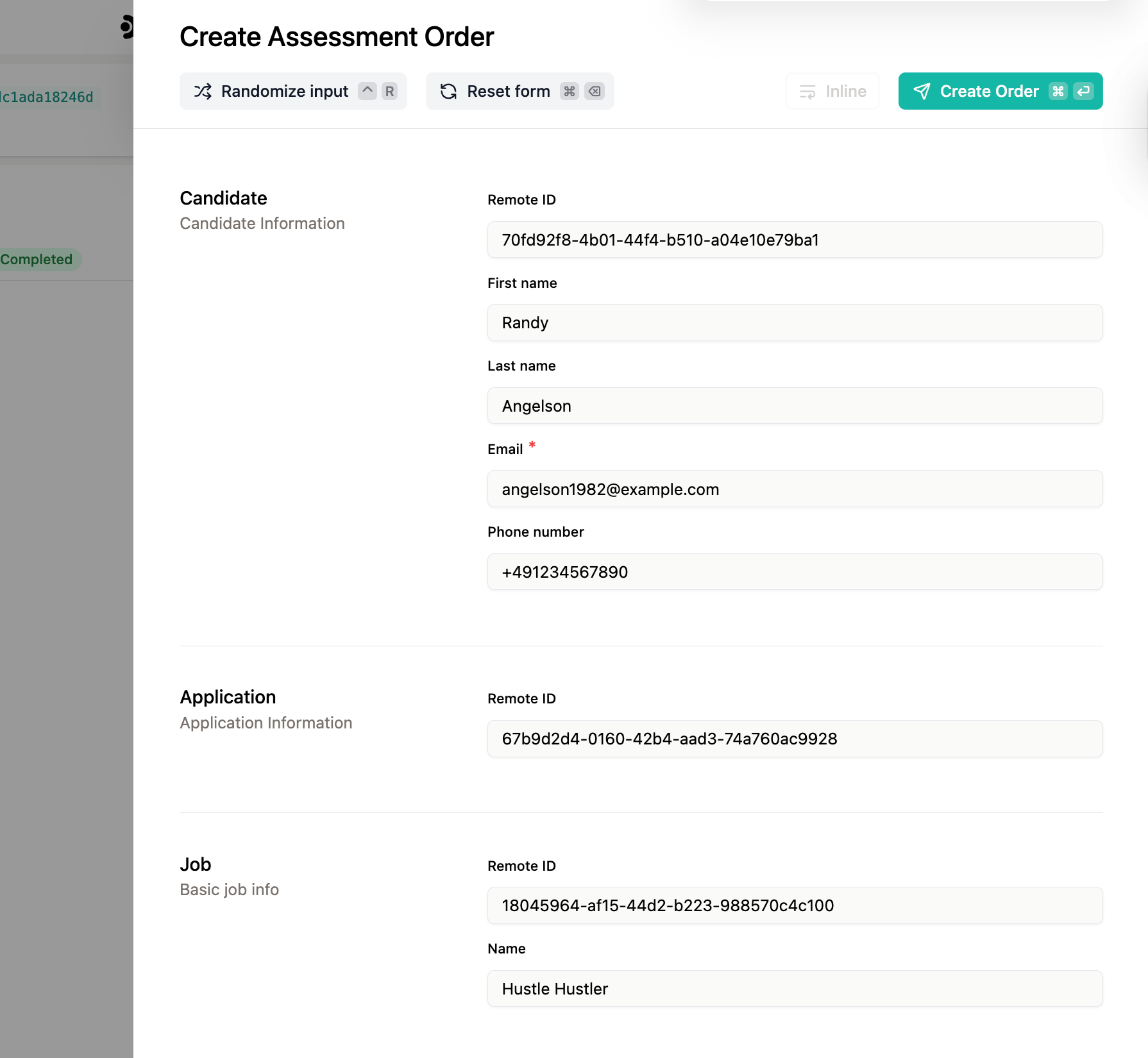 Creating an order triggers the [Assessment Order
Received](/assessment/guides/webhooks#assessment-order-received) webhook,
which you should have configured in the dashboard. This is the same webhook
you will receive from a real ATS integration, so you can develop your
webhook handler against it with confidence.
Once an order is triggered through the UI, your application should receive
the new order webhook, process the order, and call the [Update Order
Result](/assessment/v1/put-orders-assessment-order-id-result) endpoint to
submit the result.
After the result is submitted, open the order's details drawer to verify the
result looks correct.
Creating an order triggers the [Assessment Order
Received](/assessment/guides/webhooks#assessment-order-received) webhook,
which you should have configured in the dashboard. This is the same webhook
you will receive from a real ATS integration, so you can develop your
webhook handler against it with confidence.
Once an order is triggered through the UI, your application should receive
the new order webhook, process the order, and call the [Update Order
Result](/assessment/v1/put-orders-assessment-order-id-result) endpoint to
submit the result.
After the result is submitted, open the order's details drawer to verify the
result looks correct.